> ## Documentation Index
> Fetch the complete documentation index at: https://docs.pingtree.com/llms.txt
> Use this file to discover all available pages before exploring further.
# Click Routing Distribution Logic
> Overview of routing distribution methods in Pingtree and how to access them.
# Click Routing
## The Basics
In lead distribution, there are multiple ways a lead can travel from its origin to its final destination. **Click Distribution routing** defines the method by which leads will be redirected, which can be based on routing rules and/or filters set within the Click Setting of an Endpoint.
 ## Example Scenario
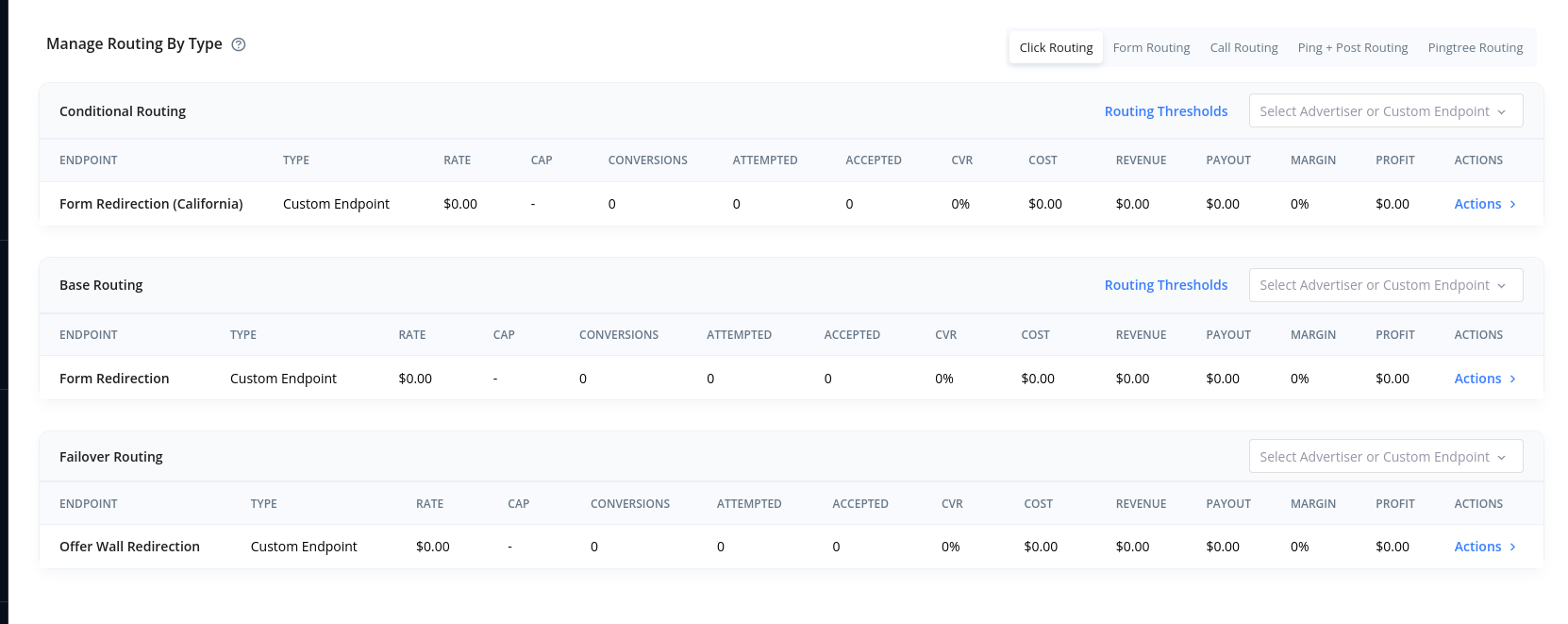
Imagine you need Lead A who lives in California to land on a specific form that's targeting California Audiences, and you have Lead B whom you aren't too focused on but do want to determine where that lead should be redirected to. You could:
* Create 2 Endpoints
* Endpoint A will have click setting mapped to a specific form url, and in the filter setting of the endpoint, you will geo restrict the endpoint to only allow leads that are from a certain geolocation (which can be determined by our software, or can be overridden by user values)
* Endpoint B will act as a failsafe and have an Offer Wall link set in its Click Routing
* You can now add Endpoint A to the Click Routing's Base Routing, and Endpoint B to the Click Routing's Failover Routing
This will allow the lead to now be redirected to the correct link depending on where they're located.
## Redirection
Pingtree supports source-based redirection through the sources tab within a Campaign. There are many settings and tabs which are documented in our Sources section. We're going to be focusing on the 'Tracking Link' tab.
### Tracking link
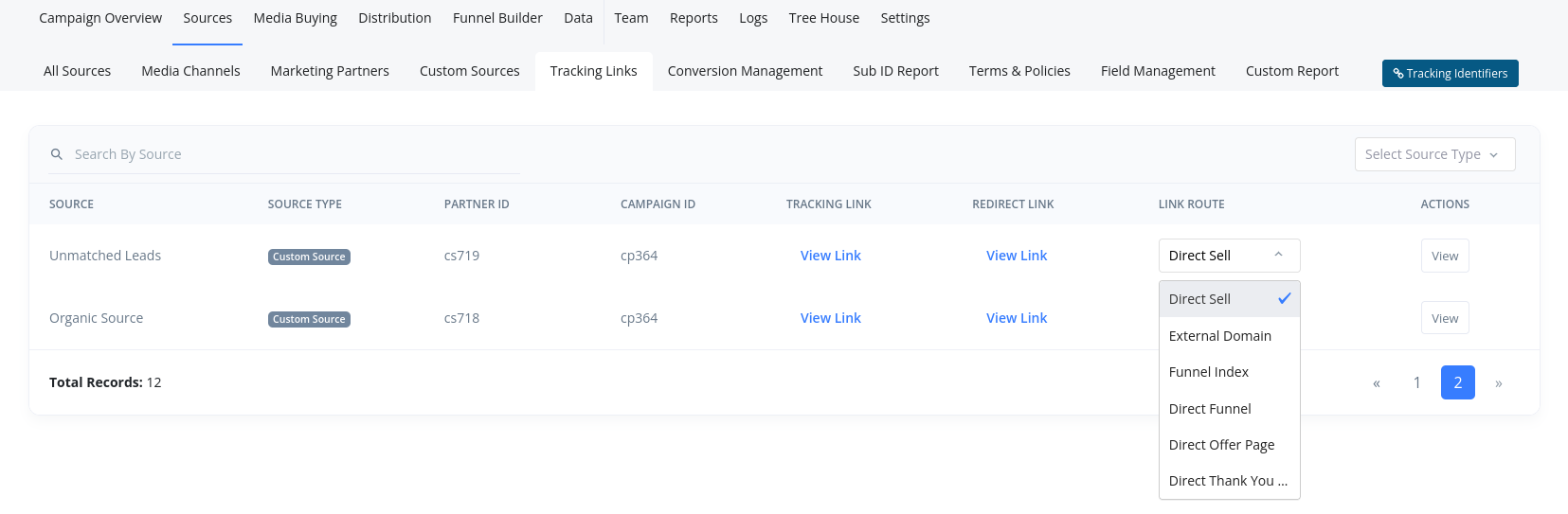
Within the Tracking Link tab of the source view, you will see all your sources listed and paginated if you have many sources (Media Channels, Marketing Partners, Custom Sources) within your account. Every source by default will be assigned the 'Direct Sell' type, which is the type that is required for Click Routing to function.
Now that the redirection type has been set, you can use your sources redirect link to now use the click routing distribution
## Example Scenario
Imagine you need Lead A who lives in California to land on a specific form that's targeting California Audiences, and you have Lead B whom you aren't too focused on but do want to determine where that lead should be redirected to. You could:
* Create 2 Endpoints
* Endpoint A will have click setting mapped to a specific form url, and in the filter setting of the endpoint, you will geo restrict the endpoint to only allow leads that are from a certain geolocation (which can be determined by our software, or can be overridden by user values)
* Endpoint B will act as a failsafe and have an Offer Wall link set in its Click Routing
* You can now add Endpoint A to the Click Routing's Base Routing, and Endpoint B to the Click Routing's Failover Routing
This will allow the lead to now be redirected to the correct link depending on where they're located.
## Redirection
Pingtree supports source-based redirection through the sources tab within a Campaign. There are many settings and tabs which are documented in our Sources section. We're going to be focusing on the 'Tracking Link' tab.
### Tracking link
Within the Tracking Link tab of the source view, you will see all your sources listed and paginated if you have many sources (Media Channels, Marketing Partners, Custom Sources) within your account. Every source by default will be assigned the 'Direct Sell' type, which is the type that is required for Click Routing to function.
Now that the redirection type has been set, you can use your sources redirect link to now use the click routing distribution
 ### Use Cases
These are common implementations for routing leads using eConsent logic and dynamic redirects:
* **Conditional Routing by State**\
Route a lead to a specific **Form** or **Offer Wall** based on their state (e.g., send CA leads to `formA`, all others to `wallB`).
* **Failover Logic**\
If a lead meets certain conditions (like matching TCPA criteria or scoring high on lead quality), route them to the **primary form**. Otherwise, redirect them to a **fallback destination** like an alternate offer or a "not eligible" page.
* **A/B Testing Forms & Offer Walls**\
Dynamically serve different **Form** or **Offer Wall** variations based on the lead’s source, allowing for performance optimization and conversion rate testing.
* **Cap-Based Testing**\
Limit the number of leads that are sent to a specific **Click Destination** using the `Caps & Hours Filter` found in the **Click Routing Filters** tab of the endpoint. This is ideal for traffic shaping, load testing, or pacing delivery.
## Troubleshooting
If you need to confirm whether a lead engaged with our **Click Routing**, you can inspect the activity via the **Data** tab of your campaign.
Look for the **Tracking Link** tab as shown in the screenshot below:
### Use Cases
These are common implementations for routing leads using eConsent logic and dynamic redirects:
* **Conditional Routing by State**\
Route a lead to a specific **Form** or **Offer Wall** based on their state (e.g., send CA leads to `formA`, all others to `wallB`).
* **Failover Logic**\
If a lead meets certain conditions (like matching TCPA criteria or scoring high on lead quality), route them to the **primary form**. Otherwise, redirect them to a **fallback destination** like an alternate offer or a "not eligible" page.
* **A/B Testing Forms & Offer Walls**\
Dynamically serve different **Form** or **Offer Wall** variations based on the lead’s source, allowing for performance optimization and conversion rate testing.
* **Cap-Based Testing**\
Limit the number of leads that are sent to a specific **Click Destination** using the `Caps & Hours Filter` found in the **Click Routing Filters** tab of the endpoint. This is ideal for traffic shaping, load testing, or pacing delivery.
## Troubleshooting
If you need to confirm whether a lead engaged with our **Click Routing**, you can inspect the activity via the **Data** tab of your campaign.
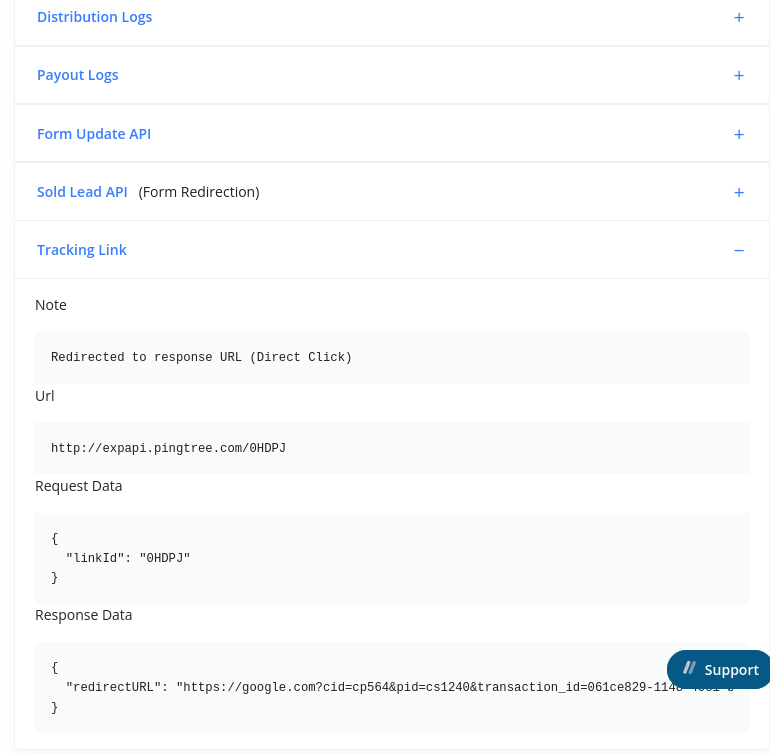
Look for the **Tracking Link** tab as shown in the screenshot below:
 > **Note**\
> The log entry will specify if the lead was redirected using the **Direct Click** method.
### Breakdown of Key Fields
* **Note**\
Indicates the routing method used (e.g., `Direct Click`).
* **URL**\
Displays the **referrer URL** that triggered the redirection.
* **Response**\
Contains the final URL that the lead was redirected to.
* **Advertiser**\
Identifies the click endpoint assigned to the lead—this is crucial when using **distribution-based routing**.
> **Note**\
> The log entry will specify if the lead was redirected using the **Direct Click** method.
### Breakdown of Key Fields
* **Note**\
Indicates the routing method used (e.g., `Direct Click`).
* **URL**\
Displays the **referrer URL** that triggered the redirection.
* **Response**\
Contains the final URL that the lead was redirected to.
* **Advertiser**\
Identifies the click endpoint assigned to the lead—this is crucial when using **distribution-based routing**.
