> ## Documentation Index
> Fetch the complete documentation index at: https://docs.pingtree.com/llms.txt
> Use this file to discover all available pages before exploring further.
# Ping+Post Routing
> A real-time lead auction system that pings multiple buyers, collects bids, and posts the lead to the highest bidder. Designed for dynamic lead distribution in verticals like insurance, finance, and education.
**Ping+Post Routing** is a real-time bidding system used to distribute leads across multiple buyers. It enables campaigns to ping eligible buyers, collect bids, and post the lead data to the highest (or best-matching) bidder for final acceptance—maximizing revenue and optimizing routing logic.
***
### How It Works
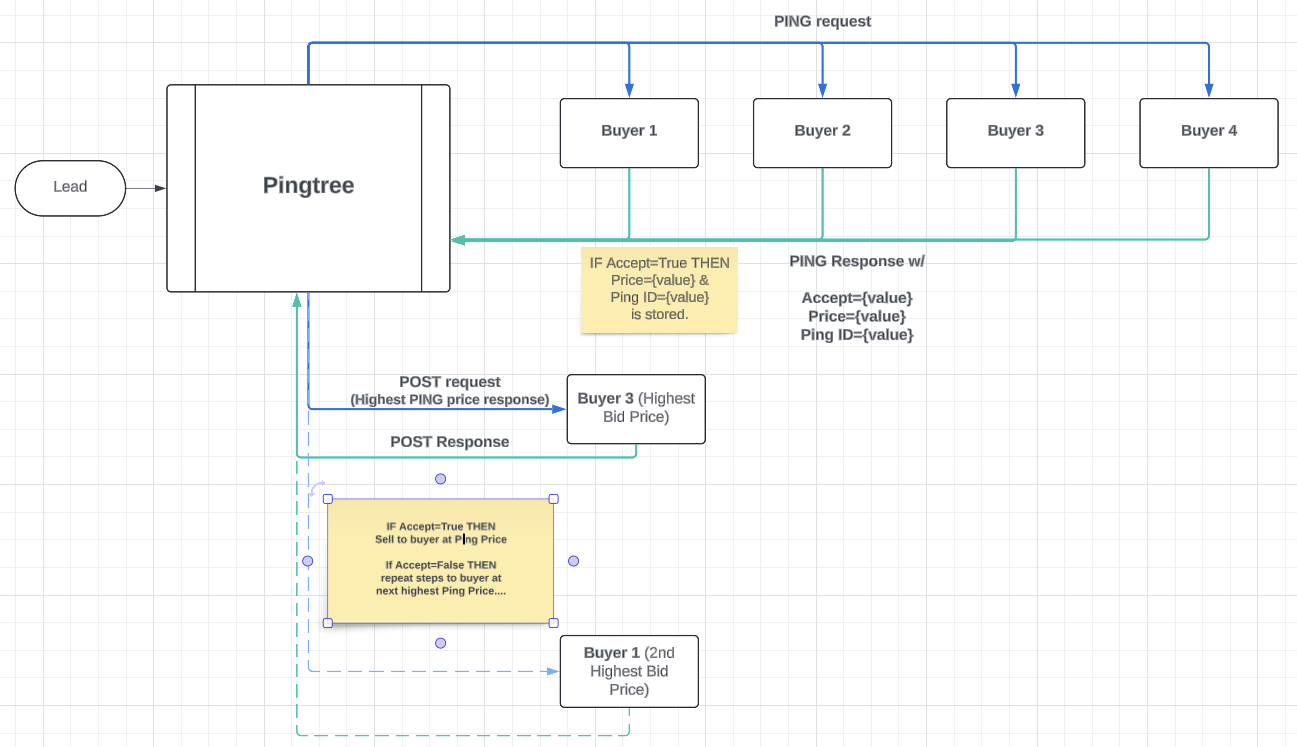 1. **Lead Submission**\
A visitor submits a form. Pingtree receives the full lead payload.
2. **Ping to Buyers**\
Pingtree sends a **Ping** request (HTTP GET or POST) to all eligible buyer endpoints simultaneously. This request includes partial lead data (e.g., zip code, age, product interest) based on mapping.
3. **Buyers Evaluate & Respond**\
Each buyer evaluates the lead and returns a Ping response with:
* Accept/Reject status
* Bid amount (price they're willing to pay)
* A unique Ping ID token (required for Post)
Only responses marked as “Accepted” are retained for routing.
4. **Select Highest Bidder**\
Pingtree sorts all accepted responses by bid value. The buyer with the highest bid is selected.
5. **Post to Winning Buyer**\
Pingtree sends a **Post** request (with full lead data and Ping ID) to the winning buyer. If accepted, the lead is sold. If rejected, Pingtree retries posting with the next highest bidder.
6. **Fallback Handling**\
If all posts fail, the lead is marked as unsold.
***
### Buyer Posting Specs
When integrating with a Ping+Post buyer, their API documentation should clarify:
* **Ping Endpoint URL** & required fields
* **Post Endpoint URL** & full data field set
* Authentication headers or static tokens
* Distinction between Ping and Post requests
* Expected Ping ID/token requirements
***
### Configuration & Setup
Follow these steps to configure a Ping+Post integration:
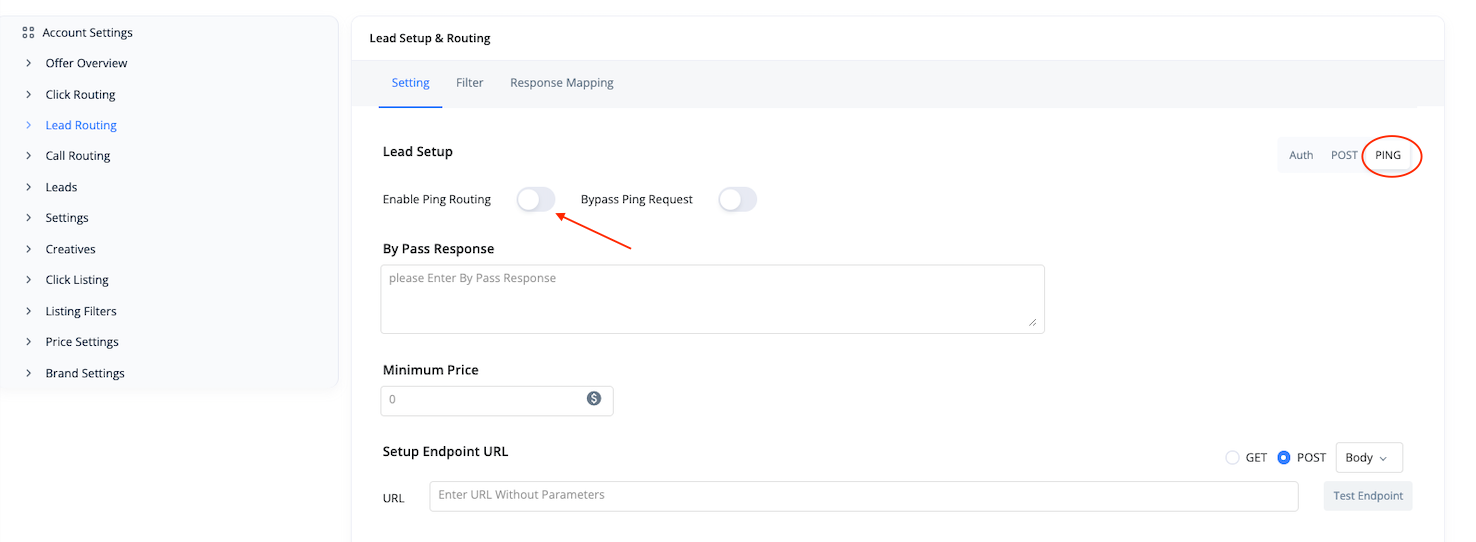
In the advertiser or custom endpoint’s Lead Routing section, enable **Ping+Post Routing** and switch to the **PING** tab.
• Input the Ping URL and method (GET or POST)\
• Map the necessary partial lead fields\
• Enable "Bypass Ping" if this buyer should only be used for direct Post scenarios
1. **Lead Submission**\
A visitor submits a form. Pingtree receives the full lead payload.
2. **Ping to Buyers**\
Pingtree sends a **Ping** request (HTTP GET or POST) to all eligible buyer endpoints simultaneously. This request includes partial lead data (e.g., zip code, age, product interest) based on mapping.
3. **Buyers Evaluate & Respond**\
Each buyer evaluates the lead and returns a Ping response with:
* Accept/Reject status
* Bid amount (price they're willing to pay)
* A unique Ping ID token (required for Post)
Only responses marked as “Accepted” are retained for routing.
4. **Select Highest Bidder**\
Pingtree sorts all accepted responses by bid value. The buyer with the highest bid is selected.
5. **Post to Winning Buyer**\
Pingtree sends a **Post** request (with full lead data and Ping ID) to the winning buyer. If accepted, the lead is sold. If rejected, Pingtree retries posting with the next highest bidder.
6. **Fallback Handling**\
If all posts fail, the lead is marked as unsold.
***
### Buyer Posting Specs
When integrating with a Ping+Post buyer, their API documentation should clarify:
* **Ping Endpoint URL** & required fields
* **Post Endpoint URL** & full data field set
* Authentication headers or static tokens
* Distinction between Ping and Post requests
* Expected Ping ID/token requirements
***
### Configuration & Setup
Follow these steps to configure a Ping+Post integration:
In the advertiser or custom endpoint’s Lead Routing section, enable **Ping+Post Routing** and switch to the **PING** tab.
• Input the Ping URL and method (GET or POST)\
• Map the necessary partial lead fields\
• Enable "Bypass Ping" if this buyer should only be used for direct Post scenarios
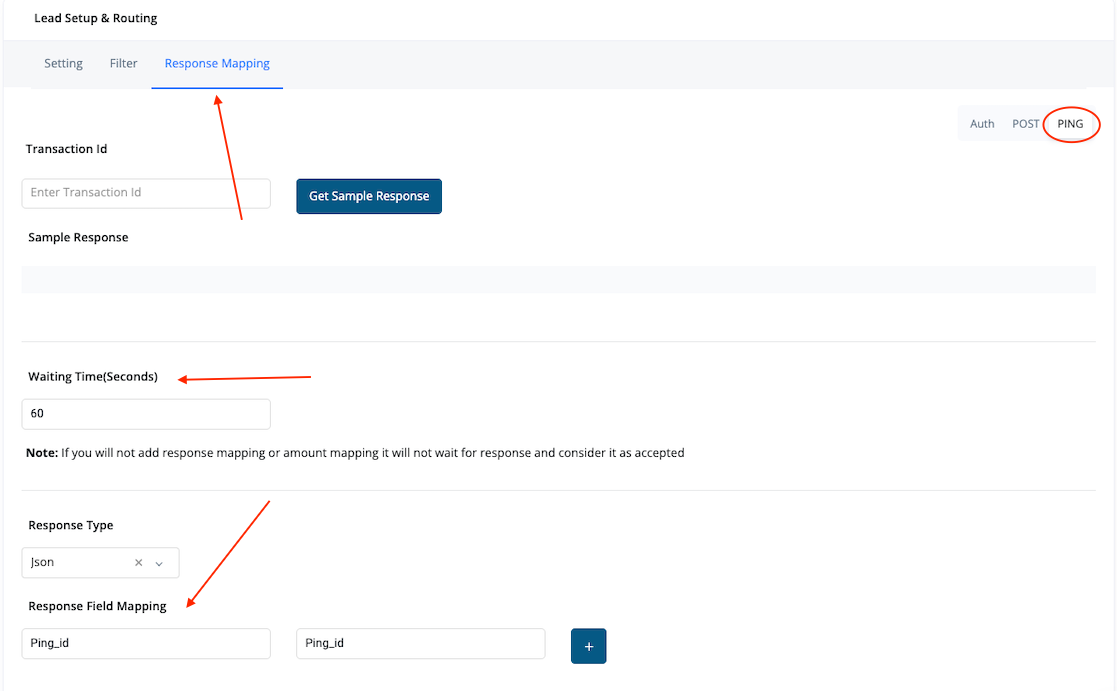
 • Set Ping Timeout (max wait time per buyer)\
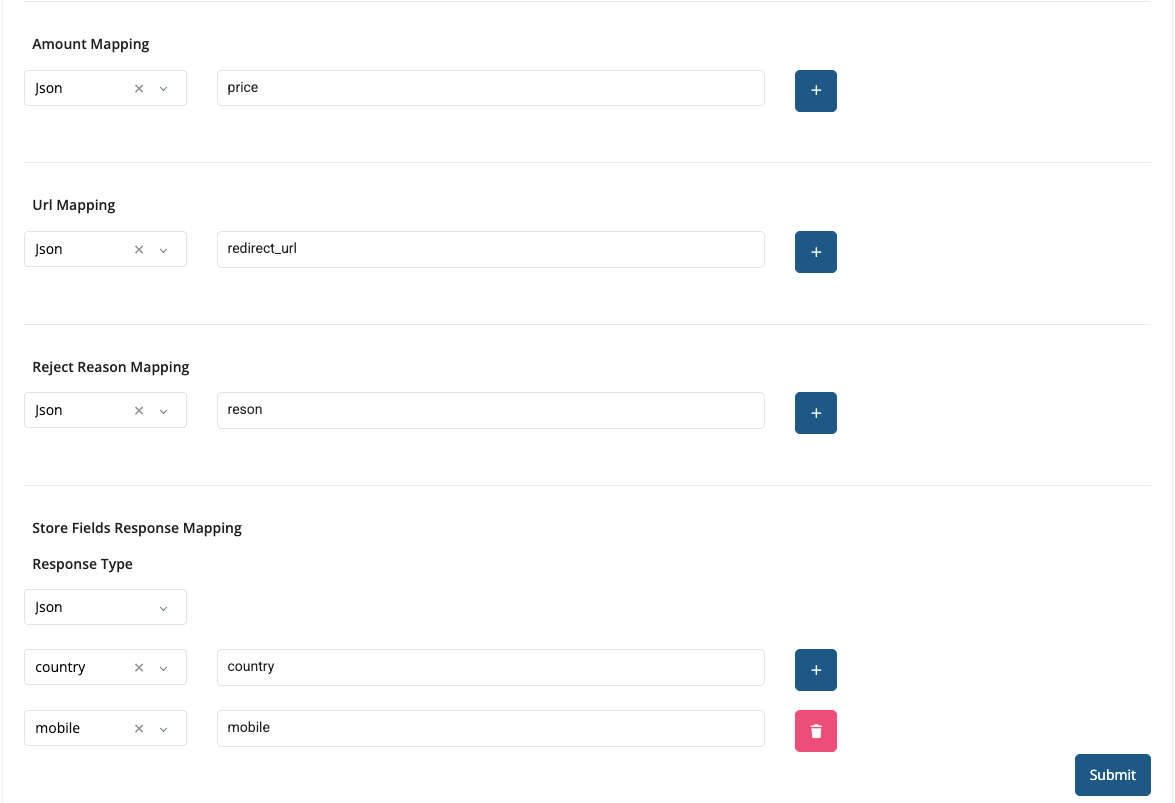
• Map **Ping ID**, **Accept/Reject flag**, and **Bid Amount**\
• Optionally map **Reject Reason** and other logging fields\
• Use "Store Fields From Buyer Response" to auto-populate lead fields based on buyer data
• Set Ping Timeout (max wait time per buyer)\
• Map **Ping ID**, **Accept/Reject flag**, and **Bid Amount**\
• Optionally map **Reject Reason** and other logging fields\
• Use "Store Fields From Buyer Response" to auto-populate lead fields based on buyer data
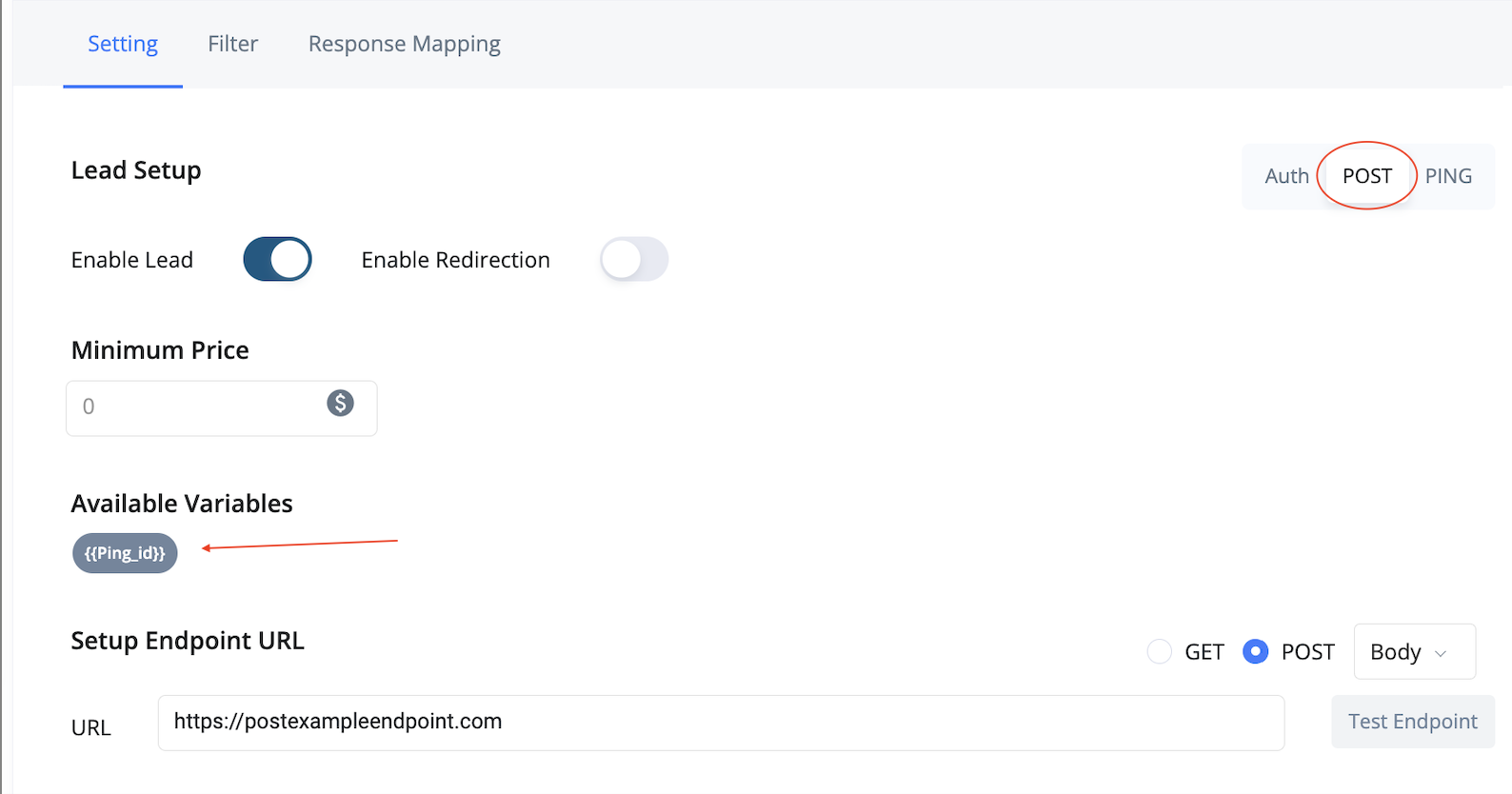
 • Switch to the **POST** tab\
• Enter the Post endpoint and map full lead fields\
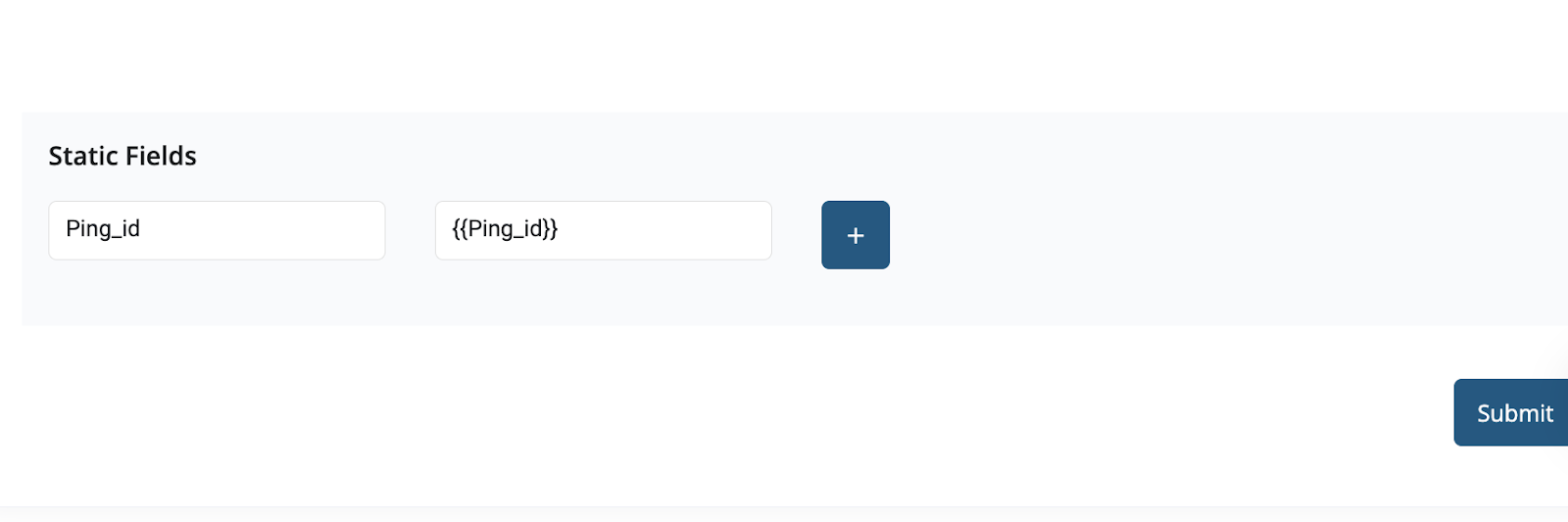
• Use `{{ping_id}}` or other stored response values in static fields as required by the buyer\
• Map response logic to confirm lead acceptance or rejection
• Switch to the **POST** tab\
• Enter the Post endpoint and map full lead fields\
• Use `{{ping_id}}` or other stored response values in static fields as required by the buyer\
• Map response logic to confirm lead acceptance or rejection
 • Use “Test Endpoint” to send sample Ping/Post requests\
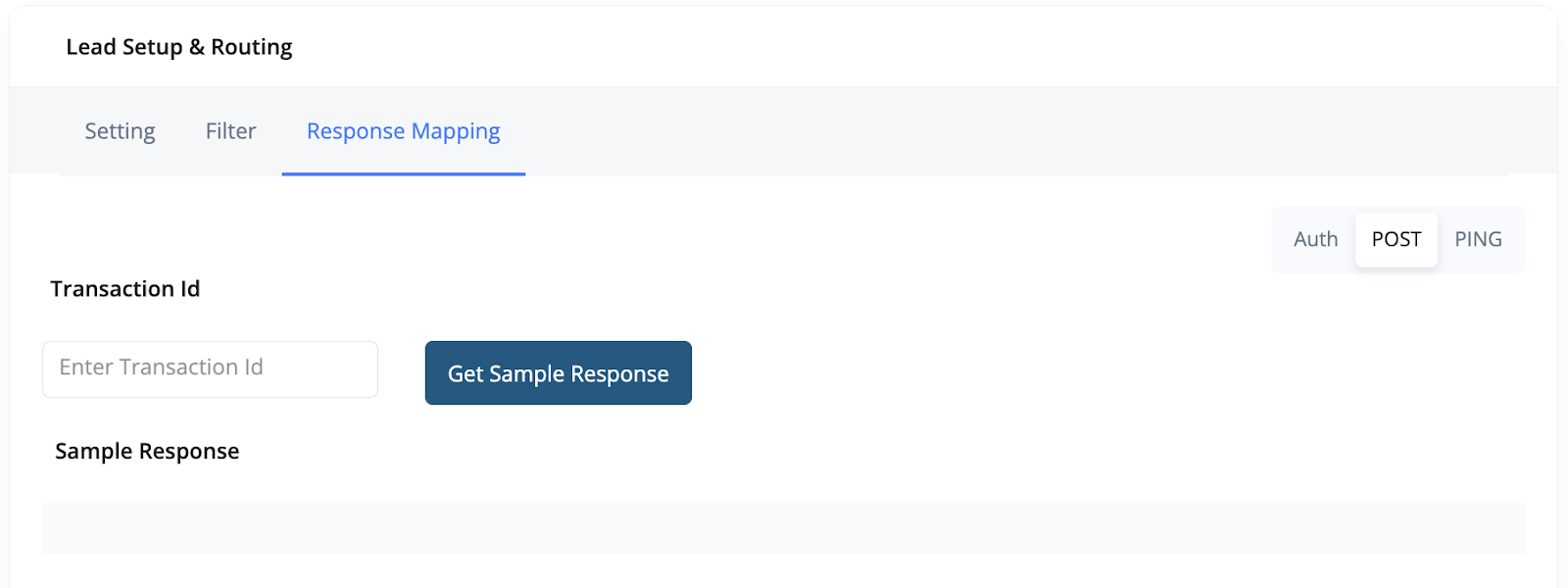
• Use “Get Sample Response” with a valid `transaction_id` to test mapping\
• Confirm bid handling, Ping ID tracking, and endpoint response structure
• Use “Test Endpoint” to send sample Ping/Post requests\
• Use “Get Sample Response” with a valid `transaction_id` to test mapping\
• Confirm bid handling, Ping ID tracking, and endpoint response structure
 ***
### Routing Logic Setup
***
### Routing Logic Setup
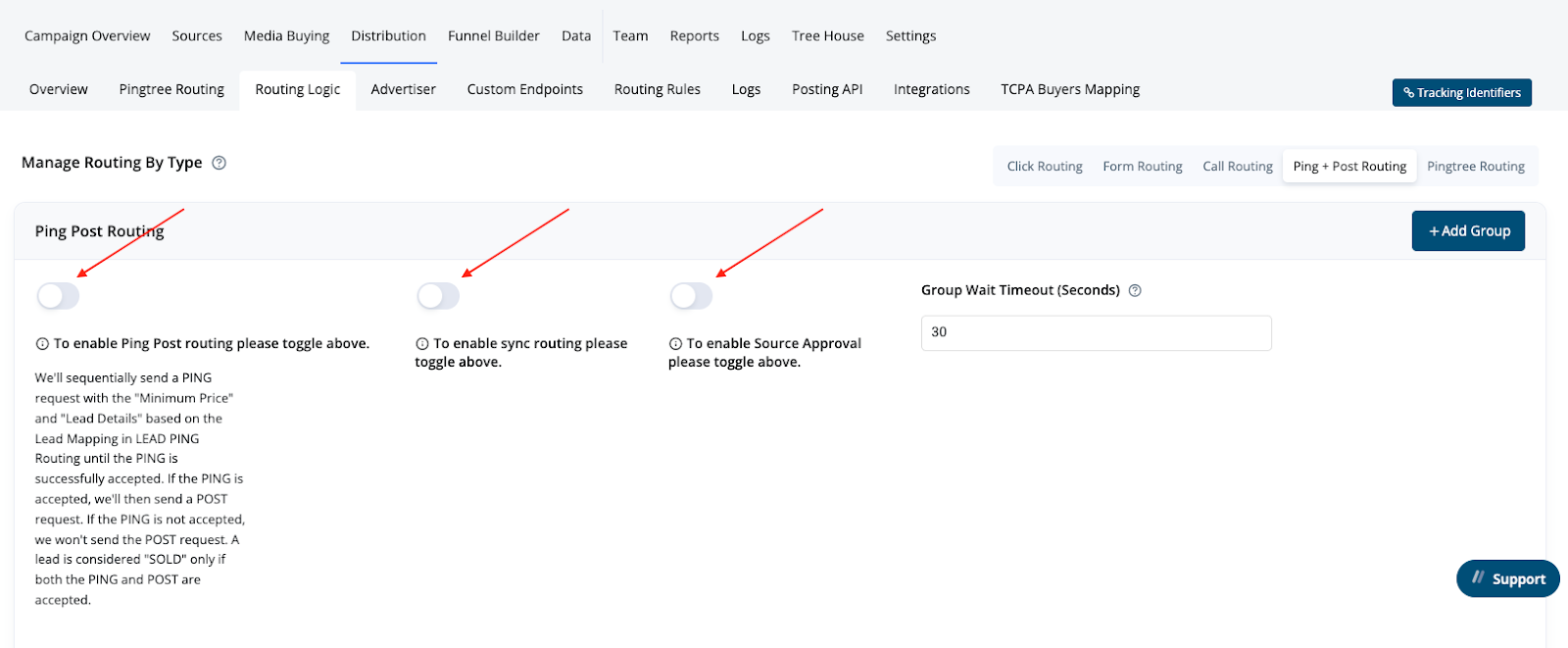 Configure your Ping+Post logic under **Distribution > Routing Logic > Ping+Post Tab**:
* **Enable Ping+Post Routing**: Activates Ping+Post logic, overriding default routing.
* **Async Toggle**: Sends Ping requests to all buyers at once, waits for responses, and picks the highest bidder (recommended).
* **Sync Flow**: Sends Ping requests sequentially. Stops at first qualified bid that meets minimum price and proceeds to Post.
* **Group Wait Time**: In Async, sets how long Pingtree waits for all buyers in a group to respond.
* **Add Groups**: Organize buyers into tiers or categories. If all buyers in one group fail, Pingtree moves to the next group.
* **Source Approval Flow**: If enabled, Pingtree returns the bid to the source via API. The source then triggers the Post using the Lead ID.
***
### Revenue Attribution
Revenue is captured from the **Bid Amount** returned in the Ping response. Even if a buyer also returns a value in the Post, Pingtree prioritizes the Ping value for billing and reporting.
***
### Example: Ping+Post Lifecycle Summary
1. A form submission generates a lead.
2. Pingtree sends Pings to five buyers.
3. Three buyers respond:
* Buyer A: Accept - \$45, Ping ID: abc123
* Buyer B: Reject
* Buyer C: Accept - \$42, Ping ID: xyz789
4. Buyer A wins (highest bid).
5. Pingtree posts the full lead + `abc123` Ping ID to Buyer A.
6. Buyer A accepts → lead is sold, revenue = \$45.
***
### Best Practices
* Validate mappings using the "Get Sample Response" tester.
* Always verify Ping ID logic with the buyer’s dev team.
* Use Async routing to increase chances of highest bid.
* Store buyer responses when possible for debugging or redirection needs.
* Separate Ping and Post logic clearly in documentation and configs.
***
Configure your Ping+Post logic under **Distribution > Routing Logic > Ping+Post Tab**:
* **Enable Ping+Post Routing**: Activates Ping+Post logic, overriding default routing.
* **Async Toggle**: Sends Ping requests to all buyers at once, waits for responses, and picks the highest bidder (recommended).
* **Sync Flow**: Sends Ping requests sequentially. Stops at first qualified bid that meets minimum price and proceeds to Post.
* **Group Wait Time**: In Async, sets how long Pingtree waits for all buyers in a group to respond.
* **Add Groups**: Organize buyers into tiers or categories. If all buyers in one group fail, Pingtree moves to the next group.
* **Source Approval Flow**: If enabled, Pingtree returns the bid to the source via API. The source then triggers the Post using the Lead ID.
***
### Revenue Attribution
Revenue is captured from the **Bid Amount** returned in the Ping response. Even if a buyer also returns a value in the Post, Pingtree prioritizes the Ping value for billing and reporting.
***
### Example: Ping+Post Lifecycle Summary
1. A form submission generates a lead.
2. Pingtree sends Pings to five buyers.
3. Three buyers respond:
* Buyer A: Accept - \$45, Ping ID: abc123
* Buyer B: Reject
* Buyer C: Accept - \$42, Ping ID: xyz789
4. Buyer A wins (highest bid).
5. Pingtree posts the full lead + `abc123` Ping ID to Buyer A.
6. Buyer A accepts → lead is sold, revenue = \$45.
***
### Best Practices
* Validate mappings using the "Get Sample Response" tester.
* Always verify Ping ID logic with the buyer’s dev team.
* Use Async routing to increase chances of highest bid.
* Store buyer responses when possible for debugging or redirection needs.
* Separate Ping and Post logic clearly in documentation and configs.
***