> ## Documentation Index
> Fetch the complete documentation index at: https://docs.pingtree.com/llms.txt
> Use this file to discover all available pages before exploring further.
# Manage Campaigns
> View, organize, and manage all your campaigns from a centralized list with filtering, search, and quick actions.
## Overview
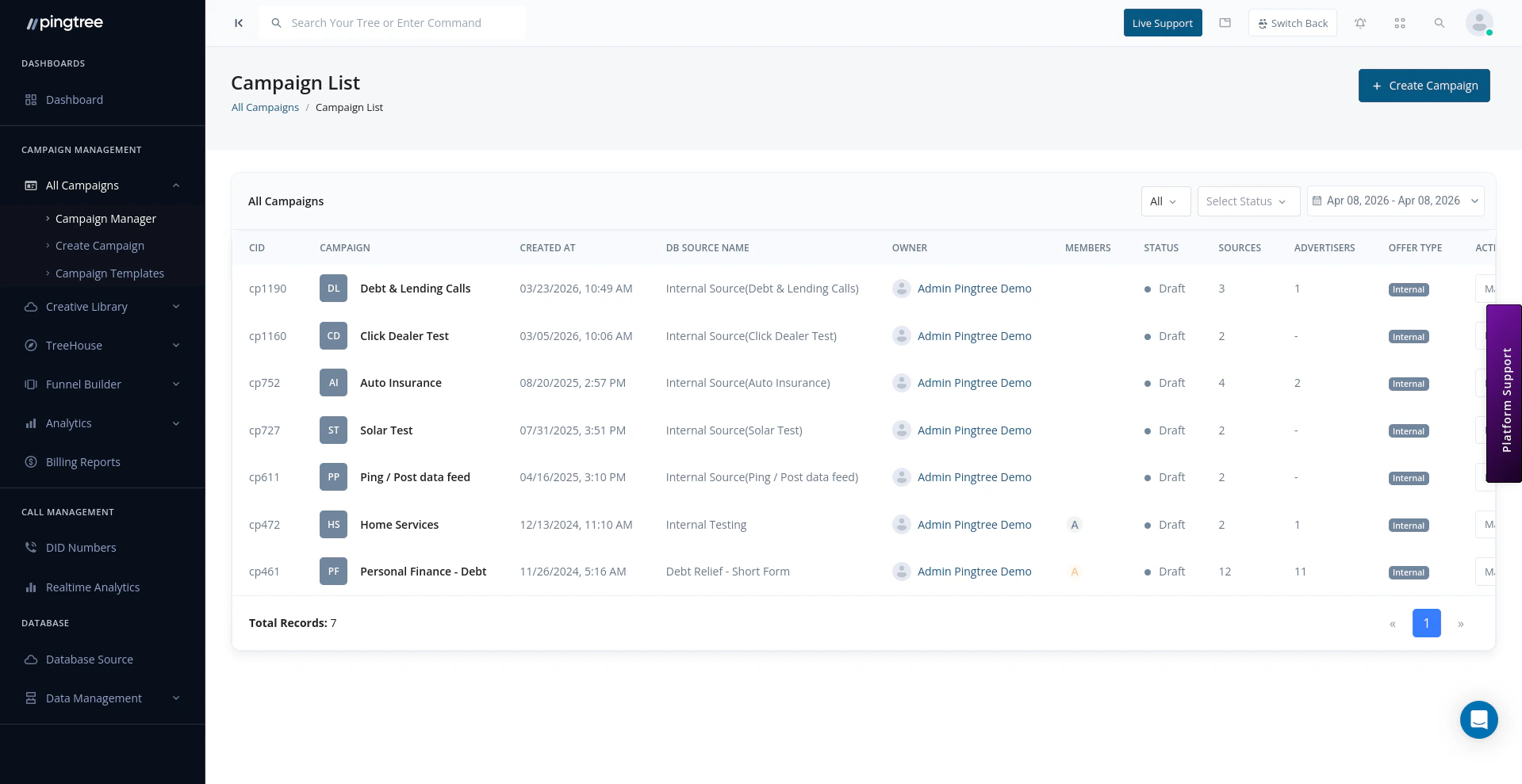
The **Manage Campaigns** page is your central hub for all campaigns in your Pingtree organization. From here you can search, filter, and take actions on any campaign without needing to open it individually.
 ***
## Campaign List Table
Each row in the table represents a single campaign. The following columns are shown by default:
| Column | Description |
| ---------------- | ------------------------------------------------------- |
| **Name** | The campaign's display name |
| **Campaign ID** | Unique identifier in the format `cpXXX` (e.g., `cp100`) |
| **Status** | Active or Inactive |
| **Owner** | The user who owns the campaign |
| **Category** | The category the campaign is grouped under (if set) |
| **Created Date** | Date the campaign was created |
***
## Searching and Filtering
Use the toolbar at the top of the list to narrow down campaigns:
* **Search bar** — Search by campaign name or Campaign ID.
* **Campaign Type filter** — Filter by lead generation type (e.g., form, click, ping-post).
* **Status filter** — Show only Active or Inactive campaigns.
* **Date Range filter** — Filter campaigns by their creation date.
* **Category filter** — Show campaigns belonging to a specific category.
> **Tip:** Combining filters is a fast way to find campaigns in large organizations. For example, filter by Status = Active and Category = "Insurance" to see all live insurance campaigns at once.
***
## Campaign Actions
Each row in the table has an actions menu (accessible via the three-dot icon or inline buttons). Available actions include:
| Action | Description |
| ------------------------- | ------------------------------------------------------------------------ |
| **Edit** | Open the campaign settings to update name, description, or configuration |
| **Duplicate** | Create a copy of the campaign with all its settings pre-filled |
| **View Reports** | Jump directly to the campaign's reports section |
| **Manage Routing** | Navigate to the distribution and routing configuration |
| **Activate / Deactivate** | Toggle the campaign's live status on or off |
| **Transfer Ownership** | Assign the campaign to a different team member |
| **Manage Team** | Add or remove users who have access to this campaign |
***
## Campaign Categories
Categories help you organize campaigns by vertical, brand, or any grouping that makes sense for your team.
* Categories can be created from the campaign list page or within campaign settings.
* A campaign can belong to one category at a time.
* Filter the list by category to quickly surface related campaigns.
***
## Transferring Campaign Ownership
If a campaign manager leaves the team or responsibilities shift, you can transfer ownership to another user.
1. Open the actions menu for the campaign.
2. Select **Transfer Ownership**.
3. Choose the new owner from the user list.
4. Confirm the transfer.
> **Note:** Only admins and the current campaign owner can initiate an ownership transfer.
***
## Adding Team Members to a Campaign
Campaign access can be scoped to specific users, so only the right people see the right campaigns.
1. Open the actions menu for the campaign.
2. Select **Manage Team**.
3. Search for the user you want to add.
4. Select their role level and confirm.
Role-based permissions apply — a user with View Only access will be able to see campaign data but not make any changes.
***
## Campaign Status
| Status | Meaning |
| ------------ | -------------------------------------------------- |
| **Active** | The campaign is live and accepting traffic |
| **Inactive** | The campaign is paused; no leads will be processed |
Toggle status from the actions menu at any time. Changes take effect immediately.
***
## Campaign List Table
Each row in the table represents a single campaign. The following columns are shown by default:
| Column | Description |
| ---------------- | ------------------------------------------------------- |
| **Name** | The campaign's display name |
| **Campaign ID** | Unique identifier in the format `cpXXX` (e.g., `cp100`) |
| **Status** | Active or Inactive |
| **Owner** | The user who owns the campaign |
| **Category** | The category the campaign is grouped under (if set) |
| **Created Date** | Date the campaign was created |
***
## Searching and Filtering
Use the toolbar at the top of the list to narrow down campaigns:
* **Search bar** — Search by campaign name or Campaign ID.
* **Campaign Type filter** — Filter by lead generation type (e.g., form, click, ping-post).
* **Status filter** — Show only Active or Inactive campaigns.
* **Date Range filter** — Filter campaigns by their creation date.
* **Category filter** — Show campaigns belonging to a specific category.
> **Tip:** Combining filters is a fast way to find campaigns in large organizations. For example, filter by Status = Active and Category = "Insurance" to see all live insurance campaigns at once.
***
## Campaign Actions
Each row in the table has an actions menu (accessible via the three-dot icon or inline buttons). Available actions include:
| Action | Description |
| ------------------------- | ------------------------------------------------------------------------ |
| **Edit** | Open the campaign settings to update name, description, or configuration |
| **Duplicate** | Create a copy of the campaign with all its settings pre-filled |
| **View Reports** | Jump directly to the campaign's reports section |
| **Manage Routing** | Navigate to the distribution and routing configuration |
| **Activate / Deactivate** | Toggle the campaign's live status on or off |
| **Transfer Ownership** | Assign the campaign to a different team member |
| **Manage Team** | Add or remove users who have access to this campaign |
***
## Campaign Categories
Categories help you organize campaigns by vertical, brand, or any grouping that makes sense for your team.
* Categories can be created from the campaign list page or within campaign settings.
* A campaign can belong to one category at a time.
* Filter the list by category to quickly surface related campaigns.
***
## Transferring Campaign Ownership
If a campaign manager leaves the team or responsibilities shift, you can transfer ownership to another user.
1. Open the actions menu for the campaign.
2. Select **Transfer Ownership**.
3. Choose the new owner from the user list.
4. Confirm the transfer.
> **Note:** Only admins and the current campaign owner can initiate an ownership transfer.
***
## Adding Team Members to a Campaign
Campaign access can be scoped to specific users, so only the right people see the right campaigns.
1. Open the actions menu for the campaign.
2. Select **Manage Team**.
3. Search for the user you want to add.
4. Select their role level and confirm.
Role-based permissions apply — a user with View Only access will be able to see campaign data but not make any changes.
***
## Campaign Status
| Status | Meaning |
| ------------ | -------------------------------------------------- |
| **Active** | The campaign is live and accepting traffic |
| **Inactive** | The campaign is paused; no leads will be processed |
Toggle status from the actions menu at any time. Changes take effect immediately.