> ## Documentation Index
> Fetch the complete documentation index at: https://docs.pingtree.com/llms.txt
> Use this file to discover all available pages before exploring further.
# Buyers Report
> View all leads sold or rejected by buyers in a campaign. Offers filtering, grouping, and customizable columns.
The **Buyers Report** in **Pingtree (PT)** provides campaign owners with a detailed view of all leads that were **sold** or **rejected** by buyers. This report enables teams to track buyer behavior, measure conversion outcomes, and refine lead distribution strategies.
***
## Overview
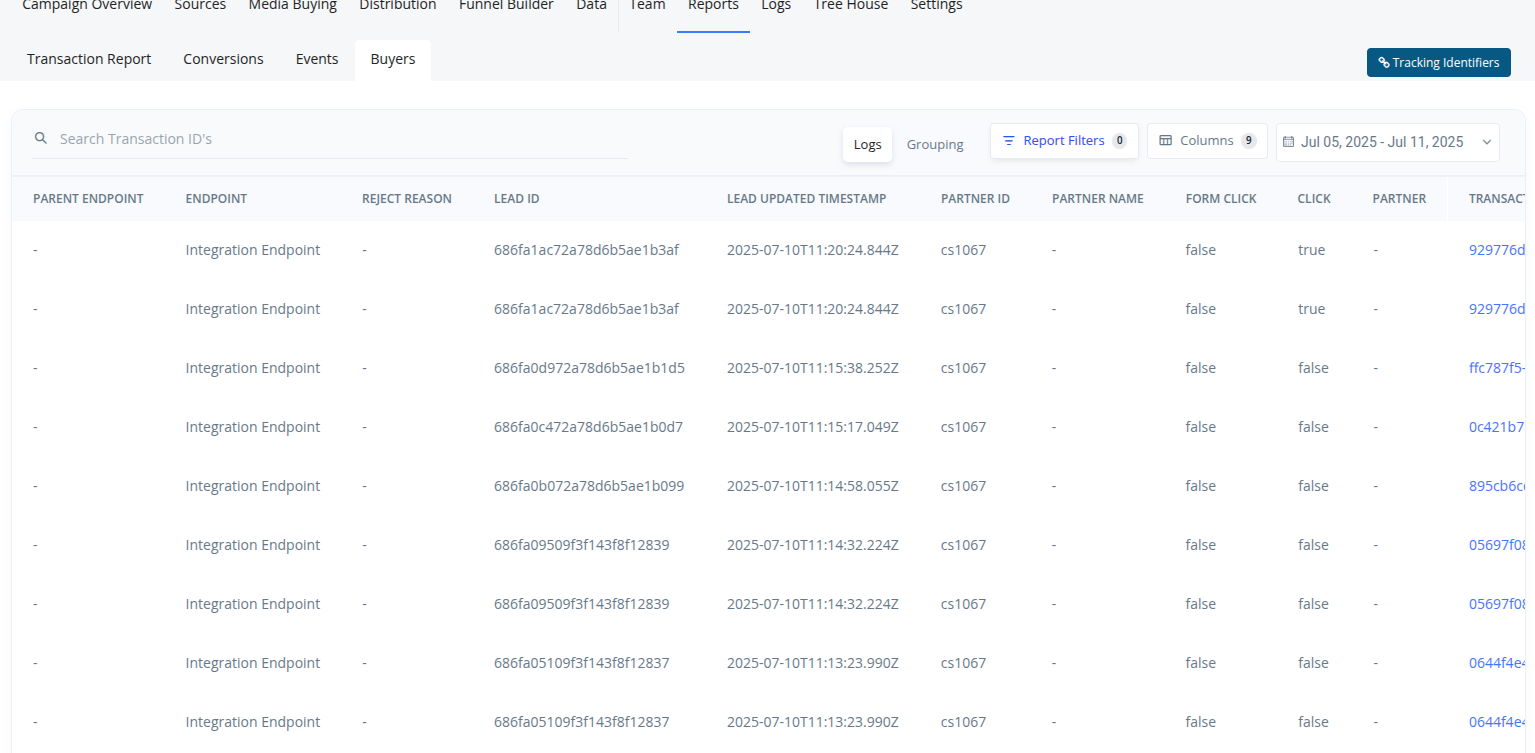
This report is accessible from the **Campaign View → Reports → Buyers** tab. It presents all buyer-related lead activity and supports:
* Individual or grouped views
* Date-based filtering
* Dynamic column visibility
* Buyer-specific reporting
***
## Key Features
### Sold & Rejected Lead Tracking
* Easily see which leads were **successfully sold** or **rejected** by buyers.
* If a lead is rejected, fields like **endpoint** and **rejection reason** are available.
***
### View Modes
* **Individual View**: Lists each lead transaction line by line.
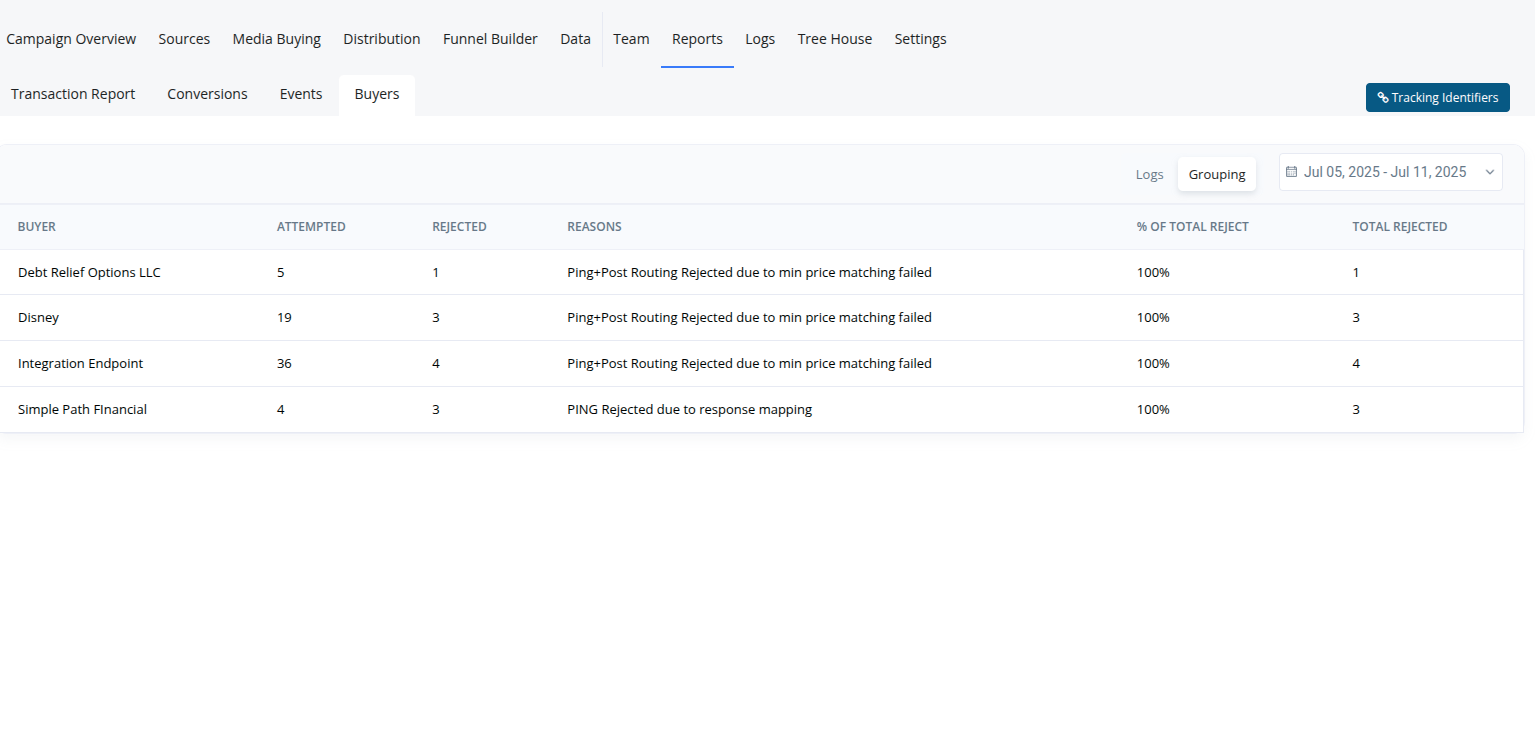
* **Group View**: Aggregates data by buyer or endpoint for higher-level summaries.
Toggle between these views using the **Group Tab**.
***
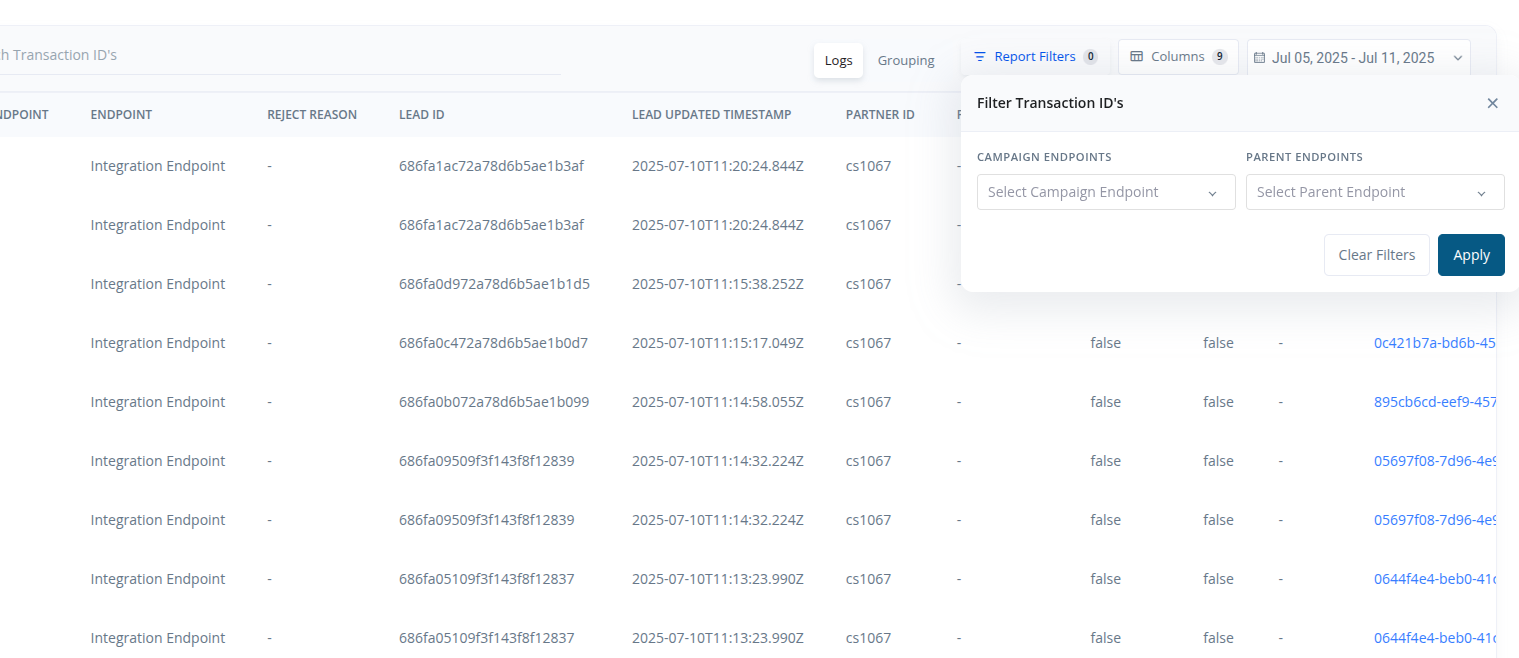
### Date & Buyer Filters
* Use the **Date Picker** to narrow results to a specific time window.
* Filter the report to focus on a **specific buyer** or a set of buyers.
***
### Column Customization
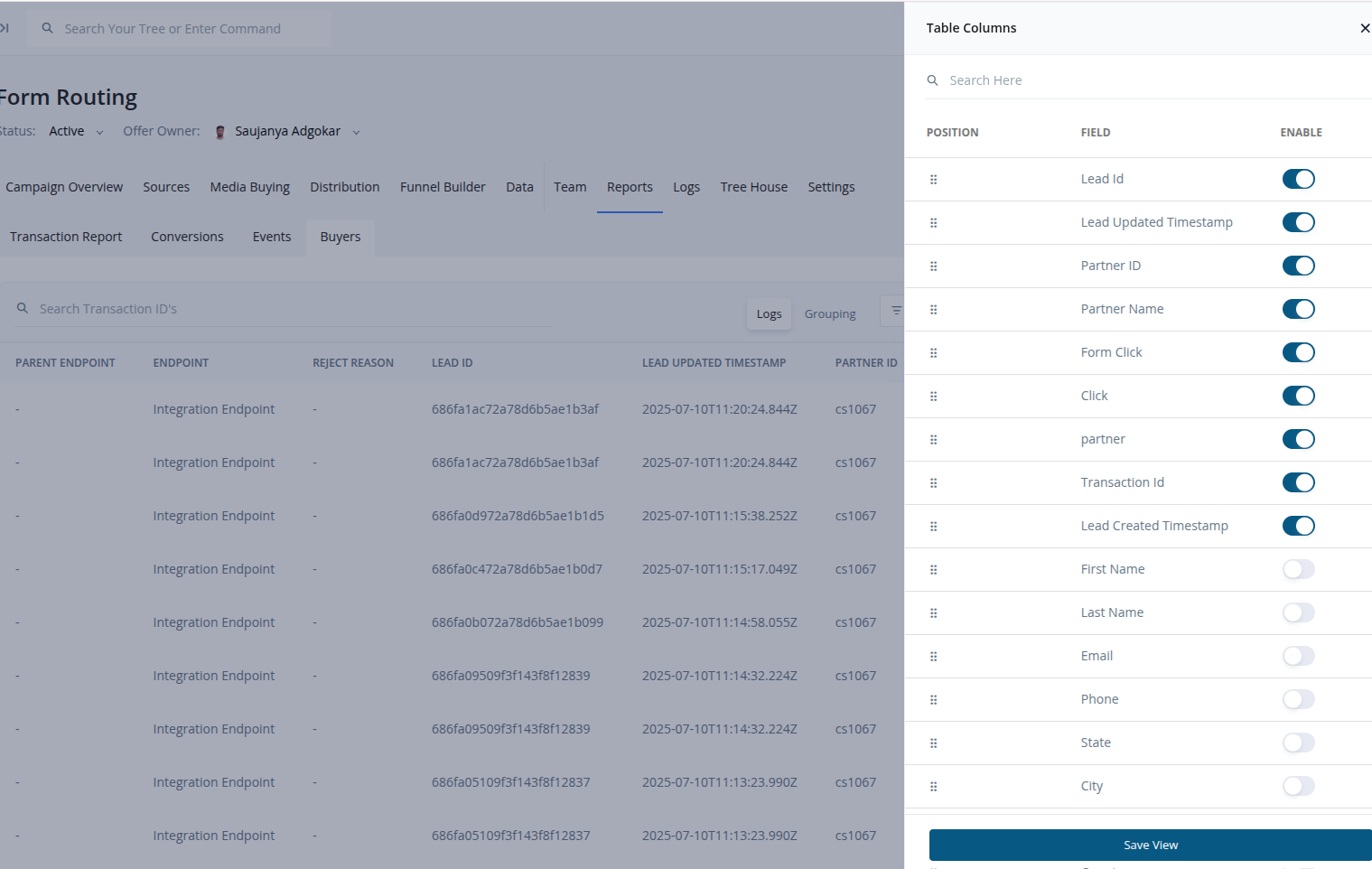
* Decide which columns you want visible in your report.
* Hide or show data fields like:
* `endpoint`
* `buyer_name`
* `rejection_reason`
* `status`
* `lead_id`, etc.
***
## How It Works
1. **Navigate to:**\
`Campaign > Reports > Buyers`
 2. **Configure your filters:**
* Choose a date range
* Apply buyer filters
* Select columns to show or hide
2. **Configure your filters:**
* Choose a date range
* Apply buyer filters
* Select columns to show or hide
 3. **Switch views:**
* Use **Group Tab** to view grouped summaries
3. **Switch views:**
* Use **Group Tab** to view grouped summaries
 4. **Analyze outcomes:**
* Understand which leads are converting and which are being rejected — and why.
4. **Analyze outcomes:**
* Understand which leads are converting and which are being rejected — and why.
 ***
> **Note:** This report is particularly useful for diagnosing delivery issues, managing buyer quality, and fine-tuning your lead distribution rules.
***
> **Note:** This report is particularly useful for diagnosing delivery issues, managing buyer quality, and fine-tuning your lead distribution rules.