> ## Documentation Index
> Fetch the complete documentation index at: https://docs.pingtree.com/llms.txt
> Use this file to discover all available pages before exploring further.
# Conversions Report
> Track and analyze lead conversion data with filters, column customization, and lead-level actions.
The Conversions Report in Pingtree (PT) helps campaign owners monitor and analyze lead conversion performance across their campaigns. It provides flexible filters, customizable columns, and lead-level actions for deeper insight.
**Key Features**
* **Default Date Range**: Displays the last 7 days of data by default.
* **Lead Type Filter**: Set to "All" by default. Filter to "Click Only" to view click-based conversions.
* **Source Filter**: Filter by specific traffic sources to analyze performance by origin.
**Table Columns**
* **Show/Hide Columns**: Toggle visibility for any column.
* **Rearrange Columns**: Drag and drop to reorder as needed.
* **Filter Columns**: Apply filters directly to columns to refine data.
 **Save Custom Views (Per Campaign)**
You can customize your report layout per campaign—filters, column visibility, and order—and save that view. When returning to the report, your settings for that campaign will automatically load.
**How It Works**
1. Go to the Conversions Report tab.
**Save Custom Views (Per Campaign)**
You can customize your report layout per campaign—filters, column visibility, and order—and save that view. When returning to the report, your settings for that campaign will automatically load.
**How It Works**
1. Go to the Conversions Report tab.
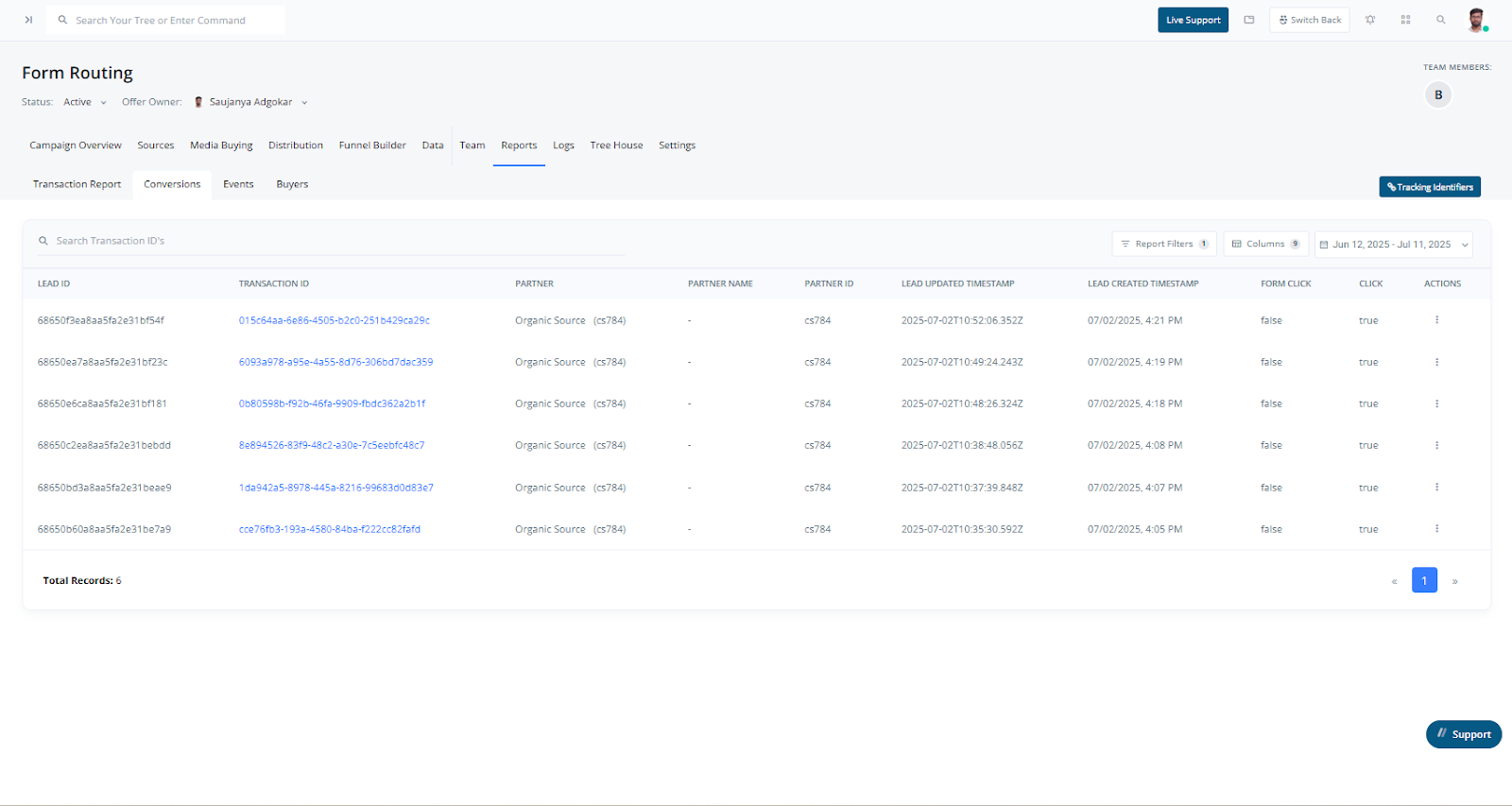 2. Apply filters like date range, lead type, and source.
3. Customize the table layout with desired columns and order.
4. Save your view for reuse per campaign.
**Available Actions for Each Lead**
* **Transaction Flow**: View a step-by-step breakdown of the lead’s transaction lifecycle—from submission to conversion.
* **Events**: Review all events tied to the lead, including validations, delivery steps, or third-party actions.
* **View Details**: Open a comprehensive view of the lead, including metadata, logs, buyer interactions, and more.
These tools help investigate lead paths, troubleshoot delivery issues, and evaluate campaign effectiveness.
2. Apply filters like date range, lead type, and source.
3. Customize the table layout with desired columns and order.
4. Save your view for reuse per campaign.
**Available Actions for Each Lead**
* **Transaction Flow**: View a step-by-step breakdown of the lead’s transaction lifecycle—from submission to conversion.
* **Events**: Review all events tied to the lead, including validations, delivery steps, or third-party actions.
* **View Details**: Open a comprehensive view of the lead, including metadata, logs, buyer interactions, and more.
These tools help investigate lead paths, troubleshoot delivery issues, and evaluate campaign effectiveness.