> ## Documentation Index
> Fetch the complete documentation index at: https://docs.pingtree.com/llms.txt
> Use this file to discover all available pages before exploring further.
# Postbacks
> Send automated postbacks to a source's server upon lead events for tracking or optimization.
> **Note:** This tab is available in **Custom Source (CS)**, **Marketing Partner (MP)**, and **Media Channel (MC)** source types.
The **Postbacks** tab allows you to configure postback URLs for a specific source. Postbacks are a way to notify the source about user actions or campaign events, enabling deeper performance tracking and optimization.
## What is a Postback?
A **postback** is a server-to-server communication triggered by user actions or lead events. It enables the exchange of information — such as lead status or conversion — between Pingtree and the traffic source’s own tracking system.
## How is a Source Postback Used in a Pingtree Campaign?
When a traffic source sends you leads, they may want feedback on those leads for two main reasons:
1. To track **which leads generated revenue**.
2. To analyze **lead performance quality** for optimization.
Although Pingtree offers a partner/affiliate portal, sources — especially **Marketing Partners** and **Custom Sources** — often prefer to receive data on their own platforms via postbacks.
A source postback is triggered based on events configured in your campaign or manually fired as needed.
## What’s Required?
To configure a source postback, the source must provide the following:
1. **Postback URL**
* The endpoint on their server where Pingtree will send the data.
2. **Data and Field Mapping**
* Only data captured with the lead can be dynamically sent.
* You must map Pingtree’s fields to the source’s expected field structure.
* You can also include static fields with predefined values.
3. **Request Method**
* Pingtree supports both **GET** and **POST** requests.
4. **Payload Format**
* Default: **POST** request in **JSON** format.
* Optional formats:
* `xml-8` & `xml-16`
* `x-www-form-urlencoded`
* `form-data`
## Postback Types
You must choose what type of postback to configure:
### Form Data Postback
* **Trigger:** Fired immediately upon **lead distribution completion**.
* **Use Case:** General data feedback, real-time tracking.
### Event Data Postback
* **Trigger:** Fired when a specific **Pingtree event** occurs (e.g., lead sold, converted, rejected).
* **Use Case:** More controlled and conditional tracking (e.g., payout confirmation, conversion approval).
### Test endpoint
* Use this button to test the connection and ensure the postback URL is properly set up. It will send a sample request and return the response, allowing you to confirm the endpoint is live and working.
## Posting Filters
This is where you configure posting filters - rules that control when and which leads are allowed to be sent through the postback to the specified partner or endpoint. Filters include ZIP code, state, and volume/time restrictions.
***
### ZIP Code Filters
 #### Exclude ZIP Code
* **Exclude Zipcode Toggle**:\
When enabled, Pingtree will prevent the postback from firing for any lead with a ZIP code matching the ones entered.
* **ZIP Code Input Field**:\
Input one or more 5-digit ZIP codes.
**Requirements**:
* Must contain only numbers
* Must be exactly 5 digits
> Tip: Use this to block leads from specific ZIP codes based on partner targeting preferences.
***
### Geolocation Filter (Exclude State)
#### Exclude ZIP Code
* **Exclude Zipcode Toggle**:\
When enabled, Pingtree will prevent the postback from firing for any lead with a ZIP code matching the ones entered.
* **ZIP Code Input Field**:\
Input one or more 5-digit ZIP codes.
**Requirements**:
* Must contain only numbers
* Must be exactly 5 digits
> Tip: Use this to block leads from specific ZIP codes based on partner targeting preferences.
***
### Geolocation Filter (Exclude State)
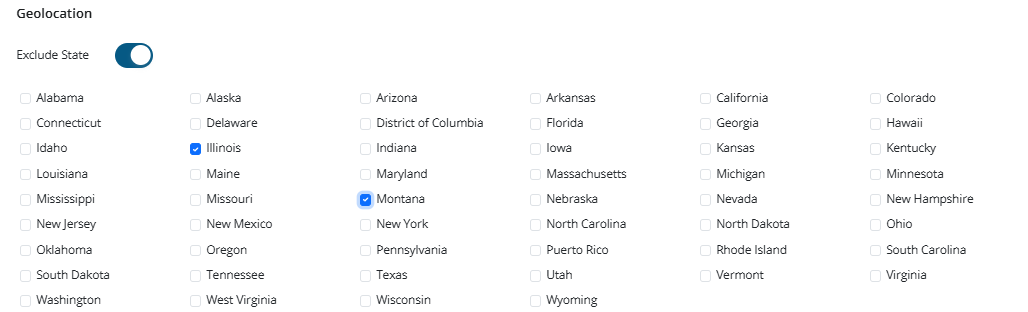 This filter allows you to prevent postbacks based on **U.S. states**.
* **Exclude State Toggle**:\
When turned on, Pingtree will prevent postback triggers for leads from selected states.
* **Use Case**:\
Useful when a buyer or partner does not accept traffic from certain U.S. states for legal or performance reasons.
> Tip: You can select multiple states simultaneously.
***
### Caps
This filter allows you to prevent postbacks based on **U.S. states**.
* **Exclude State Toggle**:\
When turned on, Pingtree will prevent postback triggers for leads from selected states.
* **Use Case**:\
Useful when a buyer or partner does not accept traffic from certain U.S. states for legal or performance reasons.
> Tip: You can select multiple states simultaneously.
***
### Caps
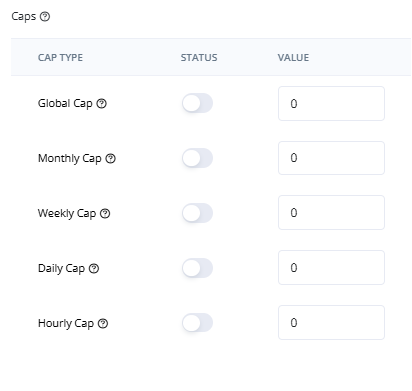 These caps **limit how many times the postback fires**, not how many leads are delivered.
Each cap includes:
* A toggle to enable
* A numeric input to define the cap limit
#### Cap Types
| Cap Type | Description |
| ----------- | ------------------------------------------------- |
| Global Cap | Total number of allowed postback fires (lifetime) |
| Monthly Cap | Maximum postbacks per calendar month |
| Weekly Cap | Maximum postbacks per calendar week |
| Daily Cap | Maximum postbacks per calendar day |
| Hourly Cap | Maximum postbacks per hour |
> Note: Once a cap is reached, leads will still be accepted or sold, but **postbacks will not fire** until the timeframe resets.
***
### Hours
These caps **limit how many times the postback fires**, not how many leads are delivered.
Each cap includes:
* A toggle to enable
* A numeric input to define the cap limit
#### Cap Types
| Cap Type | Description |
| ----------- | ------------------------------------------------- |
| Global Cap | Total number of allowed postback fires (lifetime) |
| Monthly Cap | Maximum postbacks per calendar month |
| Weekly Cap | Maximum postbacks per calendar week |
| Daily Cap | Maximum postbacks per calendar day |
| Hourly Cap | Maximum postbacks per hour |
> Note: Once a cap is reached, leads will still be accepted or sold, but **postbacks will not fire** until the timeframe resets.
***
### Hours
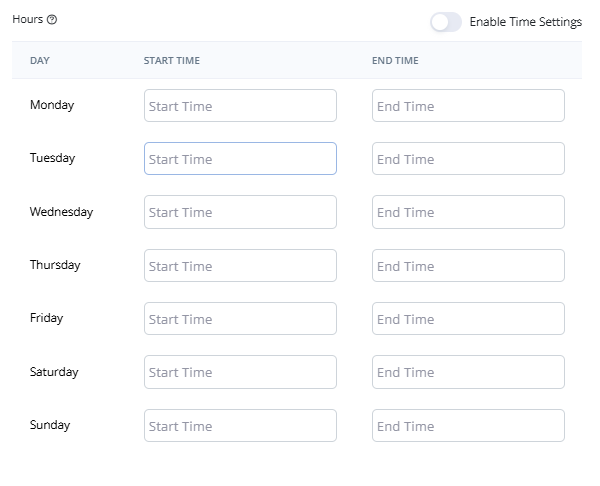 Restrict postback firing by **day of the week and time of day**.
* **Enable Time Settings Toggle**:\
Activates the scheduling UI.
* **Time Window Setup**:\
For each day of the week, define:
* **Start Time** (Earliest firing time)
* **End Time** (Latest firing time)
> Example: If the partner only wants postbacks from 9 AM–6 PM, set those hours for Monday–Friday.
> Tip: This does **not block leads** outside of these hours—only the postback.
***
### Conditions
Restrict postback firing by **day of the week and time of day**.
* **Enable Time Settings Toggle**:\
Activates the scheduling UI.
* **Time Window Setup**:\
For each day of the week, define:
* **Start Time** (Earliest firing time)
* **End Time** (Latest firing time)
> Example: If the partner only wants postbacks from 9 AM–6 PM, set those hours for Monday–Friday.
> Tip: This does **not block leads** outside of these hours—only the postback.
***
### Conditions
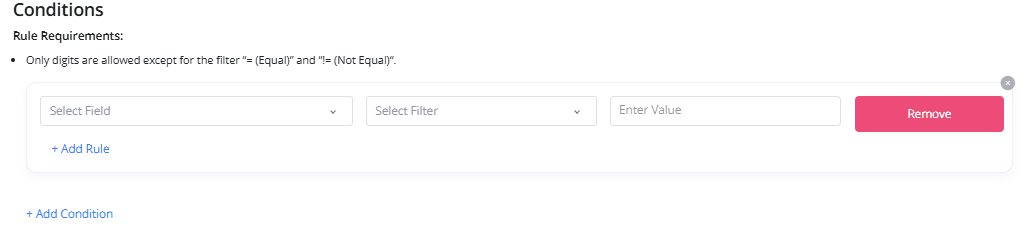 Apply field-based logic to control postback triggers based on lead values.
#### Each Condition Includes:
* **Field Selector**: Choose a field like `state`, `zip_code`, `payout`, `lead_status`, etc.
* **Filter Operator**:
* `=` (Equals)
* `!=` (Not Equal)
* `<` (Less Than)
* `>` (Greater Than)
* **Value Input**: Enter the value to compare.
#### Advanced Options:
* **+ Add Rule**: Add multiple rules to the same condition group (evaluated with AND logic).
* **+ Add Condition**: Add new groups of conditions (each group is evaluated independently).
#### Examples:
* Fire postback **only if payout > 10**
* Fire postback **only if lead\_status != rejected**
By setting postbacks properly, you ensure your traffic sources receive accurate feedback, which can be used to improve lead quality, ROI, and campaign efficiency.
***
* [Click here to view Custom Source Single View pages](./Custom-Source-Single-View)
* [Click here to view Marketing Partner Single View pages](./Marketing-Partner-Single-View)
* [Click here to view Media Channel Single View pages](./Media-Channel-Single-View)
Apply field-based logic to control postback triggers based on lead values.
#### Each Condition Includes:
* **Field Selector**: Choose a field like `state`, `zip_code`, `payout`, `lead_status`, etc.
* **Filter Operator**:
* `=` (Equals)
* `!=` (Not Equal)
* `<` (Less Than)
* `>` (Greater Than)
* **Value Input**: Enter the value to compare.
#### Advanced Options:
* **+ Add Rule**: Add multiple rules to the same condition group (evaluated with AND logic).
* **+ Add Condition**: Add new groups of conditions (each group is evaluated independently).
#### Examples:
* Fire postback **only if payout > 10**
* Fire postback **only if lead\_status != rejected**
By setting postbacks properly, you ensure your traffic sources receive accurate feedback, which can be used to improve lead quality, ROI, and campaign efficiency.
***
* [Click here to view Custom Source Single View pages](./Custom-Source-Single-View)
* [Click here to view Marketing Partner Single View pages](./Marketing-Partner-Single-View)
* [Click here to view Media Channel Single View pages](./Media-Channel-Single-View)