> ## Documentation Index
> Fetch the complete documentation index at: https://docs.pingtree.com/llms.txt
> Use this file to discover all available pages before exploring further.
# All Sources
> Complete list of all your active, paused, and inactive traffic sources with quick access to configurations.
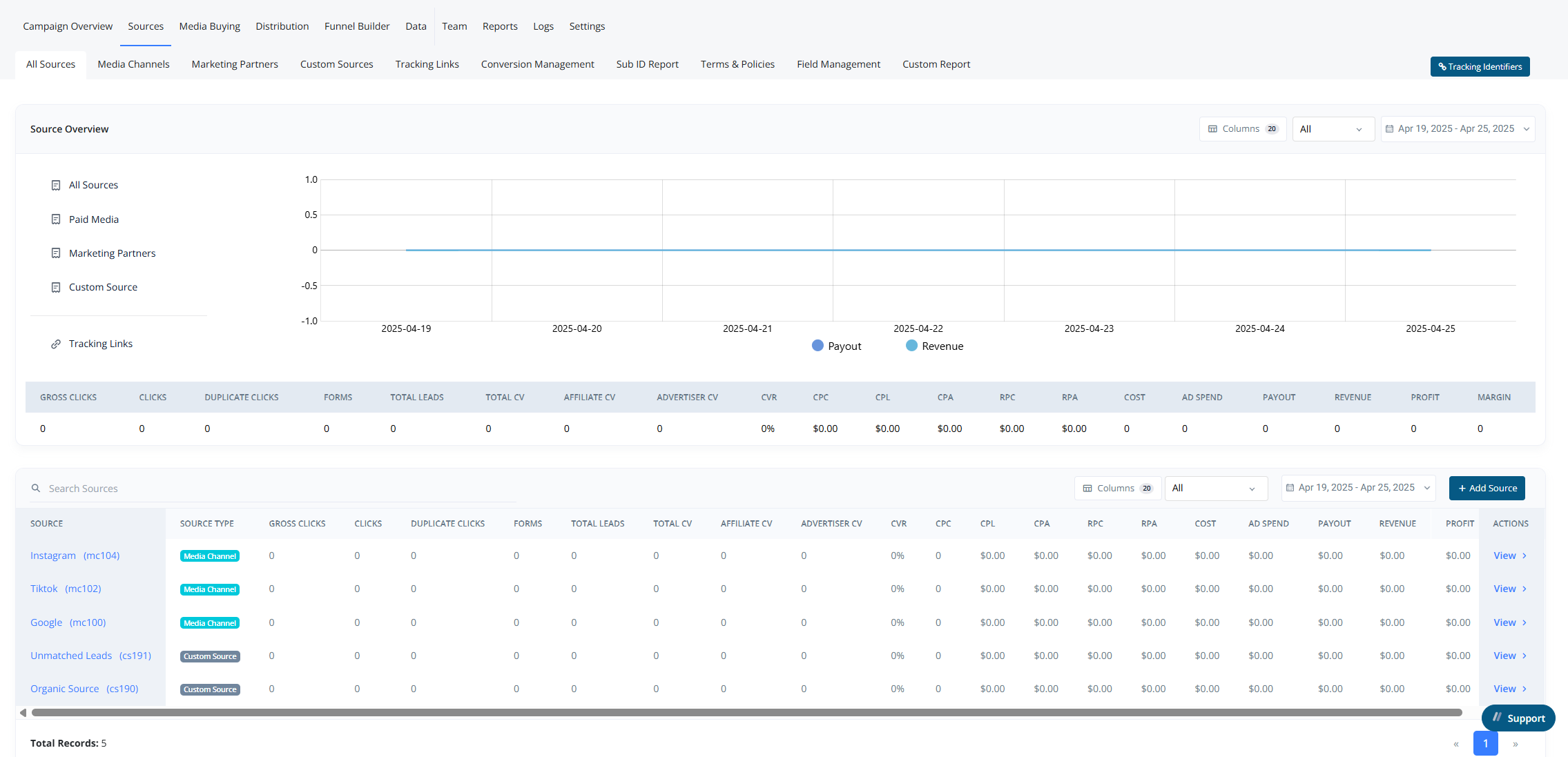
The **All Sources** section provides a high-level overview of your traffic sources and their associated metrics.
 From this view, users can:
* Create a new **Source** (Media Channel, Marketing Partner, or Custom Source).
* Customize which columns are displayed in the table.
* Apply a **Date Range Filter** to narrow down the data.
This section also includes multiple report views across different fields.
### Key Uses
* Monitor **Revenue** and **Payouts** across **all sources**.
* Analyze performance for **each source individually** in a tabular format.
From this view, users can:
* Create a new **Source** (Media Channel, Marketing Partner, or Custom Source).
* Customize which columns are displayed in the table.
* Apply a **Date Range Filter** to narrow down the data.
This section also includes multiple report views across different fields.
### Key Uses
* Monitor **Revenue** and **Payouts** across **all sources**.
* Analyze performance for **each source individually** in a tabular format.
 ## Adding a Source
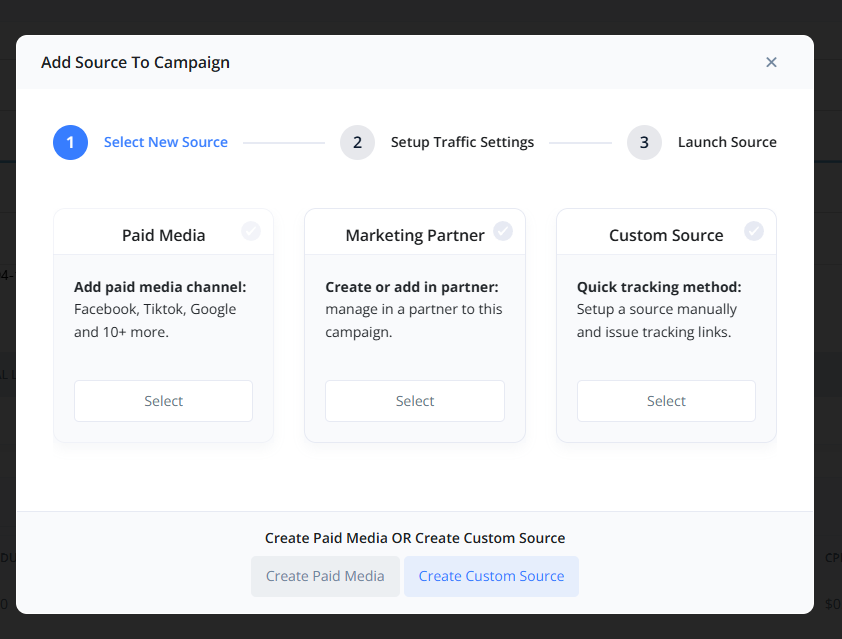
To add a new source:
1. Click the **“+ Add Source”** button.
2. Choose the type of source you want to create.
3. This can be done from:
* The **All Sources** section within a campaign
* Or the individual **source type tab** (CS, MP, or MC)
## Adding a Source
To add a new source:
1. Click the **“+ Add Source”** button.
2. Choose the type of source you want to create.
3. This can be done from:
* The **All Sources** section within a campaign
* Or the individual **source type tab** (CS, MP, or MC)