> ## Documentation Index
> Fetch the complete documentation index at: https://docs.pingtree.com/llms.txt
> Use this file to discover all available pages before exploring further.
# Marketing Partners
> Manage affiliate and marketing partner relationships, access their settings, reports, and dashboards.
Marketing partners function similarly to custom sources in that they can be affiliates, publishers, or third-party traffic providers who send leads or traffic to your campaigns. However, the key distinction lies in the level of access and transparency they are given.
Unlike a typical custom source, marketing partners are provided with their own dedicated affiliate portal within the Pingtree system. This portal allows them to log in and monitor the performance of the traffic they are sending to your campaigns. They can view metrics such as the number of leads submitted, approval rates, conversion rates, earnings, and other relevant performance indicators.
This setup creates a more professional and scalable relationship, giving partners greater visibility and incentive to optimize their traffic quality. It also simplifies communication and reporting, as partners can independently track their results in real time without needing manual updates from your team.
Under the **Marketing Partners (MP)** tab, campaign owners can invite new marketing partners to join Pingtree (PT) and collaborate on lead generation campaigns.
 ## How It Works
1. Navigate to the **Marketing Partners** tab.
2. Click on the **Add Marketing Partner** button.
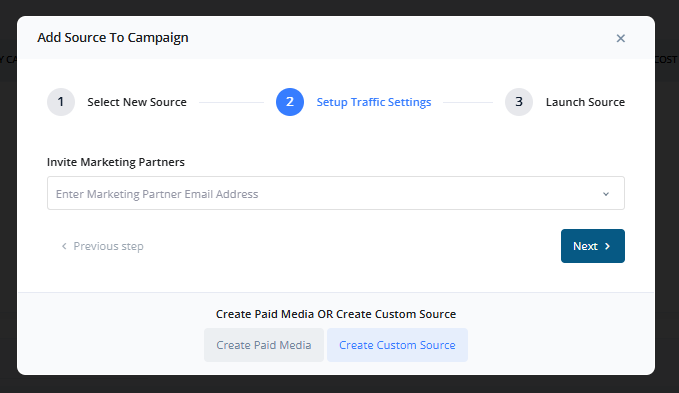
3. A popup will appear asking for the **email address** of the Marketing Partner.
4. Enter the email address and click **Next**.
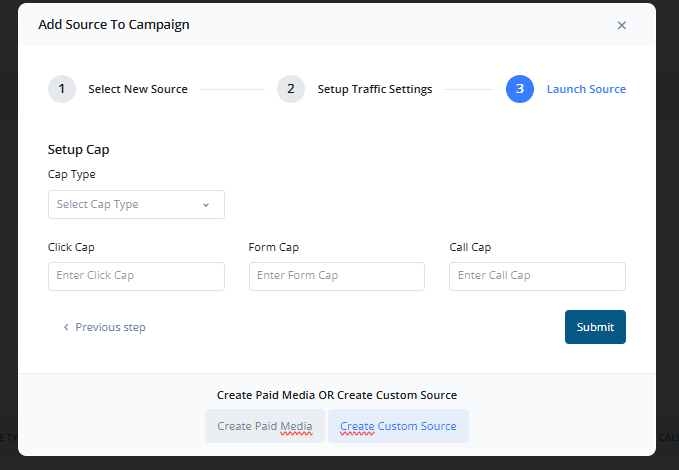
5. Now, if you want to, you can set up a global, daily, or monthly cap on click, form, and call. Once done, click **Submit**.
## How It Works
1. Navigate to the **Marketing Partners** tab.
2. Click on the **Add Marketing Partner** button.
3. A popup will appear asking for the **email address** of the Marketing Partner.
4. Enter the email address and click **Next**.
5. Now, if you want to, you can set up a global, daily, or monthly cap on click, form, and call. Once done, click **Submit**.
 6. Pingtree will automatically send a **registration invitation** email to the provided address.
7. The Marketing Partner must follow the link in the email to **register and create their account** in PT.
8. Once registered, the Marketing Partner will be able to **log in and access the assigned campaigns**.
* [Click here to view Marketing Partner Single View pages](../source-single-view/Marketing-Partner-Single-View)
## Important Notes
* Marketing Partners cannot access the platform until they complete the registration process.
* After registration, they can view leads, reports, and other campaign-specific data based on their access permissions.
***
> **Tip:**\
> Always verify the email address before submitting to avoid sending invitations to the wrong person.
6. Pingtree will automatically send a **registration invitation** email to the provided address.
7. The Marketing Partner must follow the link in the email to **register and create their account** in PT.
8. Once registered, the Marketing Partner will be able to **log in and access the assigned campaigns**.
* [Click here to view Marketing Partner Single View pages](../source-single-view/Marketing-Partner-Single-View)
## Important Notes
* Marketing Partners cannot access the platform until they complete the registration process.
* After registration, they can view leads, reports, and other campaign-specific data based on their access permissions.
***
> **Tip:**\
> Always verify the email address before submitting to avoid sending invitations to the wrong person.