> ## Documentation Index
> Fetch the complete documentation index at: https://docs.pingtree.com/llms.txt
> Use this file to discover all available pages before exploring further.
# Creative Overview
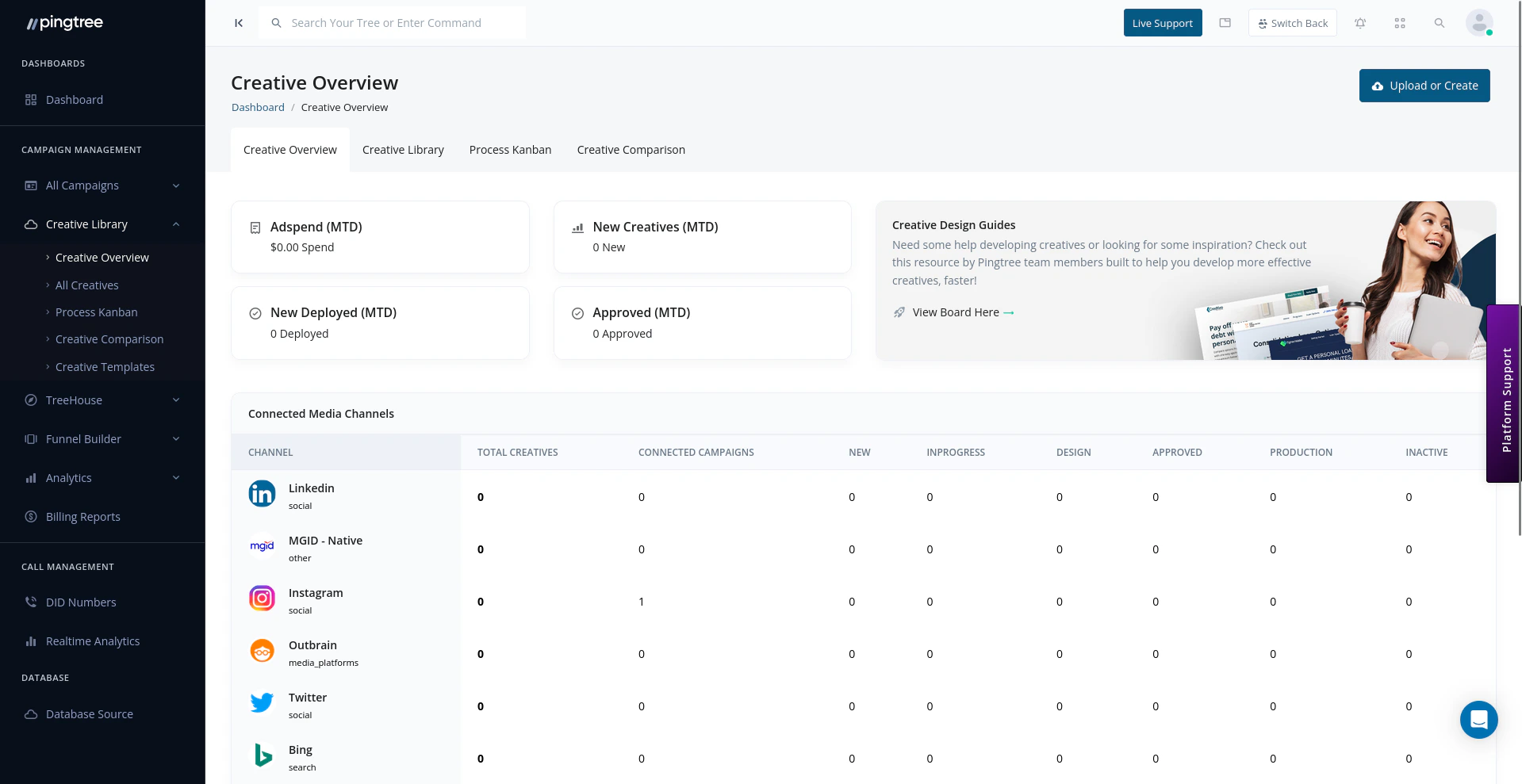
> A high-level dashboard summarizing all creative assets across your campaigns, with status and type breakdowns, performance metrics, and recent activity.
The **Creative Overview** is the central dashboard for your creative library. It gives you an at-a-glance summary of every creative asset across all campaigns — helping you track progress through the production pipeline, spot bottlenecks, and assess overall creative performance without digging into individual campaigns.
 ***
## Status Breakdown
Every creative in Pingtree is assigned one of the following statuses as it moves through the production workflow.
| Status | Description |
| -------------------- | ---------------------------------------------------------------- |
| **New** | Creative has been uploaded but not yet reviewed. |
| **In Design Review** | Creative is being evaluated by the design team. |
| **In Production** | Creative has been approved for production and is being prepared. |
| **Approved** | Creative has passed review and is ready for deployment. |
| **Not Approved** | Creative did not pass review and requires rework or replacement. |
| **In Active** | Creative is currently live and serving in a campaign. |
The overview dashboard displays a count for each status, so you can immediately see how many creatives are waiting on review, stuck in production, or ready to go live.
***
## Type Breakdown
Creatives are grouped by their media type:
| Type | Description |
| --------- | ------------------------------------------------------------------- |
| **Image** | Static image assets such as banner ads or display creatives. |
| **Video** | Video creatives used across digital ad placements. |
| **Text** | Copy-only creatives such as ad headlines, descriptions, or scripts. |
The type breakdown lets you see the composition of your creative library at a glance and helps identify gaps — for example, if a campaign relies heavily on image creatives but lacks video alternatives.
***
## Quick Filters and Search
The overview includes filters so you can narrow down the creatives shown without leaving the dashboard:
* **Search by name or ID** — find a specific creative instantly using its name or unique ID.
* **Filter by status** — isolate creatives at a particular workflow stage.
* **Filter by type** — view only image, video, or text creatives.
* **Filter by campaign** — focus on creatives assigned to a specific campaign.
> **Tip:** Use the status filter combined with a campaign filter to quickly find all creatives awaiting approval for a specific campaign before a launch deadline.
***
## Performance Summary
The overview surfaces aggregated performance metrics across all creatives, giving you a rolled-up view of creative effectiveness:
* **Total impressions** across all active creatives.
* **Total clicks** and overall click-through rate (CTR).
* **Conversion contributions** — how many conversions can be attributed to creative-driven traffic.
* **Top performing creative** — the single creative driving the highest engagement.
These metrics update in real time based on the date range selected at the top of the page.
***
## Recent Uploads and Activity
The **Recent Activity** feed at the bottom of the overview shows the latest changes across your creative library:
* Newly uploaded creatives.
* Status changes (e.g., a creative moved from *In Design Review* to *Approved*).
* Creatives assigned to or removed from campaigns.
* Bulk actions performed (e.g., a batch of creatives marked as *Approved*).
Each activity entry shows the creative name, the action taken, the user who performed it, and a timestamp.
> **Tip:** Check the Recent Activity feed at the start of each day to stay on top of creative approvals, rejections, and new uploads without needing to monitor individual campaigns.
***
## Status Breakdown
Every creative in Pingtree is assigned one of the following statuses as it moves through the production workflow.
| Status | Description |
| -------------------- | ---------------------------------------------------------------- |
| **New** | Creative has been uploaded but not yet reviewed. |
| **In Design Review** | Creative is being evaluated by the design team. |
| **In Production** | Creative has been approved for production and is being prepared. |
| **Approved** | Creative has passed review and is ready for deployment. |
| **Not Approved** | Creative did not pass review and requires rework or replacement. |
| **In Active** | Creative is currently live and serving in a campaign. |
The overview dashboard displays a count for each status, so you can immediately see how many creatives are waiting on review, stuck in production, or ready to go live.
***
## Type Breakdown
Creatives are grouped by their media type:
| Type | Description |
| --------- | ------------------------------------------------------------------- |
| **Image** | Static image assets such as banner ads or display creatives. |
| **Video** | Video creatives used across digital ad placements. |
| **Text** | Copy-only creatives such as ad headlines, descriptions, or scripts. |
The type breakdown lets you see the composition of your creative library at a glance and helps identify gaps — for example, if a campaign relies heavily on image creatives but lacks video alternatives.
***
## Quick Filters and Search
The overview includes filters so you can narrow down the creatives shown without leaving the dashboard:
* **Search by name or ID** — find a specific creative instantly using its name or unique ID.
* **Filter by status** — isolate creatives at a particular workflow stage.
* **Filter by type** — view only image, video, or text creatives.
* **Filter by campaign** — focus on creatives assigned to a specific campaign.
> **Tip:** Use the status filter combined with a campaign filter to quickly find all creatives awaiting approval for a specific campaign before a launch deadline.
***
## Performance Summary
The overview surfaces aggregated performance metrics across all creatives, giving you a rolled-up view of creative effectiveness:
* **Total impressions** across all active creatives.
* **Total clicks** and overall click-through rate (CTR).
* **Conversion contributions** — how many conversions can be attributed to creative-driven traffic.
* **Top performing creative** — the single creative driving the highest engagement.
These metrics update in real time based on the date range selected at the top of the page.
***
## Recent Uploads and Activity
The **Recent Activity** feed at the bottom of the overview shows the latest changes across your creative library:
* Newly uploaded creatives.
* Status changes (e.g., a creative moved from *In Design Review* to *Approved*).
* Creatives assigned to or removed from campaigns.
* Bulk actions performed (e.g., a batch of creatives marked as *Approved*).
Each activity entry shows the creative name, the action taken, the user who performed it, and a timestamp.
> **Tip:** Check the Recent Activity feed at the start of each day to stay on top of creative approvals, rejections, and new uploads without needing to monitor individual campaigns.