> ## Documentation Index
> Fetch the complete documentation index at: https://docs.pingtree.com/llms.txt
> Use this file to discover all available pages before exploring further.
# Exported Files
> Request, track, and download CSV exports of lead data from any database source.
## Overview
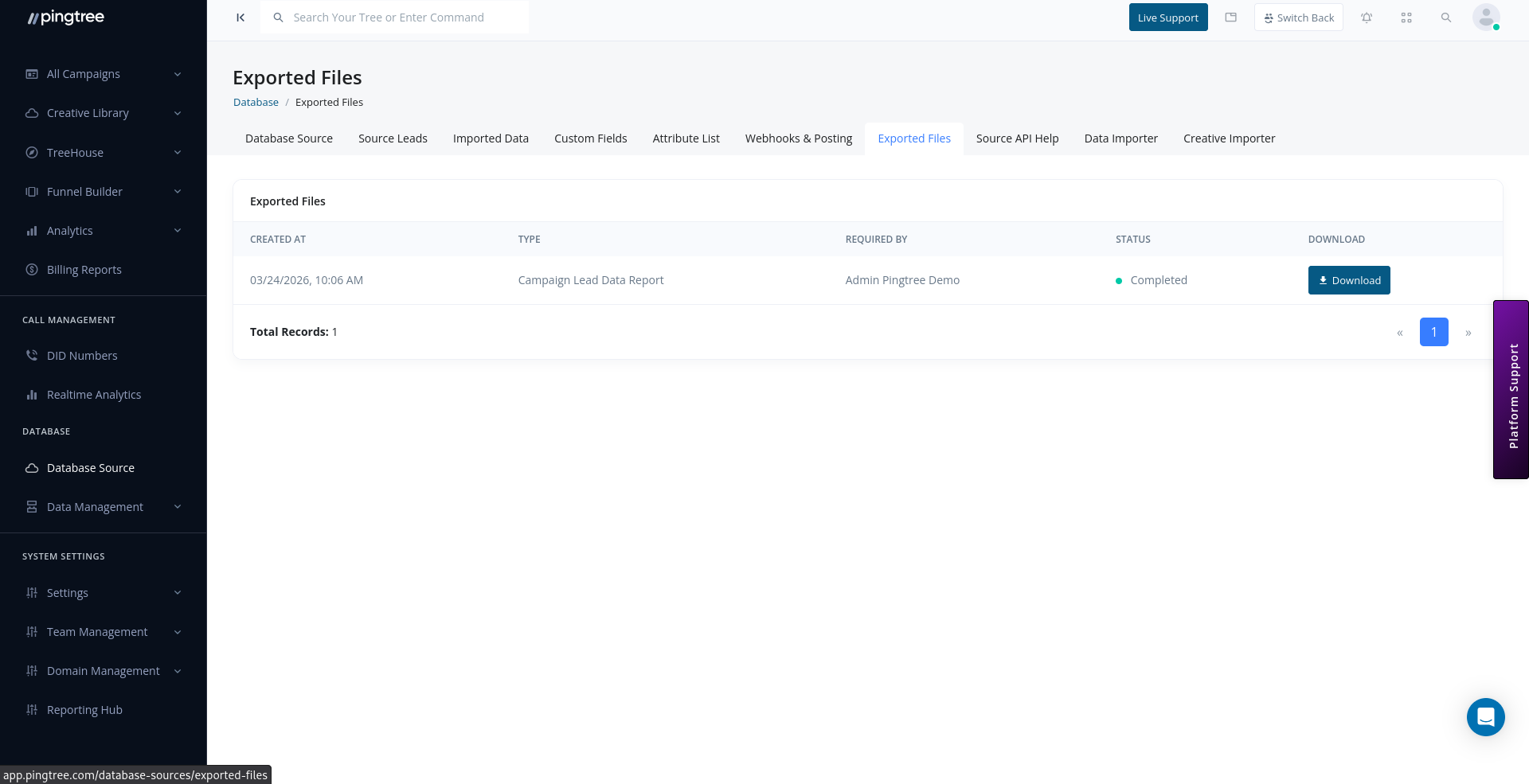
The **Exported Files** section provides a history of all CSV exports requested from a database source. Exports are processed asynchronously — you request the export, and the system notifies you when the file is ready for download. This approach allows large datasets to be exported without blocking your workflow.
 ***
## How Exports Work
1. Apply filters in the **Source Leads** view to scope the leads you want to export.
2. Click **Export** to submit the export request.
3. The system queues the export job and begins generating the CSV in the background.
4. Once complete, the exported file appears in the **Exported Files** list.
5. Download the file using the secure download link.
> **Tip:** For large exports covering hundreds of thousands of leads, processing may take several minutes. You can continue working in Pingtree while the export runs in the background.
***
## Exported Files Table
The exported files list shows all export requests for the current database source:
| Column | Description |
| ---------------- | -------------------------------------------------------------------------------------- |
| **File Name** | The name of the generated CSV file, typically including the source name and timestamp. |
| **Requested By** | The user who initiated the export. |
| **Requested At** | Timestamp of when the export was submitted. |
| **Completed At** | Timestamp of when the file was ready for download. |
| **Status** | Current state of the export job. |
| **Lead Count** | The number of leads included in the export. |
| **Download** | A secure link to download the CSV file once ready. |
***
## Export Statuses
| Status | Description |
| -------------- | -------------------------------------------------------------------- |
| **Pending** | The export request has been received and is waiting to be processed. |
| **Processing** | The system is actively generating the CSV file. |
| **Completed** | The file is ready and available for download. |
| **Failed** | The export could not be completed. Contact support if this persists. |
***
## Filtering Leads Before Export
You can control which leads are included in an export by applying filters before clicking **Export**:
| Filter | Description |
| ---------------- | ---------------------------------------------------------------- |
| **Status** | Export only leads with a specific status (e.g., Active, Sold). |
| **Date Range** | Limit the export to leads created within a specific time window. |
| **Attribute** | Export leads tagged with a specific attribute. |
| **Search Query** | Export only leads matching a name, email, or phone search. |
The active filters at the time of the export request determine which leads are included. No leads outside the filtered scope will appear in the download.
> **Tip:** Always confirm your filter selection before submitting the export. Once submitted, the export is based on the filter state at that moment — changing filters afterwards does not affect an already-queued export.
***
## Downloading Exported Files
Exported files are available via secure, UUID-based download links. These links are:
* **Unique per export**: Each file has its own link that cannot be guessed.
* **Time-limited**: Download links may expire after a set period. Download the file promptly after it is ready.
* **Access-controlled**: Only users with appropriate permissions for the database source can access the download link.
To download a file:
1. Open the **Exported Files** tab within your database source.
2. Find the completed export in the list.
3. Click the **Download** button.
4. The CSV file will download to your local machine.
***
## Export File Format
Exported CSV files include:
* One row per lead.
* All system fields (name, email, phone, address, status, etc.).
* All custom fields defined for the database source.
* Attribute values as additional columns.
* Metadata columns: `created_at`, `updated_at`, `source_id`.
The first row of the CSV contains column headers matching the field keys used in the Pingtree API.
***
## Export History
The **Exported Files** tab retains a history of all exports, allowing you to:
* Re-download a previously exported file (if the link has not expired).
* Audit which users exported data and when.
* Track how frequently data is being extracted from the source.
> **Tip:** If you need to share exported data with an external partner, download the file first and share it directly. Do not share the Pingtree download URL, as it may be access-controlled to your session.
***
## How Exports Work
1. Apply filters in the **Source Leads** view to scope the leads you want to export.
2. Click **Export** to submit the export request.
3. The system queues the export job and begins generating the CSV in the background.
4. Once complete, the exported file appears in the **Exported Files** list.
5. Download the file using the secure download link.
> **Tip:** For large exports covering hundreds of thousands of leads, processing may take several minutes. You can continue working in Pingtree while the export runs in the background.
***
## Exported Files Table
The exported files list shows all export requests for the current database source:
| Column | Description |
| ---------------- | -------------------------------------------------------------------------------------- |
| **File Name** | The name of the generated CSV file, typically including the source name and timestamp. |
| **Requested By** | The user who initiated the export. |
| **Requested At** | Timestamp of when the export was submitted. |
| **Completed At** | Timestamp of when the file was ready for download. |
| **Status** | Current state of the export job. |
| **Lead Count** | The number of leads included in the export. |
| **Download** | A secure link to download the CSV file once ready. |
***
## Export Statuses
| Status | Description |
| -------------- | -------------------------------------------------------------------- |
| **Pending** | The export request has been received and is waiting to be processed. |
| **Processing** | The system is actively generating the CSV file. |
| **Completed** | The file is ready and available for download. |
| **Failed** | The export could not be completed. Contact support if this persists. |
***
## Filtering Leads Before Export
You can control which leads are included in an export by applying filters before clicking **Export**:
| Filter | Description |
| ---------------- | ---------------------------------------------------------------- |
| **Status** | Export only leads with a specific status (e.g., Active, Sold). |
| **Date Range** | Limit the export to leads created within a specific time window. |
| **Attribute** | Export leads tagged with a specific attribute. |
| **Search Query** | Export only leads matching a name, email, or phone search. |
The active filters at the time of the export request determine which leads are included. No leads outside the filtered scope will appear in the download.
> **Tip:** Always confirm your filter selection before submitting the export. Once submitted, the export is based on the filter state at that moment — changing filters afterwards does not affect an already-queued export.
***
## Downloading Exported Files
Exported files are available via secure, UUID-based download links. These links are:
* **Unique per export**: Each file has its own link that cannot be guessed.
* **Time-limited**: Download links may expire after a set period. Download the file promptly after it is ready.
* **Access-controlled**: Only users with appropriate permissions for the database source can access the download link.
To download a file:
1. Open the **Exported Files** tab within your database source.
2. Find the completed export in the list.
3. Click the **Download** button.
4. The CSV file will download to your local machine.
***
## Export File Format
Exported CSV files include:
* One row per lead.
* All system fields (name, email, phone, address, status, etc.).
* All custom fields defined for the database source.
* Attribute values as additional columns.
* Metadata columns: `created_at`, `updated_at`, `source_id`.
The first row of the CSV contains column headers matching the field keys used in the Pingtree API.
***
## Export History
The **Exported Files** tab retains a history of all exports, allowing you to:
* Re-download a previously exported file (if the link has not expired).
* Audit which users exported data and when.
* Track how frequently data is being extracted from the source.
> **Tip:** If you need to share exported data with an external partner, download the file first and share it directly. Do not share the Pingtree download URL, as it may be access-controlled to your session.