> ## Documentation Index
> Fetch the complete documentation index at: https://docs.pingtree.com/llms.txt
> Use this file to discover all available pages before exploring further.
# Source Leads
> Browse, search, filter, and manage individual leads stored within a database source.
## Overview
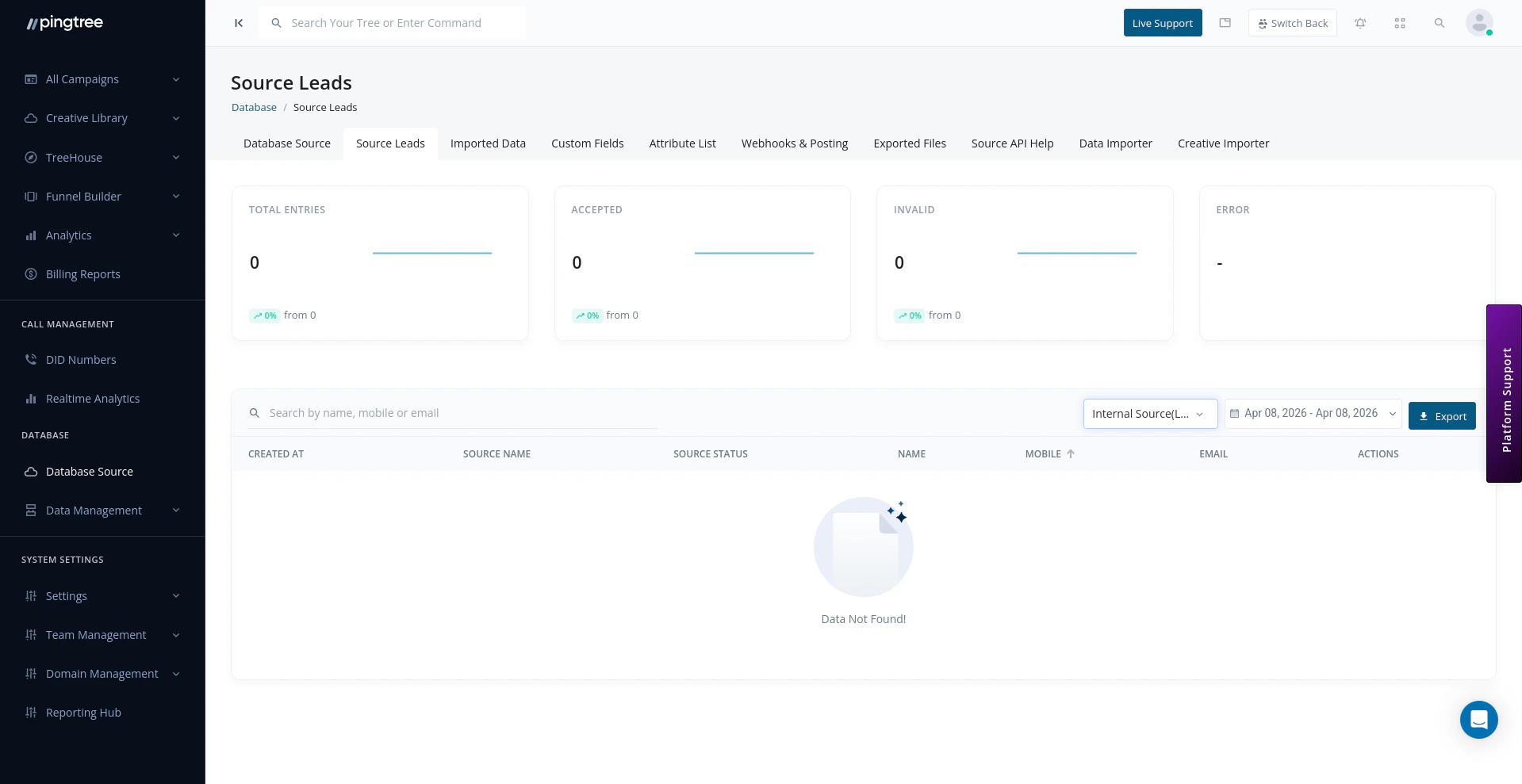
The **Source Leads** view displays every lead stored within a database source. From here you can search and filter leads, inspect individual records, update statuses, move leads between sources, and export data — all from a single interface.
 ***
## Browsing Leads
When you open a database source and navigate to the **Leads** tab, you will see a paginated table of all leads in that source.
| Column | Description |
| -------------- | --------------------------------------------------------------------- |
| **Name** | The lead's full name. |
| **Email** | The lead's email address. |
| **Phone** | The lead's phone number. |
| **Status** | Current status of the lead (e.g., Active, Sold, Rejected, Duplicate). |
| **Source** | The database source this lead belongs to. |
| **Created At** | Timestamp of when the lead was ingested. |
| **Actions** | Quick-access buttons to view, edit, or move the lead. |
***
## Searching and Filtering Leads
Use the search and filter controls above the leads table to narrow down results:
| Filter | Description |
| -------------- | ---------------------------------------------------------------- |
| **Name** | Search by the lead's first or last name. |
| **Email** | Filter by full or partial email address. |
| **Phone** | Filter by phone number. |
| **Status** | Filter by lead status (Active, Sold, Duplicate, Rejected, etc.). |
| **Date Range** | Show only leads created within a specific date window. |
> **Tip:** Combine the email filter with a date range to quickly identify if a specific contact submitted multiple times within a campaign window.
***
## Advanced Search with Elasticsearch
For large databases containing thousands or millions of leads, the **Advanced Search** mode uses Elasticsearch to deliver fast, full-text search across all lead fields.
To use Advanced Search:
1. Click the **Advanced Search** toggle at the top of the leads table.
2. Enter your query terms — these can span any field in the lead record.
3. Use field-specific filters alongside the free-text query for precision.
4. Results return in order of relevance.
> **Tip:** Advanced Search supports fuzzy matching, so searching for "[john@gmal.com](mailto:john@gmal.com)" will still surface leads with "[john@gmail.com](mailto:john@gmail.com)" nearby.
***
## Viewing Lead Details
Click any lead row to open its full detail view. The detail panel shows:
* All captured lead fields and their values.
* Metadata: submission date, source, IP address, and user agent.
* **Distribution History**: which buyers or endpoints this lead was posted to, and the outcome of each post.
* **Status History**: a log of every status change with timestamps and the user or system that triggered the change.
***
## Changing Lead Status
To update a lead's status:
1. Open the lead detail view.
2. Click the **Status** dropdown.
3. Select the new status.
4. Confirm the change.
Available statuses:
| Status | Description |
| -------------- | --------------------------------------------------------------------- |
| **Active** | The lead is available for distribution or outreach. |
| **Sold** | The lead has been successfully posted to a buyer. |
| **Duplicate** | The lead was flagged as a duplicate during ingestion. |
| **Rejected** | The lead failed validation or required field checks. |
| **Suppressed** | The lead has been added to a suppression list and will not be posted. |
***
## Moving Leads Between Sources
You can move one or more leads from their current database source to a different source:
1. Select the leads you want to move using the row checkboxes.
2. Click the **Move** action in the bulk actions toolbar.
3. Choose the destination database source from the dropdown.
4. Confirm the move.
> **Tip:** Moving leads is non-destructive — the lead record is transferred intact, including all its field data and history.
***
## Exporting Leads as CSV
To export leads from a database source:
1. Apply any filters you want to limit the export scope.
2. Click the **Export** button.
3. The system queues an async export job.
4. Once complete, the CSV file will appear in the **Exported Files** section for download.
See [Exported Files](/documentation/database/exported-files) for more details on managing your export history.
***
## Lead Distribution Details
For any lead that has been posted out, the **Distribution** tab within the lead detail view shows:
* The endpoint or buyer the lead was sent to.
* The request payload that was submitted.
* The response received from the buyer system.
* The outcome: Accepted, Rejected, or Error.
* Timestamps for each post attempt.
This makes it easy to troubleshoot rejected posts or verify successful distributions.
***
## Browsing Leads
When you open a database source and navigate to the **Leads** tab, you will see a paginated table of all leads in that source.
| Column | Description |
| -------------- | --------------------------------------------------------------------- |
| **Name** | The lead's full name. |
| **Email** | The lead's email address. |
| **Phone** | The lead's phone number. |
| **Status** | Current status of the lead (e.g., Active, Sold, Rejected, Duplicate). |
| **Source** | The database source this lead belongs to. |
| **Created At** | Timestamp of when the lead was ingested. |
| **Actions** | Quick-access buttons to view, edit, or move the lead. |
***
## Searching and Filtering Leads
Use the search and filter controls above the leads table to narrow down results:
| Filter | Description |
| -------------- | ---------------------------------------------------------------- |
| **Name** | Search by the lead's first or last name. |
| **Email** | Filter by full or partial email address. |
| **Phone** | Filter by phone number. |
| **Status** | Filter by lead status (Active, Sold, Duplicate, Rejected, etc.). |
| **Date Range** | Show only leads created within a specific date window. |
> **Tip:** Combine the email filter with a date range to quickly identify if a specific contact submitted multiple times within a campaign window.
***
## Advanced Search with Elasticsearch
For large databases containing thousands or millions of leads, the **Advanced Search** mode uses Elasticsearch to deliver fast, full-text search across all lead fields.
To use Advanced Search:
1. Click the **Advanced Search** toggle at the top of the leads table.
2. Enter your query terms — these can span any field in the lead record.
3. Use field-specific filters alongside the free-text query for precision.
4. Results return in order of relevance.
> **Tip:** Advanced Search supports fuzzy matching, so searching for "[john@gmal.com](mailto:john@gmal.com)" will still surface leads with "[john@gmail.com](mailto:john@gmail.com)" nearby.
***
## Viewing Lead Details
Click any lead row to open its full detail view. The detail panel shows:
* All captured lead fields and their values.
* Metadata: submission date, source, IP address, and user agent.
* **Distribution History**: which buyers or endpoints this lead was posted to, and the outcome of each post.
* **Status History**: a log of every status change with timestamps and the user or system that triggered the change.
***
## Changing Lead Status
To update a lead's status:
1. Open the lead detail view.
2. Click the **Status** dropdown.
3. Select the new status.
4. Confirm the change.
Available statuses:
| Status | Description |
| -------------- | --------------------------------------------------------------------- |
| **Active** | The lead is available for distribution or outreach. |
| **Sold** | The lead has been successfully posted to a buyer. |
| **Duplicate** | The lead was flagged as a duplicate during ingestion. |
| **Rejected** | The lead failed validation or required field checks. |
| **Suppressed** | The lead has been added to a suppression list and will not be posted. |
***
## Moving Leads Between Sources
You can move one or more leads from their current database source to a different source:
1. Select the leads you want to move using the row checkboxes.
2. Click the **Move** action in the bulk actions toolbar.
3. Choose the destination database source from the dropdown.
4. Confirm the move.
> **Tip:** Moving leads is non-destructive — the lead record is transferred intact, including all its field data and history.
***
## Exporting Leads as CSV
To export leads from a database source:
1. Apply any filters you want to limit the export scope.
2. Click the **Export** button.
3. The system queues an async export job.
4. Once complete, the CSV file will appear in the **Exported Files** section for download.
See [Exported Files](/documentation/database/exported-files) for more details on managing your export history.
***
## Lead Distribution Details
For any lead that has been posted out, the **Distribution** tab within the lead detail view shows:
* The endpoint or buyer the lead was sent to.
* The request payload that was submitted.
* The response received from the buyer system.
* The outcome: Accepted, Rejected, or Error.
* Timestamps for each post attempt.
This makes it easy to troubleshoot rejected posts or verify successful distributions.