> ## Documentation Index
> Fetch the complete documentation index at: https://docs.pingtree.com/llms.txt
> Use this file to discover all available pages before exploring further.
# Compliance Consents
> Configure and manage compliance consent logic, integration, and display for advertisers and endpoints.
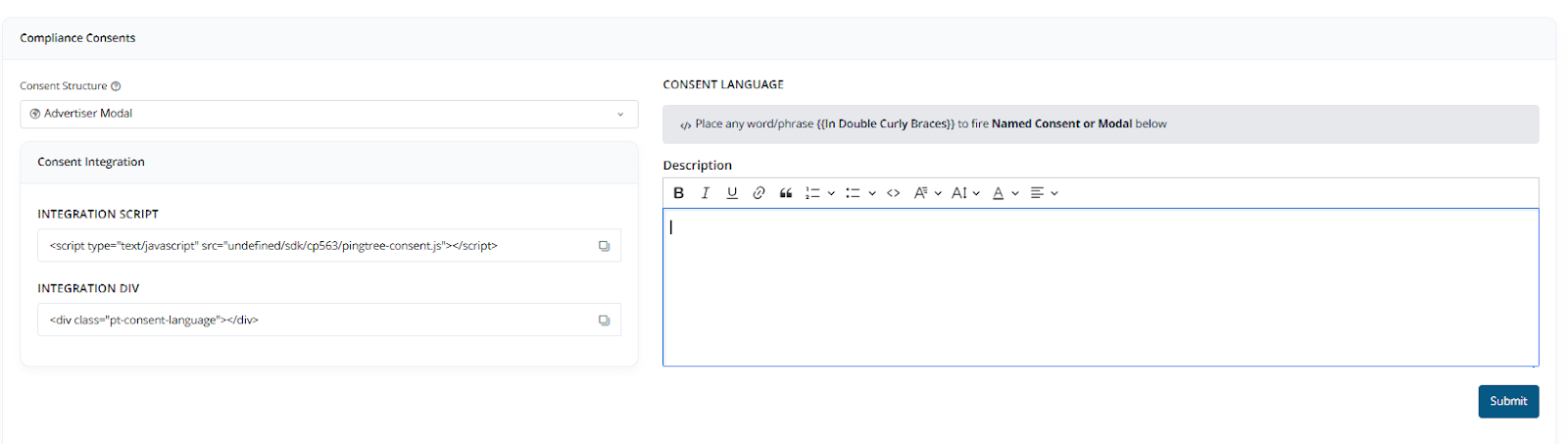 ## 1. Consent Structure
The Consent module allows you to configure and integrate consent modals and named consents to meet legal and operational compliance requirements.
### Consent Structure Options
Below are the available consent logic types:
* **Advertiser Modal**\
Displays a link labeled "Advertisers" that opens a modal listing all advertiser entities.
* **Single Option**\
Automatically presents the next available Advertiser or Endpoint based on cap and filter rules from Base Routing.
* **1 to 1 - Consent**\
Displays a specific Advertiser or Endpoint based on routing and availability logic.
* **1 to Many - Dynamic Consent**\
Displays multiple consent options for the user to view and select from dynamically.
* **1 to Many - Selected Consent**\
Shows a default consent message followed by a list of Advertisers/Endpoints the user can select individually.
These options offer flexibility for customizing how consent messages are displayed, accepted, and logged based on routing rules or advertiser requirements.
***
## 2. Consent Integration
### a. Integration Script
Include this script in your HTML to activate the Pingtree Consent SDK:
```html theme={null}
```
### b. Integration Div
Place this div where the consent message should render:
```html theme={null}
```
## 3. Consent Language Format
You can use placeholders wrapped in double curly braces (`{{ }}`) to reference named consents or open modals dynamically inside your consent description.
**Example Consent Message**:
> By clicking Submit, you agree that Century Support Services, LLC and its marketing partners may contact you via phone, email, autodialed or prerecorded calls, and text/SMS messages. Msg. and data rates may apply. Consent is not required for purchase. Providing your Date of Birth authorizes a soft credit check that will not affect your credit score. You agree to indemnify and hold Century harmless from any claims, damages, or expenses related to this consent.
***
## 4. Manage or Add Consents
To create or manage consents, define the following fields:
* **Consent Name**: A unique name for internal tracking.
* **System**: Choose between `Advertiser` or `Endpoint`.
* **Source**: Select the applicable regulatory source (e.g., TCPA, GDPR).
* **Short Description**: A concise message that describes the purpose of the consent.
* **Image Upload**: Optional logo or image for visual identification.
* **Status**: Toggle to enable or disable the consent.
* **Actions**: Options to edit or delete a consent item.
* **Arrange**: Drag and drop consents to reorder their display priority.
***
## 5. Consent Settings
Customize how consents behave during user interaction:
* **Auto Selection**\
Automatically selects default consents when the form loads.
* **Auto Selected Consents**\
Lists the consents that are pre-selected by default.
* **Consents Sorting Order**\
Choose between manual arrangement or alphabetical order.
* **Consent Limitation**\
Restrict the number of consents that a user is allowed to select.
* **Allow Continue**\
If enabled, the form can proceed even if not all consents are selected.
***
## 6. Popup Alert Settings
Configure popups to alert users when consent requirements are not met:
* **Popup Alert Title**: The headline for the popup alert.
* **Popup Alert Description**: Supporting message displayed inside the popup.
* **Minimum Consent**: Minimum number of consents required before allowing the user to continue.
* **Popup Logo**: (Optional) Upload a logo to display within the alert popup.
***
This consent system ensures compliance while providing flexibility in how advertisers, endpoints, and consent messages are presented and enforced across funnels.
## 1. Consent Structure
The Consent module allows you to configure and integrate consent modals and named consents to meet legal and operational compliance requirements.
### Consent Structure Options
Below are the available consent logic types:
* **Advertiser Modal**\
Displays a link labeled "Advertisers" that opens a modal listing all advertiser entities.
* **Single Option**\
Automatically presents the next available Advertiser or Endpoint based on cap and filter rules from Base Routing.
* **1 to 1 - Consent**\
Displays a specific Advertiser or Endpoint based on routing and availability logic.
* **1 to Many - Dynamic Consent**\
Displays multiple consent options for the user to view and select from dynamically.
* **1 to Many - Selected Consent**\
Shows a default consent message followed by a list of Advertisers/Endpoints the user can select individually.
These options offer flexibility for customizing how consent messages are displayed, accepted, and logged based on routing rules or advertiser requirements.
***
## 2. Consent Integration
### a. Integration Script
Include this script in your HTML to activate the Pingtree Consent SDK:
```html theme={null}
```
### b. Integration Div
Place this div where the consent message should render:
```html theme={null}
```
## 3. Consent Language Format
You can use placeholders wrapped in double curly braces (`{{ }}`) to reference named consents or open modals dynamically inside your consent description.
**Example Consent Message**:
> By clicking Submit, you agree that Century Support Services, LLC and its marketing partners may contact you via phone, email, autodialed or prerecorded calls, and text/SMS messages. Msg. and data rates may apply. Consent is not required for purchase. Providing your Date of Birth authorizes a soft credit check that will not affect your credit score. You agree to indemnify and hold Century harmless from any claims, damages, or expenses related to this consent.
***
## 4. Manage or Add Consents
To create or manage consents, define the following fields:
* **Consent Name**: A unique name for internal tracking.
* **System**: Choose between `Advertiser` or `Endpoint`.
* **Source**: Select the applicable regulatory source (e.g., TCPA, GDPR).
* **Short Description**: A concise message that describes the purpose of the consent.
* **Image Upload**: Optional logo or image for visual identification.
* **Status**: Toggle to enable or disable the consent.
* **Actions**: Options to edit or delete a consent item.
* **Arrange**: Drag and drop consents to reorder their display priority.
***
## 5. Consent Settings
Customize how consents behave during user interaction:
* **Auto Selection**\
Automatically selects default consents when the form loads.
* **Auto Selected Consents**\
Lists the consents that are pre-selected by default.
* **Consents Sorting Order**\
Choose between manual arrangement or alphabetical order.
* **Consent Limitation**\
Restrict the number of consents that a user is allowed to select.
* **Allow Continue**\
If enabled, the form can proceed even if not all consents are selected.
***
## 6. Popup Alert Settings
Configure popups to alert users when consent requirements are not met:
* **Popup Alert Title**: The headline for the popup alert.
* **Popup Alert Description**: Supporting message displayed inside the popup.
* **Minimum Consent**: Minimum number of consents required before allowing the user to continue.
* **Popup Logo**: (Optional) Upload a logo to display within the alert popup.
***
This consent system ensures compliance while providing flexibility in how advertisers, endpoints, and consent messages are presented and enforced across funnels.