> ## Documentation Index
> Fetch the complete documentation index at: https://docs.pingtree.com/llms.txt
> Use this file to discover all available pages before exploring further.
# Domains Tab
> Configure your funnel’s production, staging, and redirect domains to ensure correct traffic routing and lead capture.
Funnel Domain Settings let you manage and verify domains used across your landing pages and redirects. This ensures your traffic flows securely and efficiently, whether in production or testing.
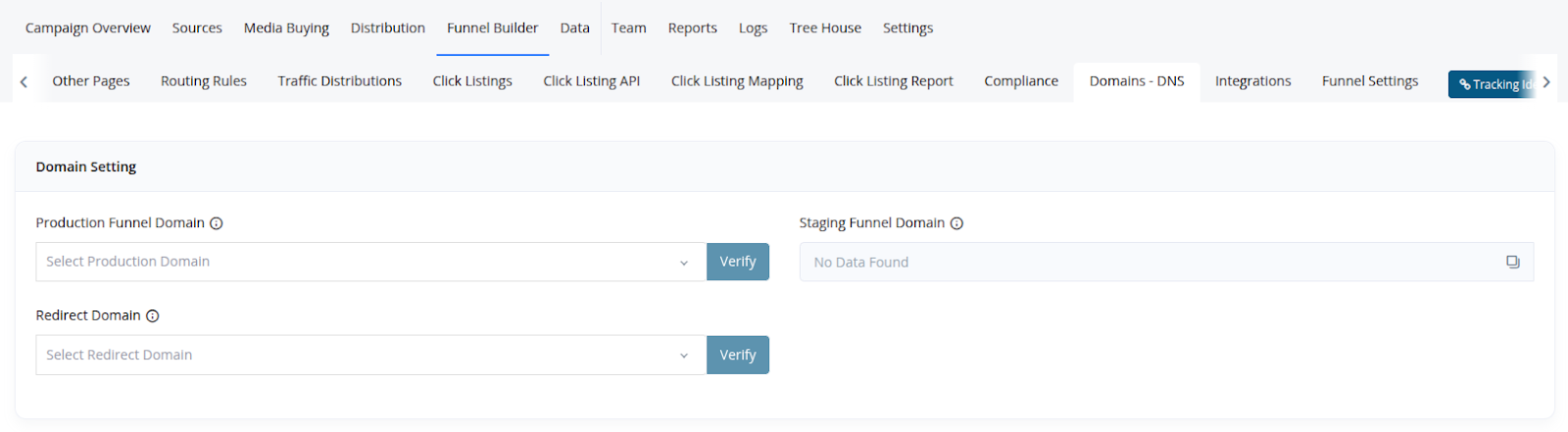 ## 1. Production Funnel Domain
**Purpose:**\
This domain serves all your live landing pages and forms. It acts as the front-facing domain where users enter your funnel.
**Setup Steps:**
* Choose your production domain from the dropdown.
* Point the domain to IP address: `54.241.58.112`
* If you're using a root domain (like `yourdomain.com`), also point the `www` subdomain to the same IP.
* Click **Verify** to confirm setup.
**Behavior:**\
All production traffic flows through this domain. Based on routing rules, Pingtree will determine which landing or form page is shown to each user.
**Example:**\
A visitor might go from `www.yourdomain.com` → Landing Page → Form Page — all served via this domain.
## 2. Staging Funnel Domain
**Purpose:**\
Used for QA and testing purposes. The staging domain replicates production behavior without affecting live traffic.
**How It Works:**
* No setup required on your end. A staging domain like `formrouting-xxxxxx.pngtrk.studio` is automatically provided and verified.
* This domain follows the same routing and form logic as production.
Use it to test page designs, routing logic, and integrations before pushing changes live.
## 3. Redirect Domain
**Purpose:**\
Handles only redirect traffic. It's used with Tracking Links to send users to:
* Funnel landing pages
* Advertiser click URLs
* External domains
**Setup Steps:**
* Choose your redirect domain from the dropdown.
* Point it to IP address: `54.219.75.168`
* Click **Verify** to confirm.
**Routing Behavior:**
Controlled by your **Link Route** setting:
* **Funnel:** Redirects to your funnel landing page.
* **Direct Sell:** Redirects to an advertiser’s click URL.
* **External Domain:** Redirects to a third-party website.
**Example:**\
In your form page, the submit link may look like:
```html theme={null}
Submit
```
Pingtree automatically replaces the placeholder with the correct redirect URL based on your routing logic.
## Key Notes
* Always verify DNS propagation for your domains.
* For root domains, include both @ and www A-records to ensure full coverage.
* Use the staging domain for safe testing and QA before publishing updates.
## 1. Production Funnel Domain
**Purpose:**\
This domain serves all your live landing pages and forms. It acts as the front-facing domain where users enter your funnel.
**Setup Steps:**
* Choose your production domain from the dropdown.
* Point the domain to IP address: `54.241.58.112`
* If you're using a root domain (like `yourdomain.com`), also point the `www` subdomain to the same IP.
* Click **Verify** to confirm setup.
**Behavior:**\
All production traffic flows through this domain. Based on routing rules, Pingtree will determine which landing or form page is shown to each user.
**Example:**\
A visitor might go from `www.yourdomain.com` → Landing Page → Form Page — all served via this domain.
## 2. Staging Funnel Domain
**Purpose:**\
Used for QA and testing purposes. The staging domain replicates production behavior without affecting live traffic.
**How It Works:**
* No setup required on your end. A staging domain like `formrouting-xxxxxx.pngtrk.studio` is automatically provided and verified.
* This domain follows the same routing and form logic as production.
Use it to test page designs, routing logic, and integrations before pushing changes live.
## 3. Redirect Domain
**Purpose:**\
Handles only redirect traffic. It's used with Tracking Links to send users to:
* Funnel landing pages
* Advertiser click URLs
* External domains
**Setup Steps:**
* Choose your redirect domain from the dropdown.
* Point it to IP address: `54.219.75.168`
* Click **Verify** to confirm.
**Routing Behavior:**
Controlled by your **Link Route** setting:
* **Funnel:** Redirects to your funnel landing page.
* **Direct Sell:** Redirects to an advertiser’s click URL.
* **External Domain:** Redirects to a third-party website.
**Example:**\
In your form page, the submit link may look like:
```html theme={null}
Submit
```
Pingtree automatically replaces the placeholder with the correct redirect URL based on your routing logic.
## Key Notes
* Always verify DNS propagation for your domains.
* For root domains, include both @ and www A-records to ensure full coverage.
* Use the staging domain for safe testing and QA before publishing updates.