> ## Documentation Index
> Fetch the complete documentation index at: https://docs.pingtree.com/llms.txt
> Use this file to discover all available pages before exploring further.
# Brand Settings
> Configure branding, meta information, and SEO rules to ensure your funnel reflects your brand and is optimized for search engines.
## Brand Settings Overview
The **Brand Settings** section allows you to configure global branding and metadata elements across all funnel pages. This ensures a consistent experience for users and helps optimize your funnel for search engines and social sharing.
***
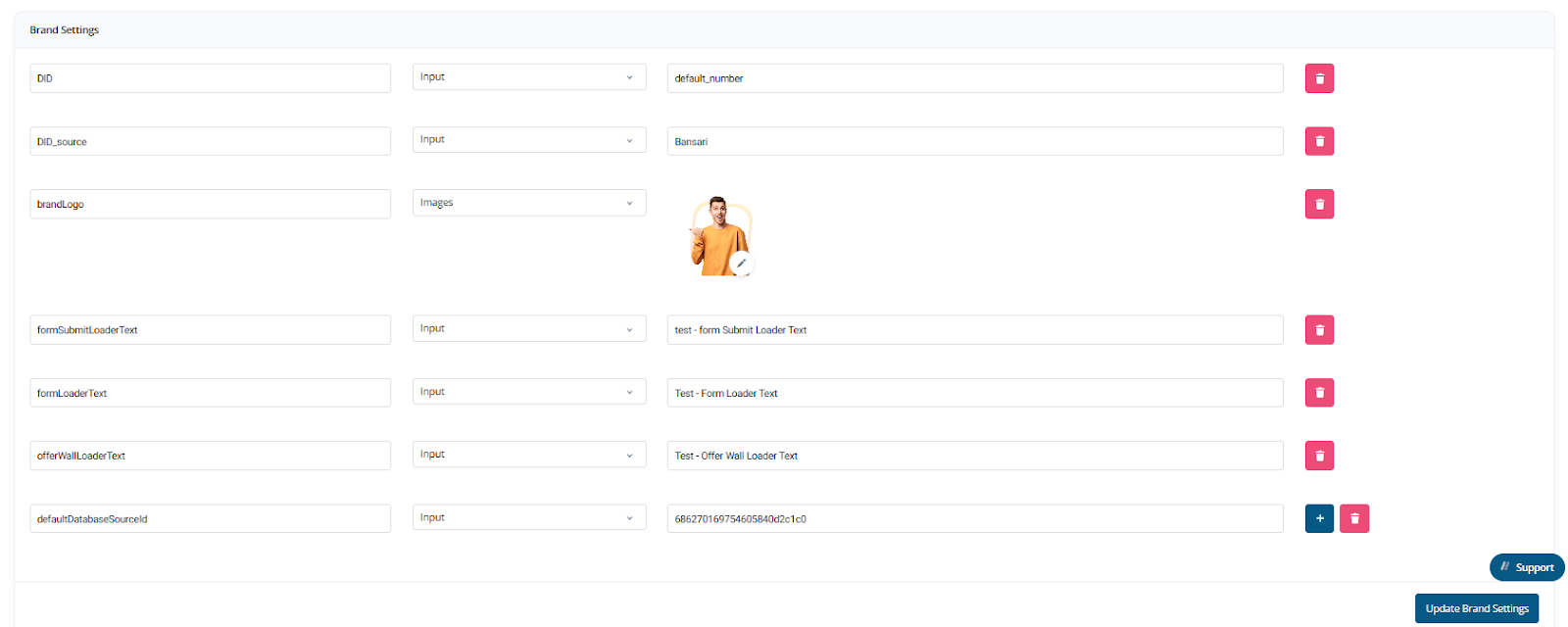
## 1. Default Branding Elements
Customize the visual and textual branding that appears across all pages of your funnel.
### Available Fields
* **Default Phone Number**\
The main contact number displayed on your funnel pages.
* **Brand Logo**\
Upload your company logo. It appears in headers, footers, or wherever branding is applied across your funnel.
* **Headline or Support Text**\
Add a short sentence or tagline that reinforces your offer or brand tone.
These elements ensure a **consistent look and feel** across your funnel and can be overridden on a per-page basis if needed.
 ***
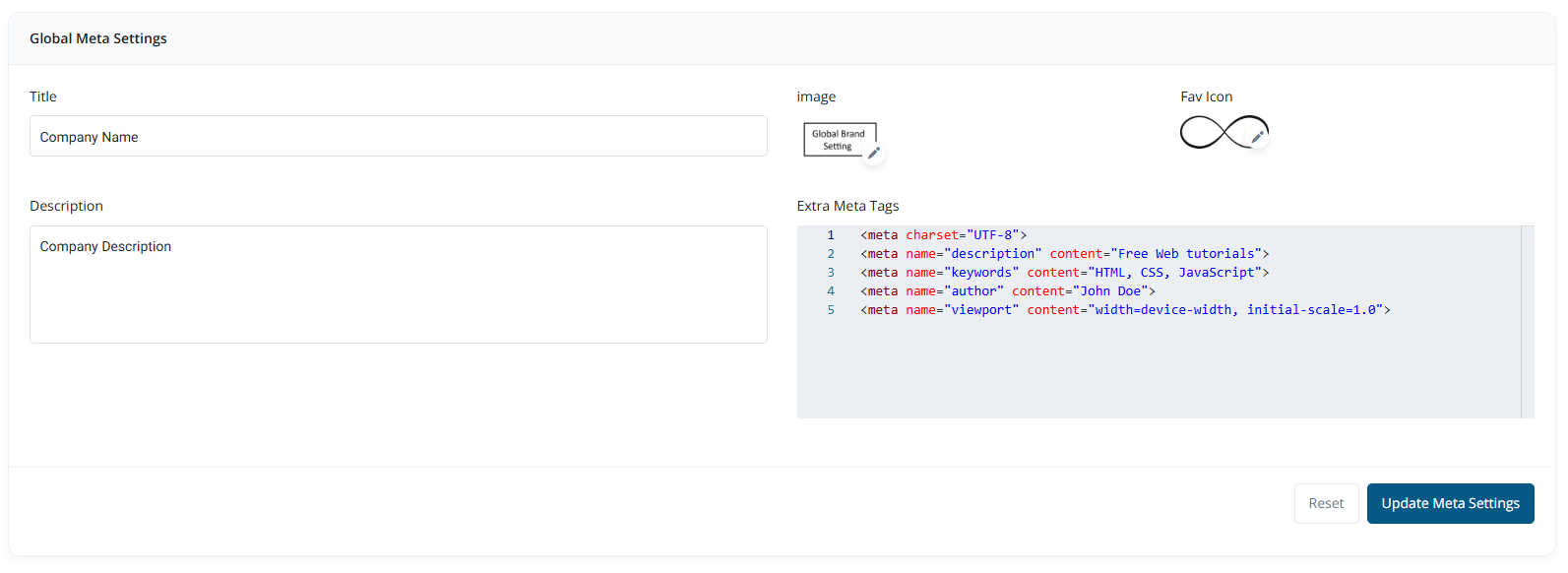
## 2. Global Meta
This section defines the metadata for your funnel, which improves visibility in search engines and controls how your links appear when shared on platforms like Facebook, Twitter, or WhatsApp.
### Fields
* **Meta Title**\
Appears in browser tabs and Google search results.
* **Meta Description**\
A short summary of your funnel used by search engines and social media platforms.
* **Meta Image**\
The image shown when the funnel is shared (Open Graph preview).
* **Favicon**\
A small icon shown in the browser tab.
* **Extra Meta Tags**\
Add custom metadata such as:
* `og:title`, `og:description`, `og:image`
* `twitter:card`, `twitter:title`, etc.
Use this section to **enhance link previews** and control what users see before they land on your funnel.
***
## 2. Global Meta
This section defines the metadata for your funnel, which improves visibility in search engines and controls how your links appear when shared on platforms like Facebook, Twitter, or WhatsApp.
### Fields
* **Meta Title**\
Appears in browser tabs and Google search results.
* **Meta Description**\
A short summary of your funnel used by search engines and social media platforms.
* **Meta Image**\
The image shown when the funnel is shared (Open Graph preview).
* **Favicon**\
A small icon shown in the browser tab.
* **Extra Meta Tags**\
Add custom metadata such as:
* `og:title`, `og:description`, `og:image`
* `twitter:card`, `twitter:title`, etc.
Use this section to **enhance link previews** and control what users see before they land on your funnel.
 ***
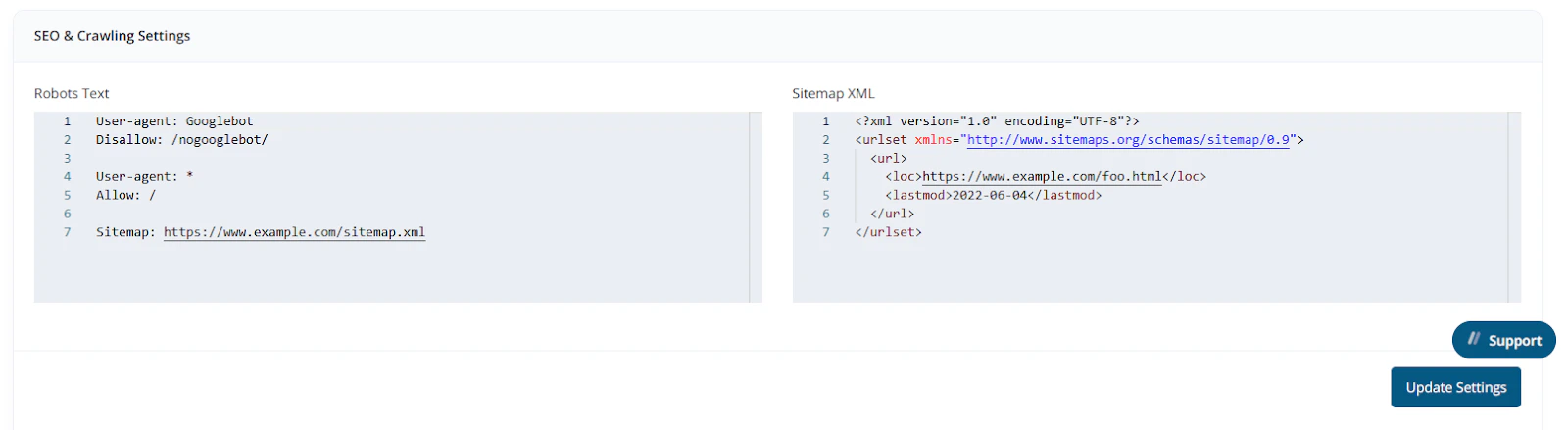
## 3. SEO & Crawling Settings
Control how search engines discover and index your funnel pages.
### Configuration Options
* **Robots.txt**\
Instructs search engines which URLs to **crawl** or **ignore**.\
Example use case: block indexing of `/thank-you` or test pages.
* **Sitemap.xml**\
Auto-generates a sitemap listing all accessible funnel pages.\
Helps Google, Bing, and other crawlers understand your site structure.
Together, these tools ensure your funnel is **SEO-friendly** while maintaining control over what content gets indexed.
***
## 3. SEO & Crawling Settings
Control how search engines discover and index your funnel pages.
### Configuration Options
* **Robots.txt**\
Instructs search engines which URLs to **crawl** or **ignore**.\
Example use case: block indexing of `/thank-you` or test pages.
* **Sitemap.xml**\
Auto-generates a sitemap listing all accessible funnel pages.\
Helps Google, Bing, and other crawlers understand your site structure.
Together, these tools ensure your funnel is **SEO-friendly** while maintaining control over what content gets indexed.
 ***
## Summary
The Brand Settings page centralizes all your funnel-wide customization:
* Set core branding visuals and text.
* Optimize how your funnel appears in search engines and social shares.
* Control crawler access and SEO behavior.
Proper configuration here improves brand consistency, enhances discoverability, and drives better engagement from both search engines and users.
***
## Summary
The Brand Settings page centralizes all your funnel-wide customization:
* Set core branding visuals and text.
* Optimize how your funnel appears in search engines and social shares.
* Control crawler access and SEO behavior.
Proper configuration here improves brand consistency, enhances discoverability, and drives better engagement from both search engines and users.