

Ticket Management
Pingtree includes a built-in ticket management system so you can report issues, request help, and track the status of ongoing work — all without leaving the platform.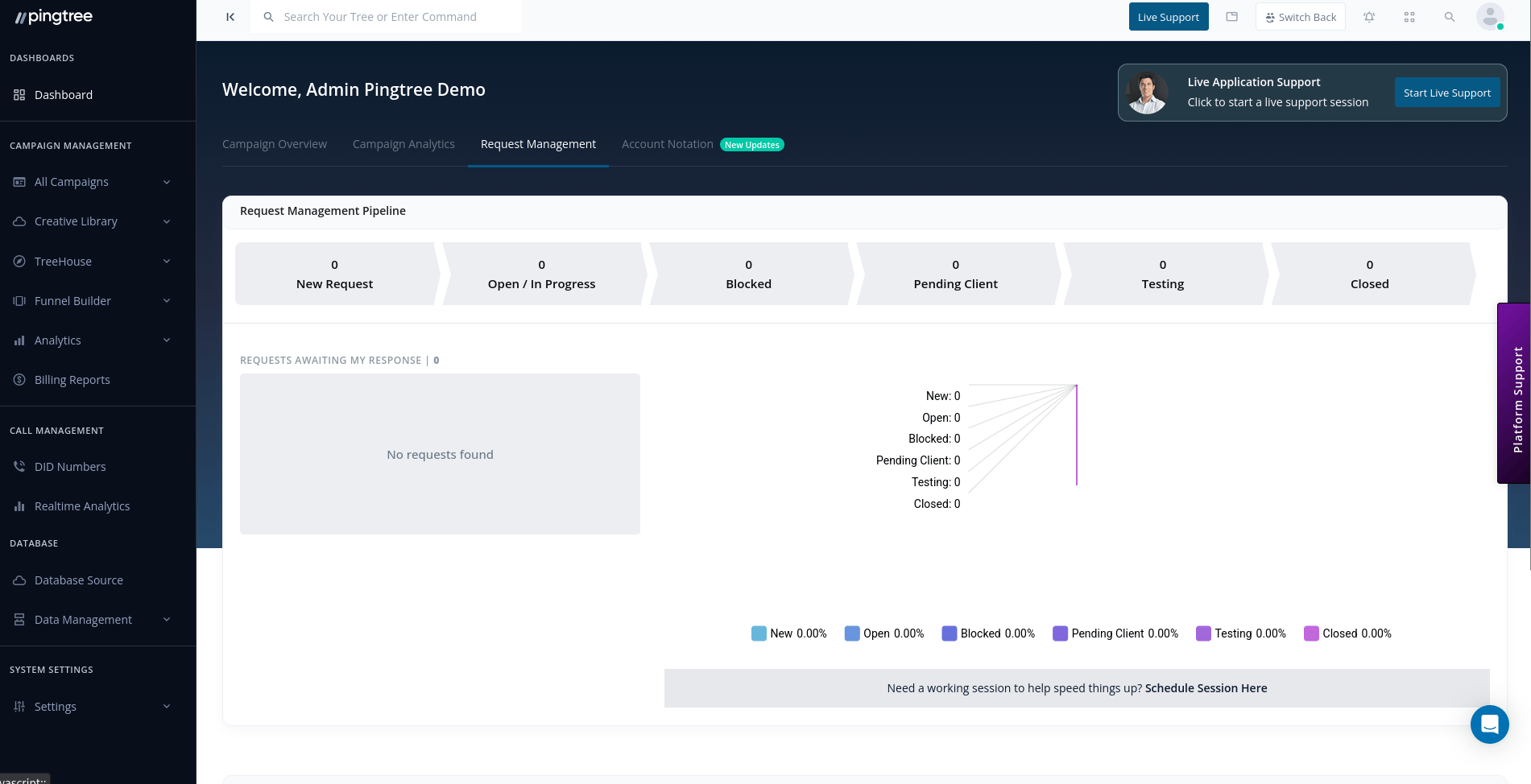
Creating a Ticket
To open a new support ticket, navigate to Support > Tickets and click New Ticket. Fill in the following fields:Ticket Priority Levels
Ticket Statuses
Tickets move through a defined lifecycle so you always know where things stand:Viewing Your Tickets
Table View
The default view lists all tickets in a sortable table. You can search, filter, and sort by any column.Kanban Board View
Switch to the Kanban view to see tickets organized by status in columns. Drag and drop tickets between columns to update their status instantly.Filtering and Searching
Use the filter toolbar to narrow down your ticket list:- Status — filter by one or more statuses
- Priority — focus on urgent or high-priority items
- Assignee — view tickets assigned to a specific team member
- Tags — filter by custom labels applied to tickets
- Date Range — narrow results to a specific time period
- Organization — filter across multiple organizations (enterprise accounts)
Ticket Detail View
Click any ticket to open the detail view, which includes:- Full description and all ticket fields
- Comment thread — add updates, questions, or notes
- Attachments — view existing files or upload additional ones
- Change history — a complete audit log of every status change, field update, and assignment
Adding Comments and Attachments
Inside an open ticket, use the comment box to communicate with the support team. Attach files directly to comments or use the attachment section on the ticket.Ticket Change History
Every action taken on a ticket is recorded in the History log, including:- Status changes
- Priority updates
- Assignee changes
- Comments added
- Attachments uploaded