

Overview
The Campaign Financial Overview gives you a comprehensive view of the money flowing through your campaign. It breaks down revenue, costs, and profit across time periods, sources, and buyers — so you always know where your margins stand and where to focus optimization efforts.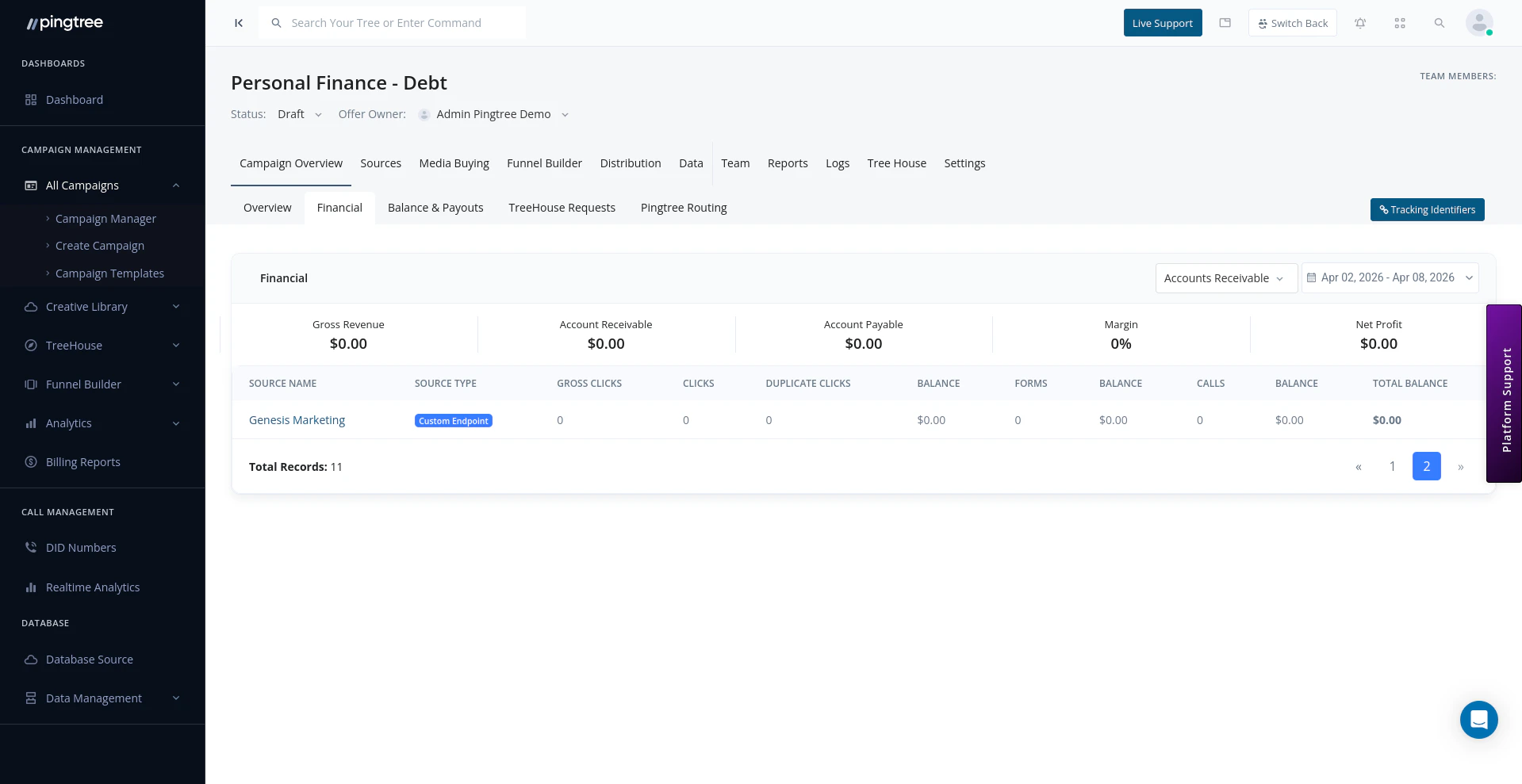
Campaign financial overview with revenue, cost, and profit charts
Balance Report
The balance report provides a high-level summary of your campaign’s financial position over the selected date range:
Use the date range selector to view these figures for any custom period — daily, weekly, monthly, or a custom window.
Tip: Switch to a monthly view at the end of each month to quickly reconcile your campaign P&L without needing to export data.
Time-Series Balance Report
Below the summary cards, a graph view plots revenue, cost, and profit over time. This lets you:- Identify trends and seasonal patterns in your campaign performance
- Spot days or weeks where costs spiked without a matching revenue lift
- Compare performance across multiple time periods visually
- Daily — Each data point represents one day
- Weekly — Data is aggregated by week
- Monthly — Data is aggregated by month
Distribution Overview (Buyer-Level Breakdown)
The distribution section breaks financial performance down by individual buyers (distribution endpoints):
Use this view to identify which buyers are your most profitable and which ones may need renegotiated rates or additional filters.
Source-Wise Financial Breakdown
The source-level breakdown shows how each traffic source contributes to your campaign’s financials:
This view is useful for identifying high-cost, low-conversion sources that may be dragging down overall campaign profitability.
Profit Margin Tracking
Pingtree tracks profit margin at the campaign level, buyer level, and source level simultaneously. This lets you:- Identify thin-margin buyers and renegotiate prices
- Spot high-cost sources and reduce spend or optimize targeting
- Monitor overall campaign health with a single percentage figure
Exporting Financial Data
You can export any financial report as a CSV file for use in spreadsheets, accounting tools, or external reporting:- Apply your desired date range and filters.
- Click the Export button in the top-right of the financial section.
- The export will be generated and delivered via in-app notification and email.
Note: CSV exports include all columns currently visible in the table. Customize your column selection before exporting to get exactly the data you need.
Best Practices
- Review the time-series graph weekly to catch margin compression early.
- Use the buyer-level breakdown to prioritize your highest-margin distribution endpoints.
- Export monthly financials to keep a historical record outside of Pingtree for accounting purposes.