

Overview
Creating a campaign in Pingtree takes just a few minutes. Once created, your campaign gets a unique Campaign ID (CID) — such ascp100 — that identifies it across the entire platform. After creation, you can layer in sources, distribution, funnels, and settings at your own pace.
Video Walkthrough: A step-by-step video guide for this feature is coming soon.
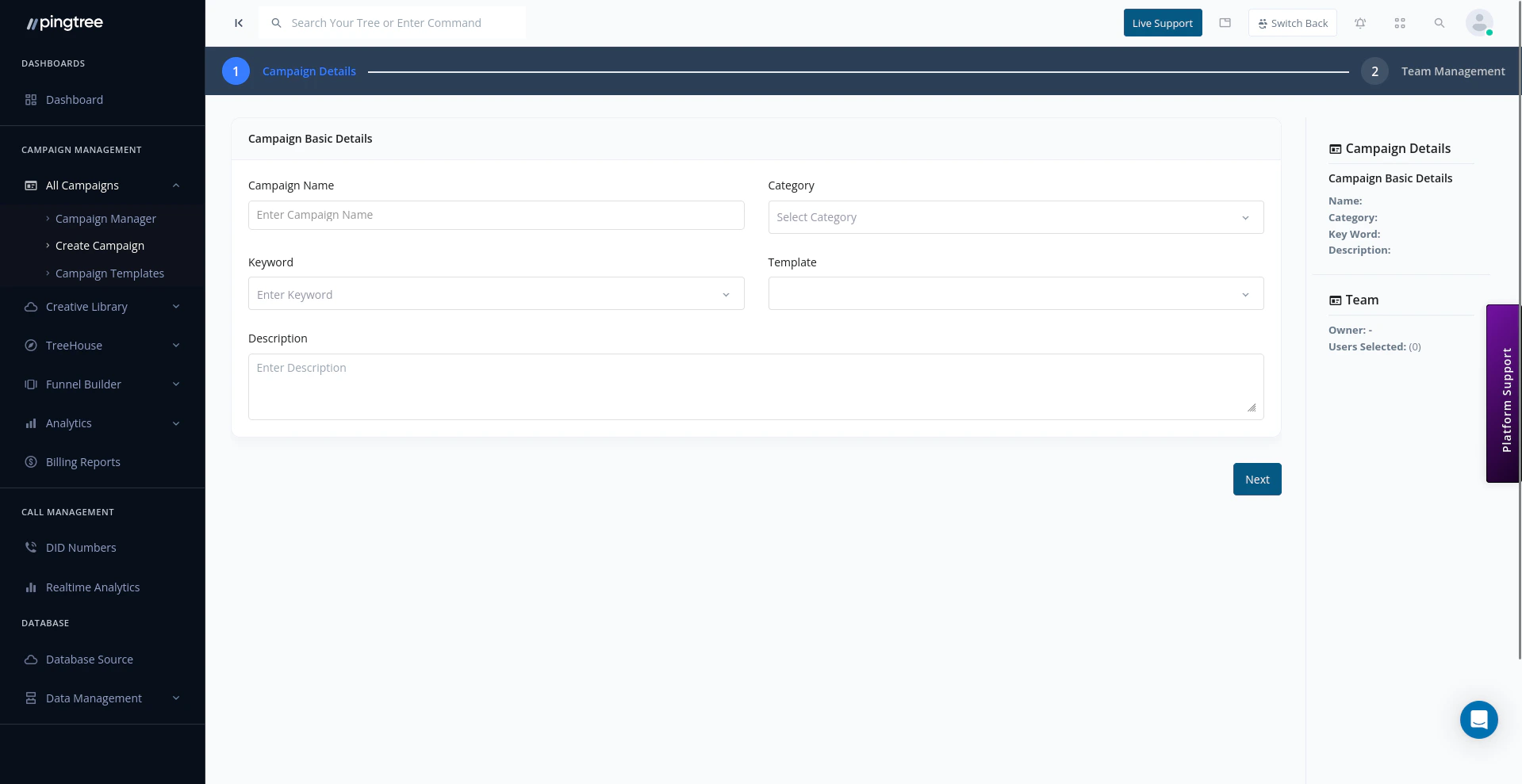
Campaign creation wizard first step
Before You Start
Have the following ready before creating your campaign:- A clear campaign name (e.g., “Auto Insurance — Q3 2025”).
- An understanding of what lead type you’re running (form lead, click, ping-post).
- Optionally, a campaign category if you’re organizing by vertical or brand.
Steps to Create a Campaign
1
Click Create Campaign
From the Campaign Manager page, click the Create Campaign button in the top-right corner. You can also find this option in the sidebar navigation.
2
Enter Campaign Name and Description
Give your campaign a clear, descriptive name. Add an optional description to note the goals, vertical, or any relevant context for your team.
3
Select a Campaign Category (Optional)
Assign the campaign to an existing category (e.g., “Insurance”, “Solar”, “Finance”) to keep your list organized. You can create a new category directly from this dropdown if needed.
4
Choose Lead Generation Type
Select the type of lead generation your campaign will use:
5
Configure Basic Settings
Set foundational options for the campaign:
- Timezone — Choose the timezone used for reporting and scheduling (e.g., US/Eastern).
- Dedupe Rules — Define how duplicate leads are detected and handled (e.g., deduplicate by email within 30 days).
6
Assign a Database Source (Optional)
A database source stores all lead data collected by this campaign. You can create a new database source or link the campaign to an existing one. This step can also be completed after campaign creation.
7
Set Up Brand Settings (Optional)
Add brand assets to personalize the campaign experience:
- Logo — Displayed on funnel pages and source portals.
- Hero Image — Used as the main visual on landing pages.
- Landing URL — The primary destination URL for this campaign’s traffic.
Tip: Brand settings are especially useful if you manage multiple brands within one Pingtree account, as they keep your partner-facing pages consistent.
8
Save and Create
Click Create Campaign to finalize. Pingtree will generate a unique Campaign ID (CID) for this campaign — for example,
cp100. This ID is used across tracking links, API calls, and reports.What Happens After Creation
Once your campaign is created, you’ll land on the Campaign Overview page. From here you can configure:Tip: You don’t need to configure everything before going live. A campaign with a source and a distribution endpoint is enough to start receiving and routing leads.
Campaign ID Format
Every campaign is automatically assigned a unique Campaign ID when created. This ID follows the format:cp100, cp101, cp205
This ID is used in:
- API calls to submit or retrieve leads
- Tracking links for source attribution
- Reports and logs to identify which campaign a lead belongs to