

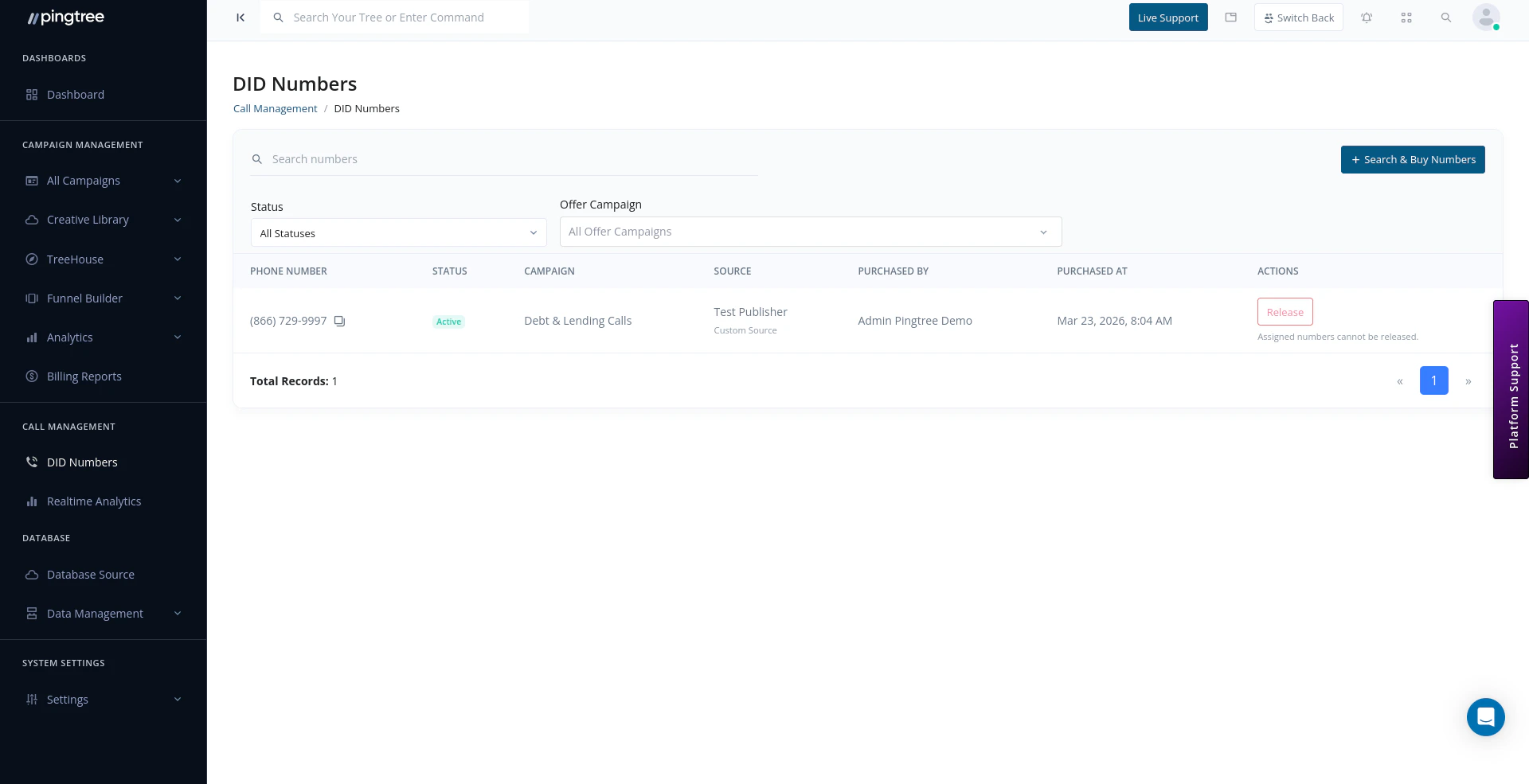
DID Numbers list with purchased numbers, status, and campaign assignments
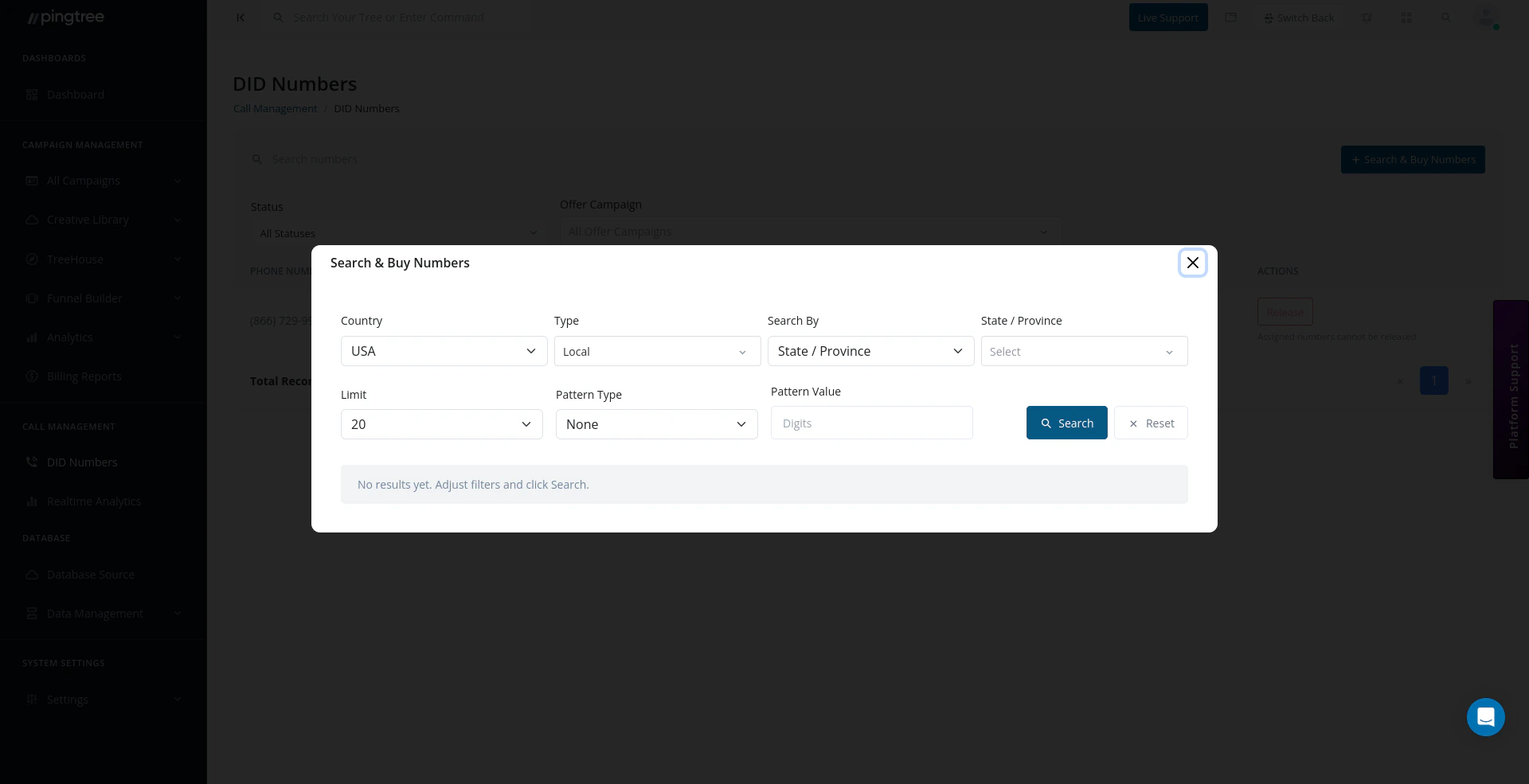
Search and Buy Numbers modal with country, type, and area code filters
Number Types
Pingtree supports two types of DID numbers:
Upfront and monthly charges differ between local and toll-free numbers. The current pricing for your organization is displayed in the search results before you confirm a purchase.
Number Statuses
Every DID number moves through a status lifecycle:Tip: Numbers typically move from Pending to Available within seconds of purchase. Pingtree polls Telnyx automatically after the order is placed so the status updates without a manual refresh.
Purchasing a Number
Before purchasing, make sure your organization has a Call Control Application and a Billing Group configured. These are required for Telnyx to route calls correctly.- Click Search Numbers to open the number search modal.
- Choose Local or Toll-Free as the number type.
- Enter an area code to search for available numbers in that region.
- Review the results. Each result shows the phone number, region information, and the upfront and monthly costs that will be charged to your wallet.
- Click Purchase next to the number you want.
- Confirm the purchase. The upfront cost is deducted from your wallet immediately.
Tip: Ensure your wallet has sufficient balance before purchasing. The system checks your balance before placing the order and will decline the purchase if funds are insufficient.After purchase, the number appears in your DID Numbers list with a status of Pending, then Available once Telnyx confirms provisioning.
Assigning a Number to a Source
An Available number must be assigned to a campaign and source combination before it can receive traffic. Only unassigned numbers (those with no campaign or source attached) appear in the assignable list.- Go to the campaign source where you want to enable call tracking.
- Open the Manage Calls section for that source.
- Select an available DID number from the dropdown.
- Choose the campaign, source type, and optionally provide an internal label (Assigned Name) for easy reference.
- Save the assignment.
Viewing All Numbers
The DID Numbers list shows all numbers purchased by your organization, paginated and filterable:
Use the Status filter to narrow the list to a specific lifecycle stage (e.g., show only Active numbers). You can also filter by Campaign to see all numbers attached to a particular offer.
Releasing a Number
Releasing permanently removes a number from your account and from Telnyx. Monthly charges stop after release.Important: A number must be unassigned before it can be released. If the number is currently Active (assigned to a source), unassign it from the source’s Call Settings first.
- Locate the number in the DID Numbers list.
- Click the Release action in the row menu.
- Confirm the release in the dialog.
Assignable vs. Assigned Numbers
Only assignable numbers appear in the source call settings dropdown. If a number you purchased does not appear in the dropdown, check that its status is Available and that it has not already been assigned elsewhere.