

Overview
The Campaign Integrations section lets you connect Pingtree to external services — whether that’s a CRM, a click network, a data enrichment provider, or any custom API endpoint. Integrations are configured at the campaign level so each campaign can have its own set of connected services.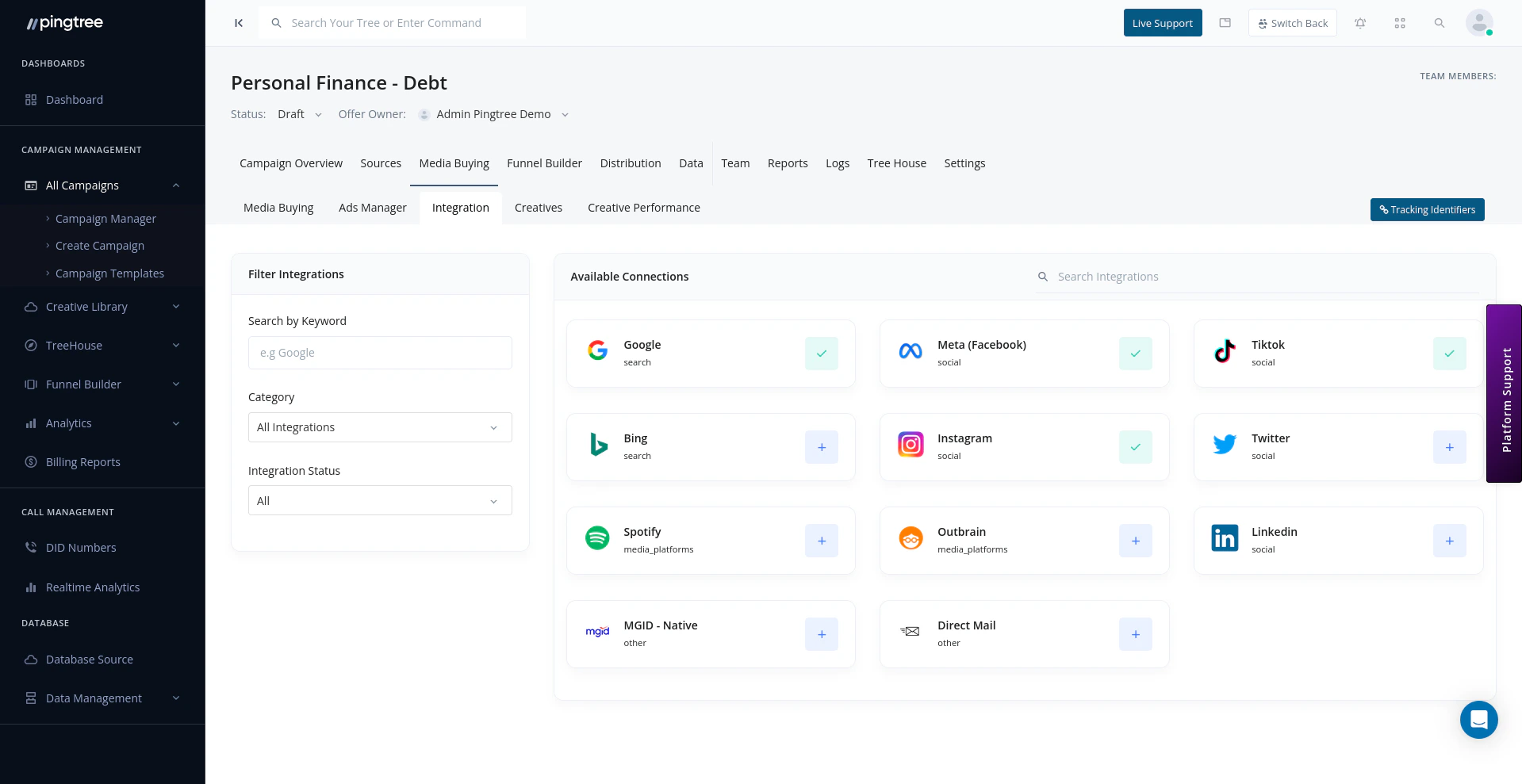
Campaign integrations showing available connections and filter options
Integration Custom Endpoints
An integration custom endpoint is a configured connection to an external API. Once set up, Pingtree can send data to or receive data from that external service as part of your lead flow. Common use cases include:- Sending lead data to a CRM or dialer system
- Calling a data enrichment API to append information to a lead
- Posting conversion events to third-party tracking platforms
- Connecting to compliance or suppression list services
Creating an Integration Endpoint
- Navigate to Integrations within your campaign.
- Click Add Integration Endpoint.
- Enter a name for the integration.
- Select the category that best describes the integration (e.g., CRM, Enrichment, Compliance).
- Enter the endpoint URL provided by the third-party service.
- Configure the HTTP method (GET or POST) and request format (JSON, form-encoded, XML).
- Save the endpoint.
Request and Response Mapping
After creating an endpoint, configure how data is sent and received:Request Mapping
Map Pingtree lead fields to the field names expected by the external service. For example:
Add any required headers (e.g., API keys or authorization tokens) in the Headers section.
Response Mapping
Configure what Pingtree does with the response it receives back from the external service:Routing Rules and Filters for Integration Endpoints
Control which leads are sent to each integration endpoint using routing rules and filters:- Routing Rules — Use IF/THEN logic based on lead field values (e.g., only send leads from California to this endpoint).
- Cap Settings — Limit how many leads are sent to an integration per day, week, or month.
- Time Filters — Restrict when the integration is active using day-parting settings.
- Geolocation Filters — Include or exclude leads based on state or zip code.
Testing Integration Endpoints
Before going live, test each integration endpoint to confirm the connection is working correctly:- Open the integration endpoint you want to test.
- Click Test Endpoint.
- Fill in sample lead field values in the test dialog.
- Click Submit to send a test request to the external service.
- Review the API response to confirm data was received correctly.
Tip: Use a real transaction ID from a recent lead to generate a realistic test payload using the Sample Response feature. This helps verify that your field mapping is accurate without fabricating test data.
Click Listing Integrations
Pingtree also supports click listing integrations — connections to click networks that serve offers to users who submit a lead form. These are configured in the same Integrations section.Creating a Click Listing from an Integration Network
- Navigate to Integrations → Click Listings.
- Click Add Click Listing.
- Select the integration network from the available list.
- Enter your network credentials (API key, publisher ID, etc.).
- Configure the placement — which funnel page and position the listing appears on.
- Save and assign the click listing to your campaign.
Category-Based Organization
All integrations can be tagged with a category to keep them organized:
Filtering by category in the integrations list makes it easy to find and manage specific types of connections.
Integration Performance and Logs
Each integration endpoint has a performance summary and request logs:- Performance — Total requests, success rate, rejection rate, and average response time.
- Logs — Individual request and response pairs for debugging.