

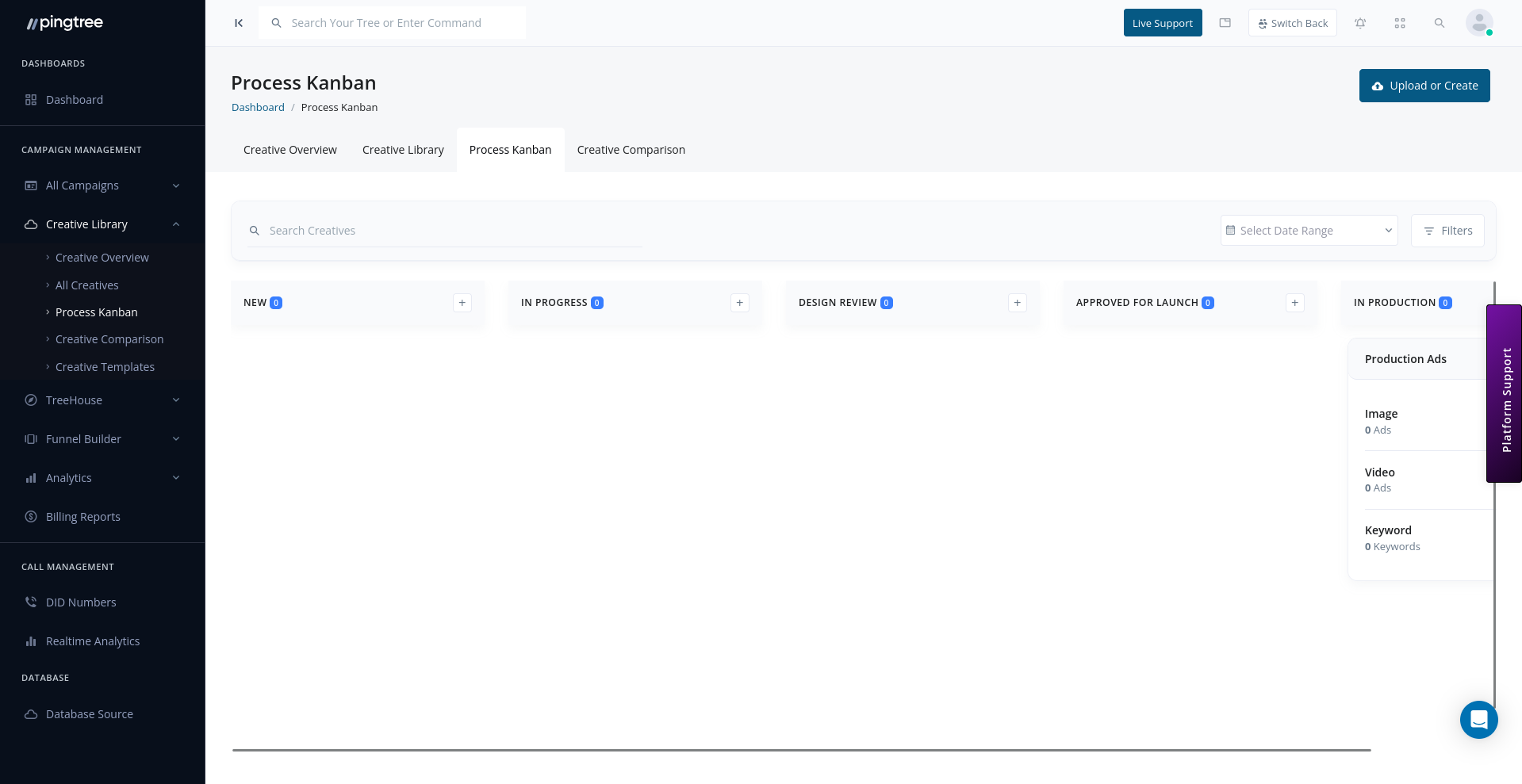
Creative process kanban board with workflow stages
Kanban Board Layout
The board displays creatives as cards arranged in columns. Each column represents a stage in the creative production workflow.Default Workflow Stages
Each card on the board shows the creative’s name, unique ID, assigned campaign (if any), tags, and a thumbnail (for image and video creatives).
Moving Creatives Between Stages
Drag a creative card from one column and drop it into another to update its status instantly. There is no need to open the creative detail view for routine stage transitions.- Dragging a card updates the creative’s status in real time.
- All status changes are recorded in the creative’s activity log with a timestamp and the user who made the change.
Tip: During a team stand-up or review session, use the Kanban board on a shared screen to walk through all in-progress creatives and move them forward collaboratively as a team.
Filtering the Board
Use the filters at the top of the board to focus on a specific subset of creatives:
Filters can be combined. For example, you can view all Image creatives tagged Summer Promo that are assigned to a specific team member — giving you a precise slice of the pipeline without any noise.
Bulk Status Updates from the Board
You do not have to drag cards one at a time. Select multiple creative cards using the checkboxes that appear on hover, then use the Bulk Update toolbar to move them all to a new stage at once. Common bulk actions from the board:- Move a batch of creatives from In Design Review to Approved after a review session.
- Mark a group of rejected creatives as New to restart the review cycle.
- Move a set of approved creatives to Active when a campaign launches.
Tracking the Creative Lifecycle
The Kanban board makes the full creative lifecycle visible at a glance:- Creatives that are Not Approved can be moved back to New once they have been revised and re-uploaded.
- Creatives that move to Active remain visible on the board so you can monitor your live creative inventory.
Best Practices for Teams
The Kanban board is especially valuable for teams managing high volumes of creative production across multiple campaigns running simultaneously.Tip: Add tags such aspriority,urgent, orholdto creatives so they stand out on the board and communicate context to your team without requiring verbal check-ins.