

Overview
The All Funnels page is your organization-wide hub for every funnel that has been built in Pingtree. Unlike the per-campaign funnel view, this page shows funnels across all campaigns in one place — making it easy to search, reuse, and manage your entire funnel library. A funnel in Pingtree is made up of three core components: a landing page, a form, and any additional pages (such as a thank you page or offer wall). These components work together to guide a visitor from first click to lead submission.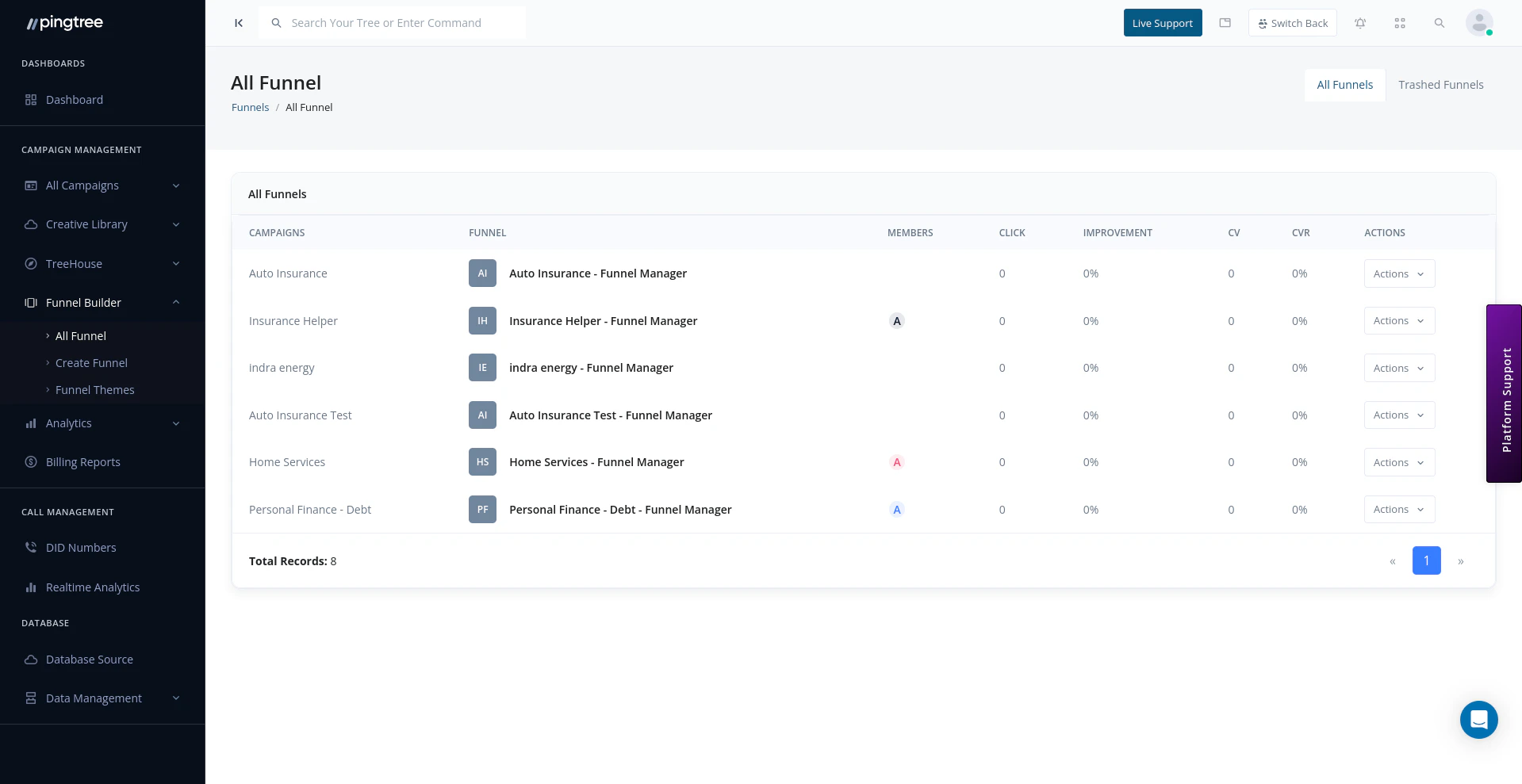
All funnels list view with status and actions
Funnel List Table
Each row in the table represents a single funnel. The following columns are displayed by default:Searching and Filtering
Use the toolbar at the top of the list to quickly narrow down the funnels you need:- Search bar — Search by funnel name or unique ID.
- Status filter — Show only Active or Inactive funnels.
- Campaign filter — Show only funnels assigned to a specific campaign.
- Unassigned filter — Show funnels that have not yet been linked to any campaign.
Tip: The Unassigned filter is especially useful after importing or duplicating funnels. It helps you spot any funnels that are ready to be deployed but haven’t been connected to a campaign yet.
Funnel Types
Pingtree supports two starting points when building a funnel:
Both types support the full range of features including A/B testing, form configuration, and tracking integrations.
Unassigned Funnels
Funnels that are not linked to a campaign are listed under the Unassigned filter. This can happen when:- A funnel is created independently in the funnel builder before a campaign is ready.
- A funnel is duplicated but not yet deployed.
- A funnel was previously removed from a campaign.
Quick Actions
Each funnel row has an actions menu (accessible via the three-dot icon). Available actions include:Tip: Use Duplicate to spin up A/B test variants quickly. Duplicate an existing funnel, make targeted changes to the copy, then assign both to the same campaign and split traffic between them.
A/B Testing with Variations
Each funnel can have multiple landing page variations. These variations allow you to test different headlines, layouts, form positions, or calls to action against each other without creating entirely separate funnels. The Variations column in the funnel list shows at a glance how many variants are active for each funnel. You can manage variation traffic splits from within the funnel’s settings.Funnel Status
Status changes take effect immediately and can be toggled at any time from the quick actions menu.