

Overview
Funnel Themes are reusable, pre-designed landing page templates that give you a ready-made starting point when creating a new funnel. Instead of building every layout from scratch, themes let you apply a proven structure, styling, and placeholder content in one click — then customize from there. Themes are managed separately from individual funnels, so a single theme can be applied to many funnels across different campaigns without duplicating work.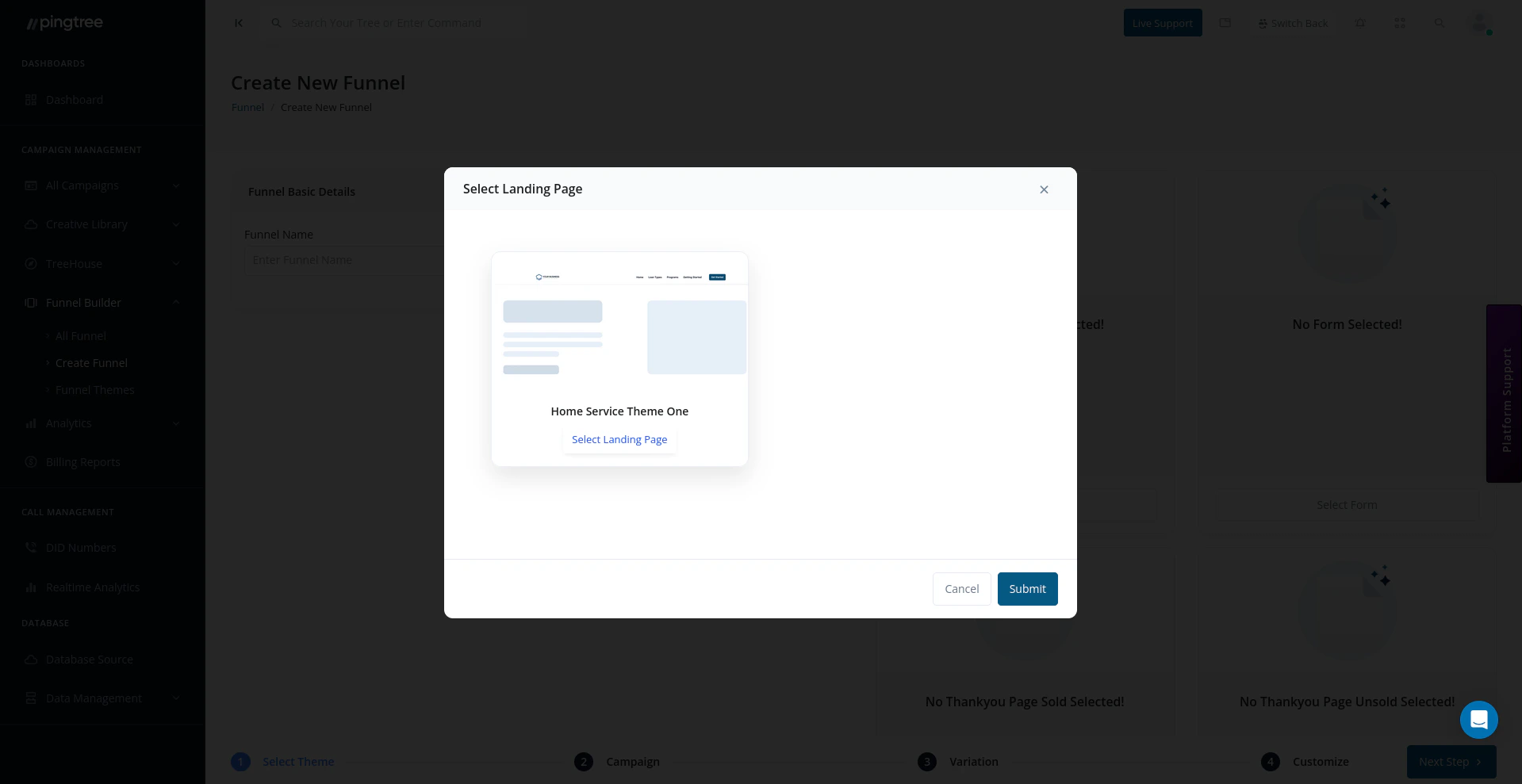
Theme selection modal showing available landing page templates
Types of Themes
Pingtree organizes themes into two categories:
Browse both types from the Funnel Themes page. Use the tab or filter to switch between Admin and User themes.
Browsing Themes
The theme library displays each theme as a card with:- Theme name and a short description.
- Preview image showing the layout at a glance.
- Status indicator (Active or Inactive).
- Action buttons to preview, duplicate, or select the theme.
Tip: Preview images make it much faster to find the right theme in a large library. Always upload a preview image when creating a custom theme — your future self (and your teammates) will thank you.
Previewing a Theme
Before applying a theme to a funnel, you can preview it in full to evaluate its layout, form structure, and overall look.- Hover over a theme card and click Preview.
- The theme opens in a full-screen preview showing the desktop view.
- Toggle to the mobile view to check responsive behavior.
- When you’re satisfied, click Use This Theme to begin creating a funnel with it, or close the preview to keep browsing.
Creating a Custom Theme
You can build your own reusable themes from the Theme Builder — the same drag-and-drop interface used for individual landing pages.1
Click Create Theme
From the Funnel Themes page, click Create Theme in the top-right corner.
2
Enter Theme Details
Provide the following:
- Theme Name — A clear name that describes the layout or vertical (e.g., “Auto Insurance — Clean Two-Column”).
- Description — Optional. Add context about when this theme works best.
3
Build the Layout
Use the drag-and-drop builder to design the theme’s layout:
- Add sections from the section picker (header, hero, form area, testimonials, footer, etc.).
- Set typography, colors, and spacing to match your brand.
- Add placeholder content — images, headlines, and copy that can be swapped out when the theme is applied to a funnel.
- Configure any pre-built form fields you want included by default (see below).
4
Upload a Preview Image
Upload a screenshot or design mockup of the theme to use as its preview image in the library. A good preview image makes it easy for your team to identify the right theme at a glance.Recommended dimensions: 1200 × 800px, PNG or JPG.
5
Set Theme Status and Save
Set the theme to Active to make it available for selection when creating new funnels. You can set it to Inactive if it’s still a work in progress.Click Save Theme to publish it to your organization’s theme library.
Pre-Configured Form Fields in Themes
Themes can include a pre-configured set of form fields that are automatically included whenever the theme is used to create a new funnel. This is useful when:- You always collect the same lead fields for a particular vertical.
- You have standardized validation rules you want applied by default.
- You want to reduce the setup time for new funnels.
Managing Themes
Duplicating a Theme
Duplicating is the fastest way to create a variation of an existing theme — for example, a dark-mode version of a layout, or a variant with a different hero image.- From the theme card, click the actions menu (three-dot icon).
- Select Duplicate.
- Give the copy a new name.
- The duplicate is created as an inactive User Theme, ready for editing.
Activating and Deactivating Themes
Inactive themes are hidden from the theme selection screen when creating a new funnel. Use this to keep the library clean by hiding themes that are out of date or no longer in use.Editing a Theme
Editing a theme does not automatically update funnels that were previously built using it. Each funnel is an independent copy of the theme at the time it was created. To update an existing funnel’s design, edit that funnel directly from the funnel builder.Assigning a Theme to a Funnel
Themes are selected at funnel creation time. When you click Create Funnel and choose Build from a Theme Template, you are presented with the full theme library to choose from. After a funnel is created, you cannot swap its theme directly — instead, duplicate the funnel, then create a new version from a different theme and compare performance.Tip: If you frequently create funnels for the same vertical, build a polished User Theme for that vertical and keep it updated. Every new funnel in that space will then start from a strong, consistent baseline — saving your team hours of setup time per funnel.