

What are Attributes?
Attributes are metadata tags that can be applied to leads stored in a database source. They are used to segment, filter, and categorize leads without altering the core lead data itself. Unlike custom fields — which capture data points submitted with the lead — attributes are labels applied after the lead is stored. They provide a flexible layer of classification that supports reporting, targeted exports, and workflow automation.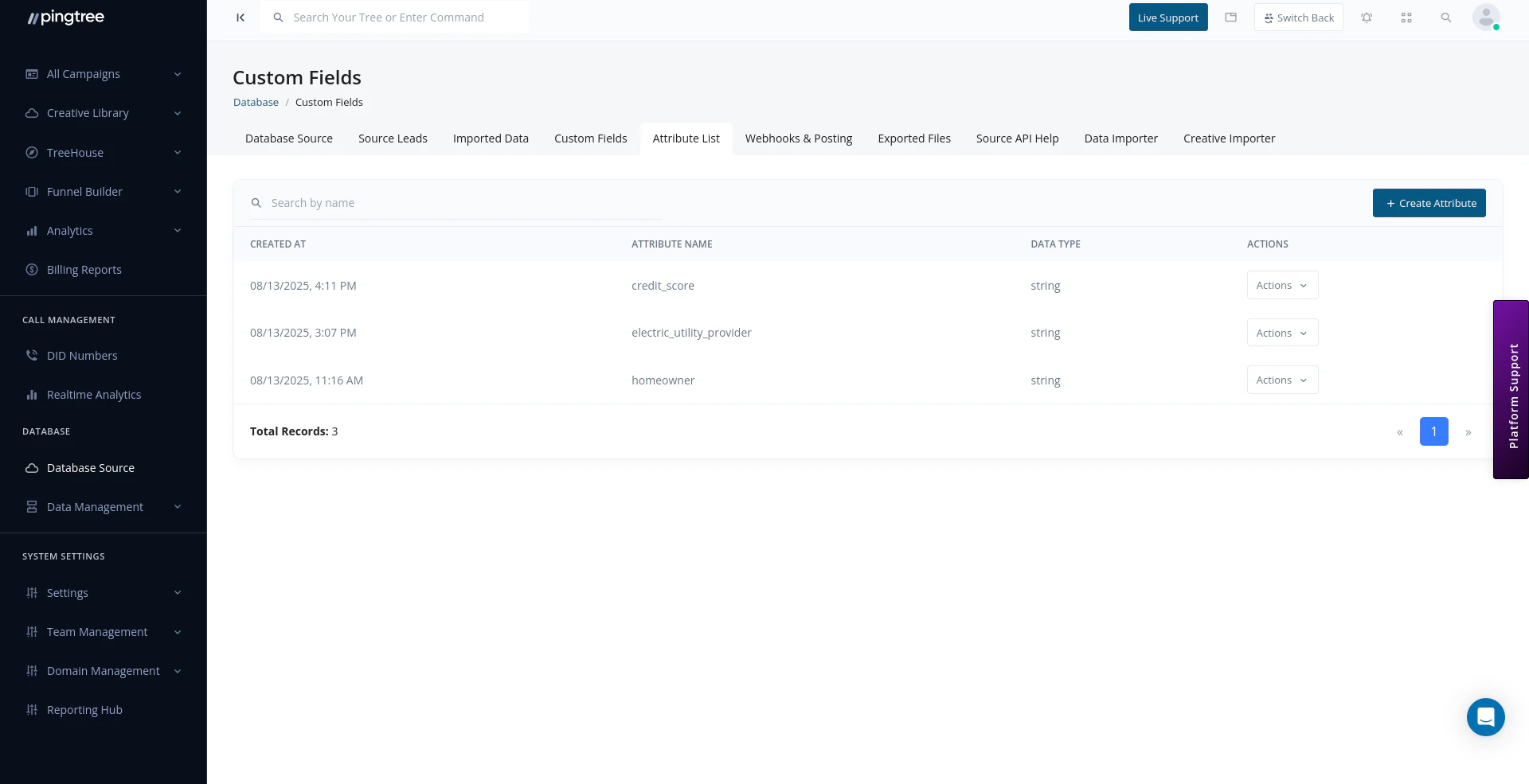
Attribute List with attribute names, data types, and actions
- Tag leads as “High Intent” or “Low Intent” based on engagement signals.
- Mark leads that came from a specific partner or promotion.
- Flag leads that need manual review or follow-up.
Attribute Structure
Attributes are organized into a two-level hierarchy:
This structure keeps your attribute list organized and makes filtering intuitive when you have a large number of tags.
Creating a Parent Label
Parent labels group your attributes into logical categories. To create a parent label:- Navigate to the Attribute List tab within your database source.
- Click Add Parent Label.
- Enter a name for the label group (e.g., “Lead Quality”).
- Click Save.
Creating an Attribute
Once you have a parent label, you can add attributes beneath it. To create an attribute:- Open the parent label you want to add to.
- Click Add Attribute.
- Fill in the attribute details:
- Click Save.
Selection Groups
A Selection Group is used when a single parent label can have multiple attributes applied to the same lead simultaneously. This is useful for multi-value classification scenarios. Example:- Parent Label: “Interest Areas”
- Attributes: “Solar”, “Roofing”, “HVAC”, “Windows”
- A single lead could be tagged with both “Solar” and “Roofing” if the selection group allows multi-select.
Assigning Attributes to Leads
Manual Assignment
- Open a lead from the Source Leads view.
- Scroll to the Attributes section in the lead detail panel.
- Click Add Attribute.
- Select the parent label, then choose the attribute to apply.
- Save the lead.
Automated Assignment
Attributes can also be assigned automatically via:- Routing Rules: Apply an attribute when a lead is routed to a specific buyer or destination.
- Import Rules: Assign an attribute to all leads within a specific CSV import file.
- API: Pass attribute assignments in the lead ingestion API payload.
Tip: Automate attribute assignment during import by pre-tagging all leads in an uploaded file with a source-specific attribute. This makes it easy to filter and report on leads by their origin file later.
Using Attributes for Filtering
Attributes integrate with the Source Leads search and filter system. You can filter the leads table by one or more attribute values to narrow down your view:- Open the Source Leads tab.
- Click Filter.
- Select Attribute from the filter options.
- Choose the parent label and specific attribute value.
- The table updates to show only leads with that attribute.
Using Attributes in Reports and Exports
When exporting leads to CSV, you can include attribute columns in the output. Each parent label becomes a column, and the assigned attribute value populates the row. In pivot reports and analytics, attributes can be used as dimensions — letting you break down performance metrics (e.g., conversion rate, revenue) by lead quality segment or source type.Managing and Editing Attributes
- Edit an attribute: Click the edit icon next to any attribute to update its name, parent label, or description.
- Deactivate an attribute: Toggle the attribute off to prevent it from being assigned to new leads. Existing assignments are retained.
- Delete an attribute: Permanently remove the attribute. This will also remove it from any leads it was assigned to.
Tip: Before deleting an attribute, export a filtered list of all leads that carry that attribute so you have a record of the affected records.