

Overview
The Source Leads view displays every lead stored within a database source. From here you can search and filter leads, inspect individual records, update statuses, move leads between sources, and export data — all from a single interface.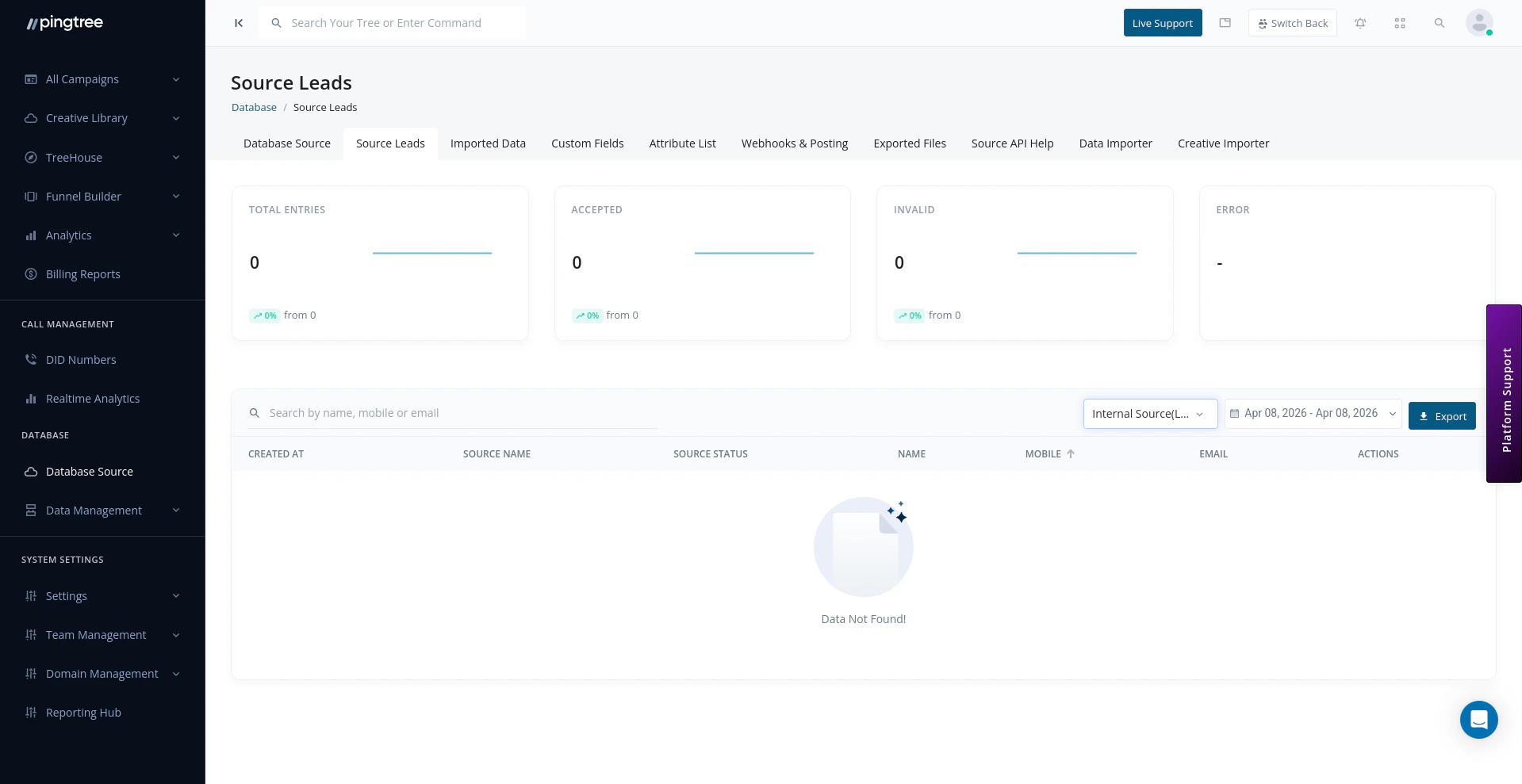
Source Leads view with search, filters, and lead summary cards
Browsing Leads
When you open a database source and navigate to the Leads tab, you will see a paginated table of all leads in that source.Searching and Filtering Leads
Use the search and filter controls above the leads table to narrow down results:Tip: Combine the email filter with a date range to quickly identify if a specific contact submitted multiple times within a campaign window.
Advanced Search with Elasticsearch
For large databases containing thousands or millions of leads, the Advanced Search mode uses Elasticsearch to deliver fast, full-text search across all lead fields. To use Advanced Search:- Click the Advanced Search toggle at the top of the leads table.
- Enter your query terms — these can span any field in the lead record.
- Use field-specific filters alongside the free-text query for precision.
- Results return in order of relevance.
Tip: Advanced Search supports fuzzy matching, so searching for “john@gmal.com” will still surface leads with “john@gmail.com” nearby.
Viewing Lead Details
Click any lead row to open its full detail view. The detail panel shows:- All captured lead fields and their values.
- Metadata: submission date, source, IP address, and user agent.
- Distribution History: which buyers or endpoints this lead was posted to, and the outcome of each post.
- Status History: a log of every status change with timestamps and the user or system that triggered the change.
Changing Lead Status
To update a lead’s status:- Open the lead detail view.
- Click the Status dropdown.
- Select the new status.
- Confirm the change.
Moving Leads Between Sources
You can move one or more leads from their current database source to a different source:- Select the leads you want to move using the row checkboxes.
- Click the Move action in the bulk actions toolbar.
- Choose the destination database source from the dropdown.
- Confirm the move.
Tip: Moving leads is non-destructive — the lead record is transferred intact, including all its field data and history.
Exporting Leads as CSV
To export leads from a database source:- Apply any filters you want to limit the export scope.
- Click the Export button.
- The system queues an async export job.
- Once complete, the CSV file will appear in the Exported Files section for download.
Lead Distribution Details
For any lead that has been posted out, the Distribution tab within the lead detail view shows:- The endpoint or buyer the lead was sent to.
- The request payload that was submitted.
- The response received from the buyer system.
- The outcome: Accepted, Rejected, or Error.
- Timestamps for each post attempt.