

Overview
The Imported Data section of a database source gives you a full history of every CSV file that has been uploaded into that source. You can track the status of each import, see how many leads were processed, and review or resolve any fuzzy matches identified during import.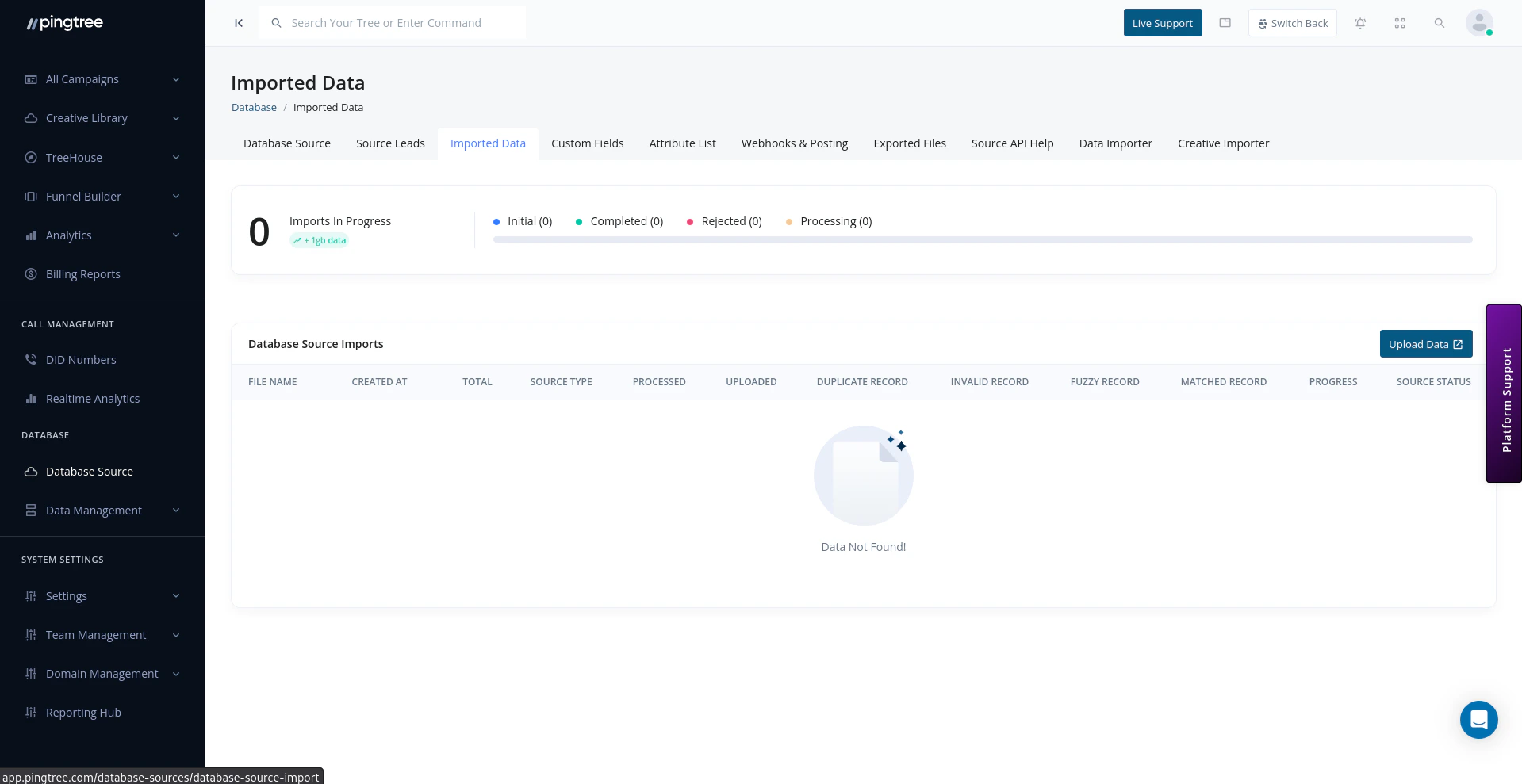
Imported Data view with import progress and file history
Import History Table
Each row in the import history table represents one upload. The table includes:Import Statuses
Tip: If an import shows a Failed status, check that your CSV uses UTF-8 encoding and that required column headers are present and correctly named.
Fuzzy Matching
During import, Pingtree’s fuzzy matching engine scans each incoming lead and compares it against existing records in the source. When a lead is similar — but not an exact match — to an existing record, it is flagged as a Fuzzy Match rather than being automatically merged or rejected.How Fuzzy Matching Works
The system compares key identifiers such as name, email, and phone number. If the similarity score for a lead exceeds a threshold but is not a 100% exact match, the lead is held for manual review. Examples of fuzzy matches:johnsmith@gmail.comvsjohn.smith@gmail.comJon SmithvsJohn Smith- Phone numbers with and without country codes
Reviewing Fuzzy Matches
To resolve fuzzy matches for an import file:- Click the import file row to expand its details.
- Click the Review Fuzzy Matches button.
- For each fuzzy match, you will see:
- The incoming lead from the CSV on the left.
- The existing lead it was compared against on the right.
- A similarity score indicating how closely they match.
- Choose one of the following actions for each pair:
- After reviewing all matches, click Confirm to apply your decisions.
Tip: Review fuzzy matches promptly after each import. Unresolved fuzzy matches remain in a pending state and are not counted as fully imported until resolved.
Lead Counts per Import File
Each import file displays a breakdown of its lead outcomes:
The sum of Matched + Unmatched + Fuzzy Matched + Failed equals the Total Rows in the file.
Re-Importing Failed Rows
If some rows fail during an import:- Open the import file detail view.
- Click Download Failed Rows to get a CSV of only the rows that errored.
- Fix the data issues in the file.
- Re-upload the corrected file using the Data Importer.
Tip: The failed rows CSV includes an additional error_reason column that describes why each row was rejected, making it straightforward to identify and fix data quality issues.