

What is a Database Source?
A Database Source is a centralized lead storage container within Pingtree. It acts as a structured repository that holds leads collected from various channels — whether submitted via API, uploaded via CSV, or captured through campaign forms. Each database source is independent, with its own API key, duplicate rules, required fields, and linked campaigns. You can think of it as a dedicated lead database scoped to a specific use case, product, or advertiser.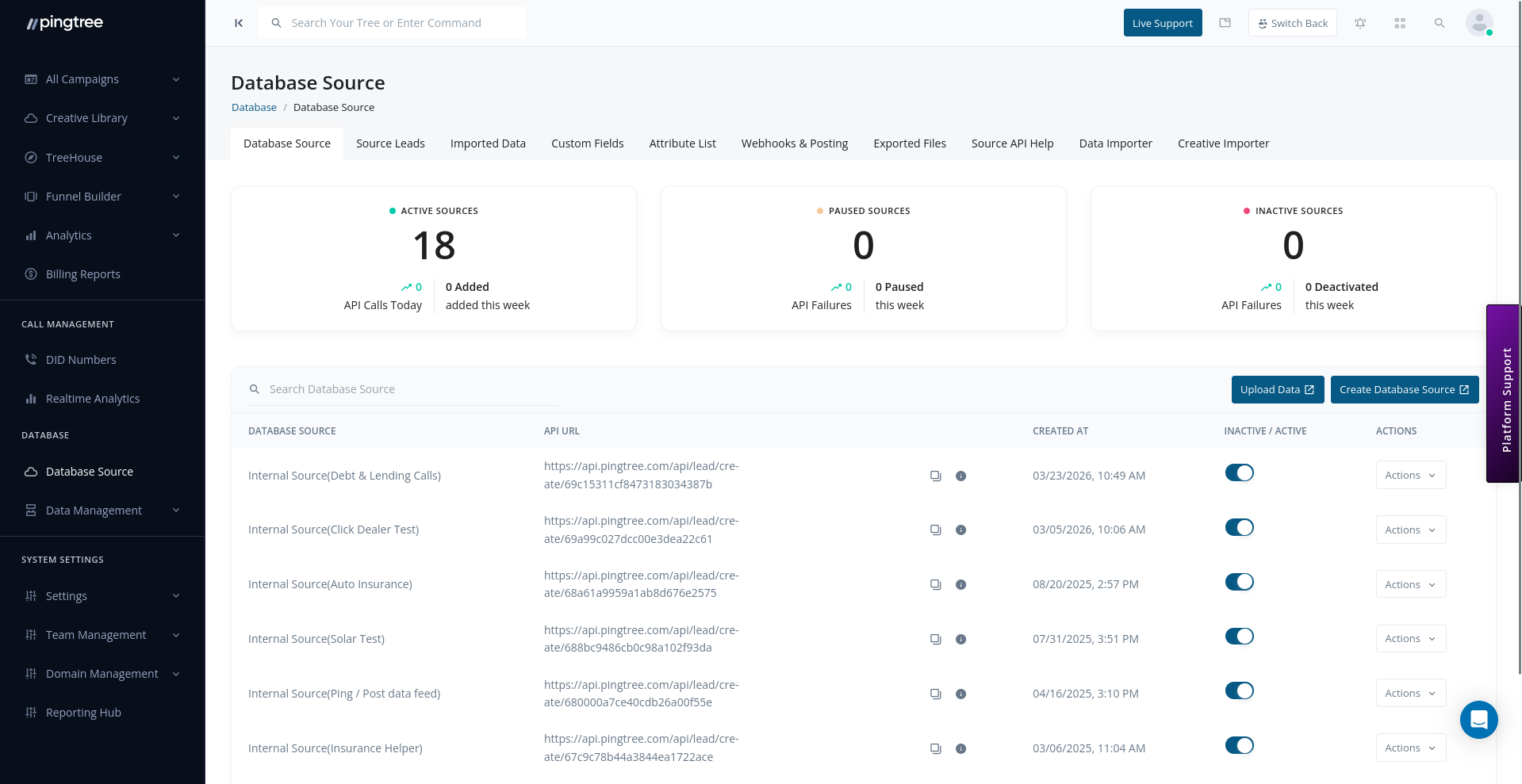
Database sources list with status indicators
Key Capabilities
Creating a Database Source
- Navigate to System Database in the left sidebar.
- Click Database Sources.
- Click the Create Database Source button.
- Fill in the source details:
- Click Save to create the source.
Tip: Use descriptive names that include the vertical, date range, or advertiser — this makes it much easier to manage multiple sources across your organization.
Configuring Duplicate Checking
Duplicate checking prevents the same lead from being stored more than once in a source. Configure this under the source’s settings:
When a lead is submitted and its duplicate field value already exists in the source, the incoming lead is rejected and flagged as a duplicate.
Tip: Usingphoneor a composite custom field instead.
Setting Required Fields
Required fields define which data points must be present in a lead submission for it to be accepted. Any lead missing a required field is rejected at ingestion time. To configure required fields:- Open the database source.
- Go to the Settings or Field Configuration section.
- Mark each field as Required or Optional.
Linking to a Campaign
A database source can be linked to an offer campaign. This allows leads stored in the source to be distributed through that campaign’s routing and buyer logic. To link a campaign:- Open the database source settings.
- Select the target Offer Campaign from the dropdown.
- Save your changes.
Tip: Linking a campaign enables the full distribution pipeline — including ping/post, pingtree routing, and endpoint posting — directly from your stored leads.
Activating and Deactivating a Source
- Active: The source accepts new leads via API and CSV import.
- Inactive: The source is paused. Existing leads are retained but no new leads are accepted.
Source Statistics
Each database source displays a summary of its lead data:Advanced Search
Pingtree supports two search modes for querying leads within a database source:MongoDB-Based Search
Use structured field filters to find leads by any stored field value, date range, or status. This is the default search interface and works well for most use cases.Elasticsearch Search
For large datasets or full-text search requirements, Elasticsearch-powered search provides faster queries and fuzzy matching across all lead fields.Tip: Elasticsearch search is particularly useful when you need to find leads by partial values (e.g., partial email domains or approximate name matches) across millions of records.
API Key Management
Every database source is assigned a unique API key at creation. This key is used to authenticate lead submissions and fetch requests.- View the API key from the Source API Help tab within the source.
- If a key is compromised, regenerate it from the API settings. All future requests must use the new key.