

Overview
The Exported Files section provides a history of all CSV exports requested from a database source. Exports are processed asynchronously — you request the export, and the system notifies you when the file is ready for download. This approach allows large datasets to be exported without blocking your workflow.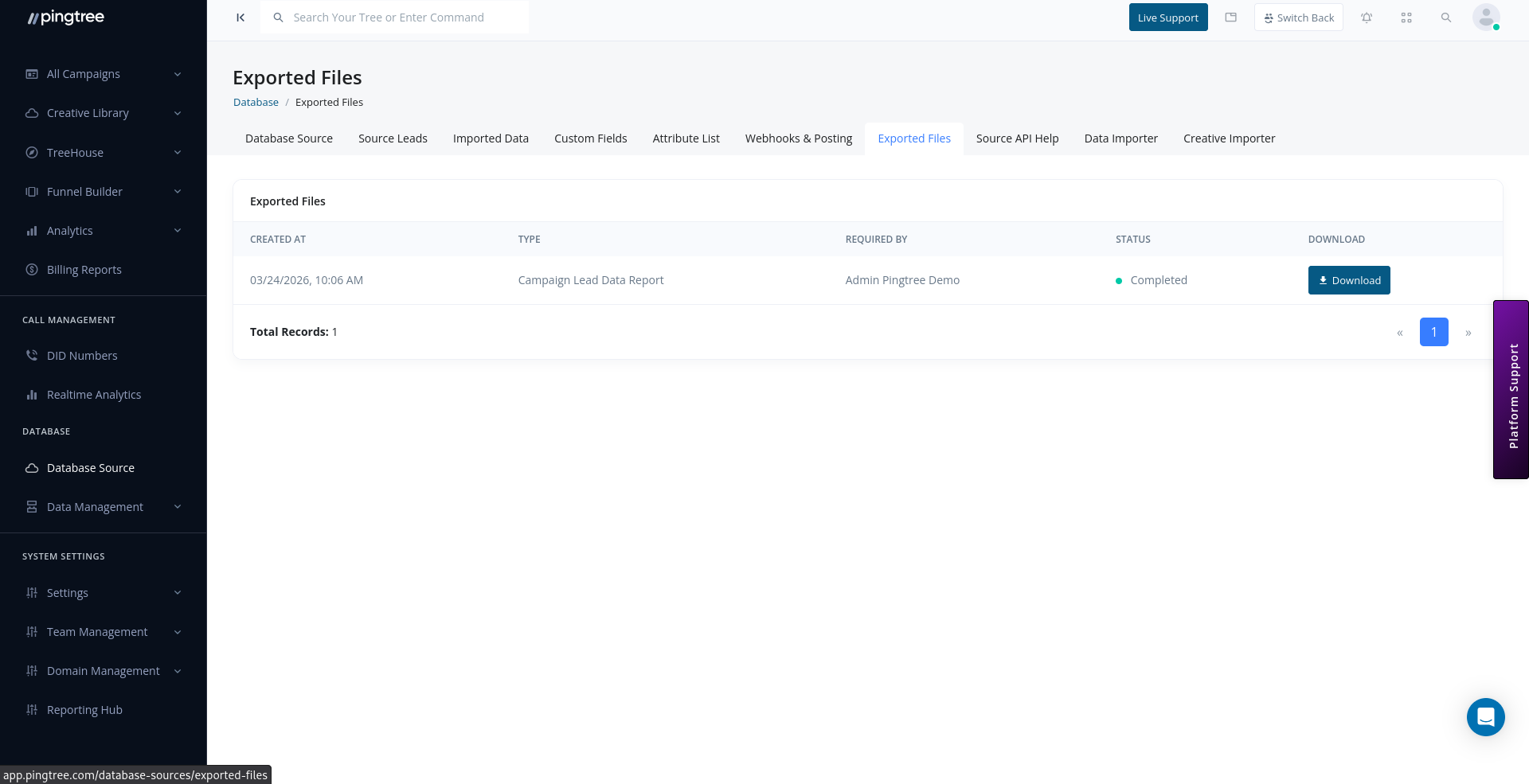
Exported Files list with file status and download button
How Exports Work
- Apply filters in the Source Leads view to scope the leads you want to export.
- Click Export to submit the export request.
- The system queues the export job and begins generating the CSV in the background.
- Once complete, the exported file appears in the Exported Files list.
- Download the file using the secure download link.
Tip: For large exports covering hundreds of thousands of leads, processing may take several minutes. You can continue working in Pingtree while the export runs in the background.
Exported Files Table
The exported files list shows all export requests for the current database source:Export Statuses
Filtering Leads Before Export
You can control which leads are included in an export by applying filters before clicking Export:
The active filters at the time of the export request determine which leads are included. No leads outside the filtered scope will appear in the download.
Tip: Always confirm your filter selection before submitting the export. Once submitted, the export is based on the filter state at that moment — changing filters afterwards does not affect an already-queued export.
Downloading Exported Files
Exported files are available via secure, UUID-based download links. These links are:- Unique per export: Each file has its own link that cannot be guessed.
- Time-limited: Download links may expire after a set period. Download the file promptly after it is ready.
- Access-controlled: Only users with appropriate permissions for the database source can access the download link.
- Open the Exported Files tab within your database source.
- Find the completed export in the list.
- Click the Download button.
- The CSV file will download to your local machine.
Export File Format
Exported CSV files include:- One row per lead.
- All system fields (name, email, phone, address, status, etc.).
- All custom fields defined for the database source.
- Attribute values as additional columns.
- Metadata columns:
created_at,updated_at,source_id.
Export History
The Exported Files tab retains a history of all exports, allowing you to:- Re-download a previously exported file (if the link has not expired).
- Audit which users exported data and when.
- Track how frequently data is being extracted from the source.
Tip: If you need to share exported data with an external partner, download the file first and share it directly. Do not share the Pingtree download URL, as it may be access-controlled to your session.