

Overview
The Creative Importer allows you to upload a CSV file containing creative asset data — such as image URLs, ad copy, metadata, and identifiers — and bulk-import those records into a database source. Like the Data Importer for leads, the Creative Importer includes column mapping, fuzzy matching for near-duplicate creatives, and step-by-step progress tracking.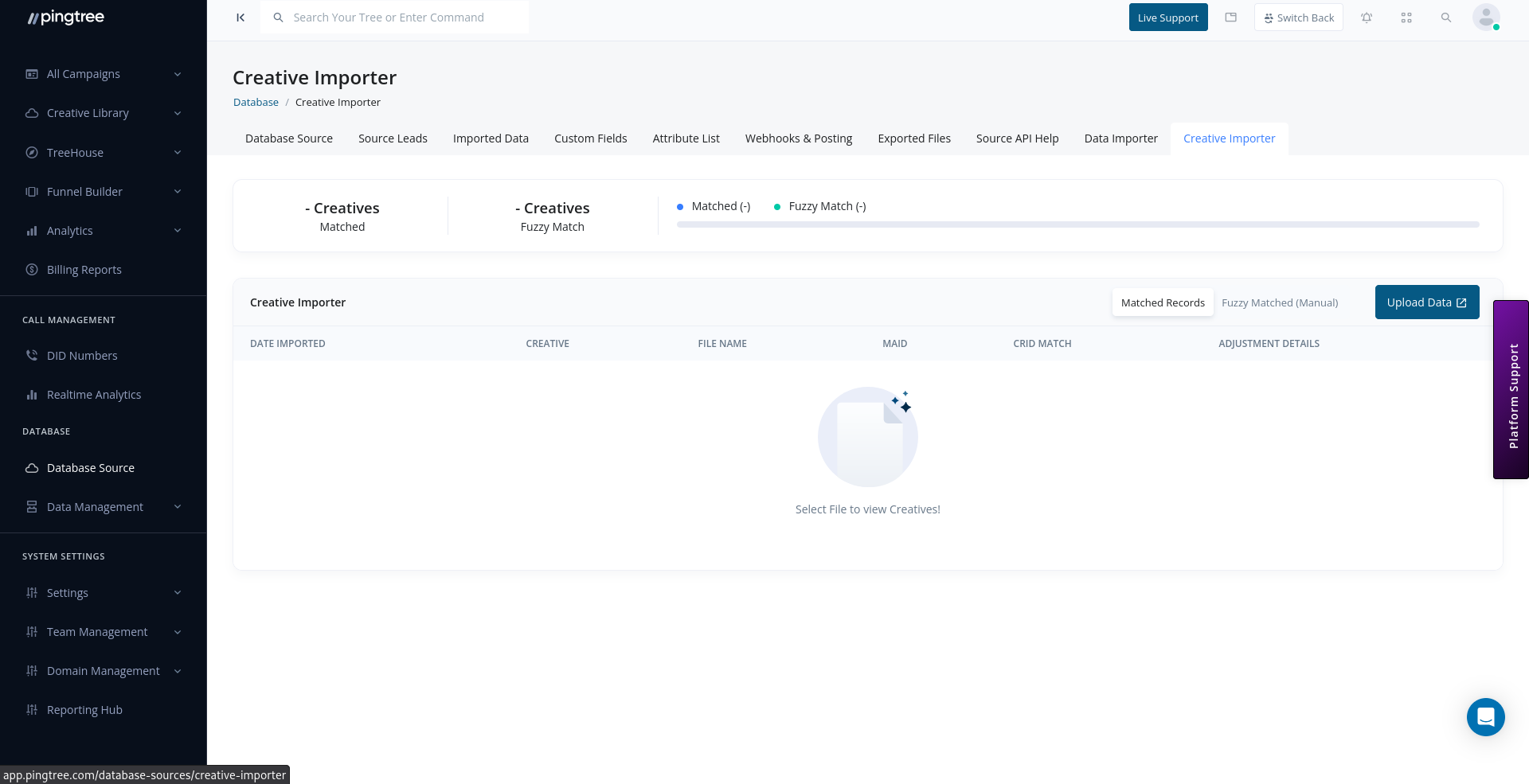
Creative Importer with matched records, fuzzy matching, and upload button
Before You Start
Prepare your CSV file before beginning:- File format:
.csv(comma-separated values). - Encoding: UTF-8.
- The first row must be a header row with column names.
- Asset URLs should be fully qualified (e.g.,
https://cdn.example.com/creative-banner.jpg). - Ensure consistent formatting for any date or numeric fields in the file.
Tip: Run a small test batch of 5–10 creatives first to verify your column mapping is correct before importing a full creative library.
Step 1: Upload Your CSV File
- Navigate to the Creative Importer tab within your database source.
- Click Upload CSV File.
- Select your file from your local machine or drag and drop it into the upload zone.
- The system reads the file and extracts column headers for the mapping step.
Step 2: Map CSV Columns to Creative Fields
Align each column in your CSV with the corresponding creative field in Pingtree.
Standard creative fields available for mapping:
Mark any columns not needed as Ignore to skip them during import.
Tip: If your CSV column headers match the Pingtree field keys exactly, the system will auto-suggest mappings. Always review these suggestions before proceeding.
Step 3: Review and Start Import
Review the mapping summary before starting:
Click Start Import to begin processing.
How Creative Records Are Processed
For each row, the importer:- Validates the row against required fields and format rules.
- Checks for exact matches against existing creative records in the source.
- Checks for fuzzy matches — creatives similar to existing records.
- Creates or updates the record based on the outcome:
Fuzzy Matching for Creatives
The fuzzy matching engine compares incoming creative records against existing ones using key identifiers such as the creative name, asset URL, and ad copy. Records that are similar but not identical are flagged as fuzzy matches rather than being merged automatically. To review fuzzy matches:- Go to the Imported Data tab after the import completes.
- Open the import file and click Review Fuzzy Matches.
- For each pair, compare the incoming creative (left) with the existing record (right).
- Choose an action:
- Click Confirm to apply your decisions.
Tip: Fuzzy matches most commonly occur when the same creative has been re-exported and re-uploaded with minor naming changes. Review carefully to avoid creating duplicate assets in your library.
Bulk-Approving Imported Creatives
After a successful import, you can bulk-approve all newly imported creatives without reviewing each one individually:- Go to the Creative Library or the imported creatives list.
- Select all creatives from the import using the Select All checkbox.
- Click Bulk Approve.
- Confirm the action.
Tip: Use bulk approval only when you have pre-validated the creatives externally (e.g., through an advertiser review process). For new or unverified creatives, review each record individually before approving.
Viewing Import File Counts and Status
The Imported Data tab shows a summary for each creative import file:
Import status follows the same lifecycle as lead imports:
Re-Importing Failed Rows
If some rows fail:- Open the import file in Imported Data.
- Click Download Failed Rows to get a CSV with only the failed records and their error reasons.
- Fix the data issues.
- Re-upload the corrected file through the Creative Importer.